Getting started with Sozee
Sozee is your own content studio, where an idea becomes a photo or a video of your character in moments. This guide walks you through the first steps: creating your character, finding your way around the Create page and making your first photos and videos.
Start here · 5 min read · Updated 2026-11-11
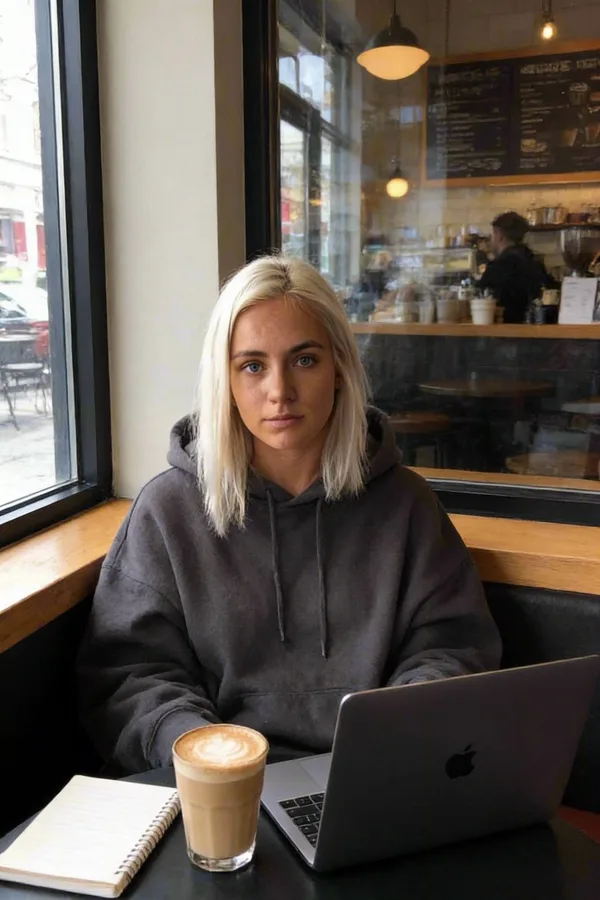
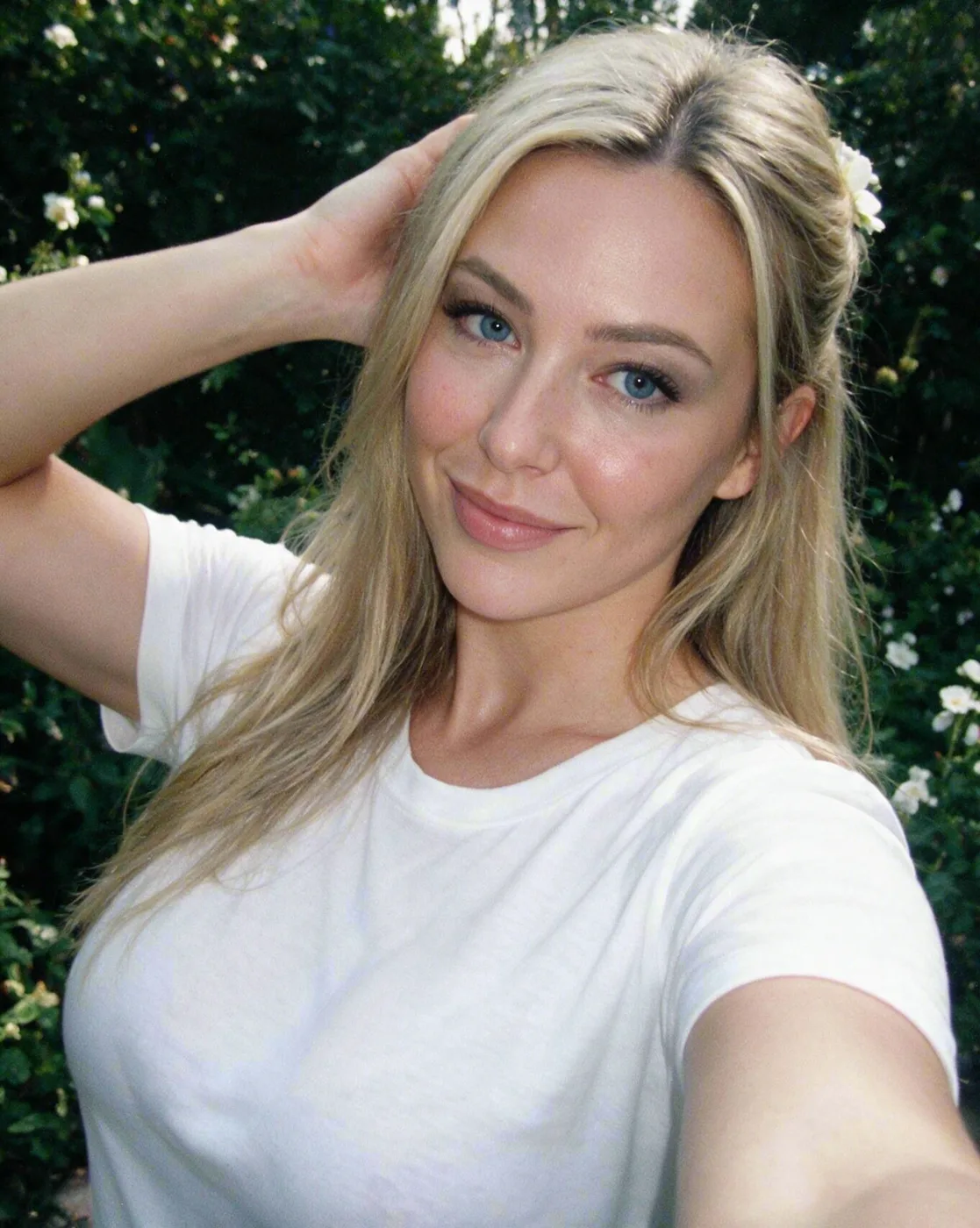
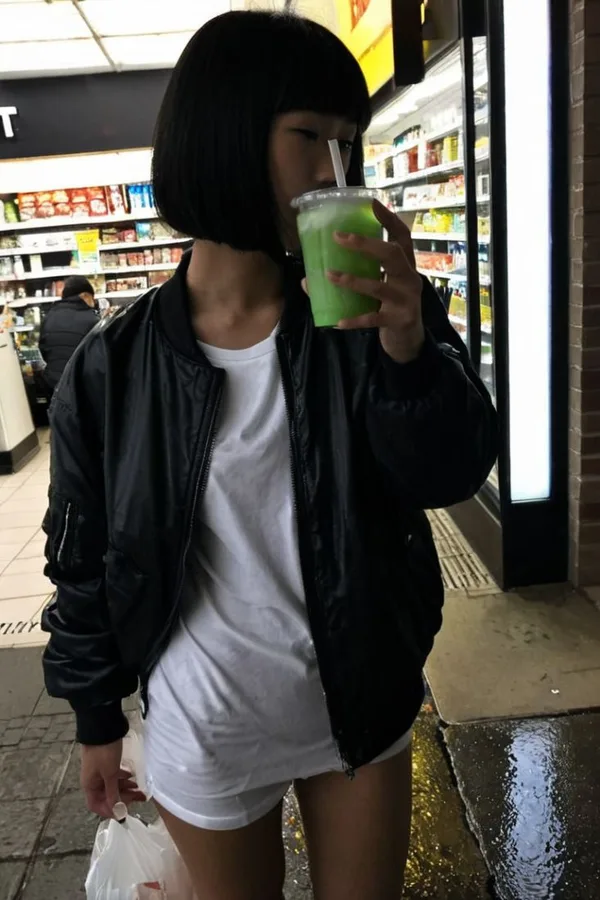
What you'll learn
- How to create your character
- What each mode on the Create page is for
- Which image and video settings you can choose
- The first things to try
Start with your character
Almost everything in Sozee is made with a character, so create yours first. Go to Characters in the top navigation and start a new character. You can choose between two kinds.
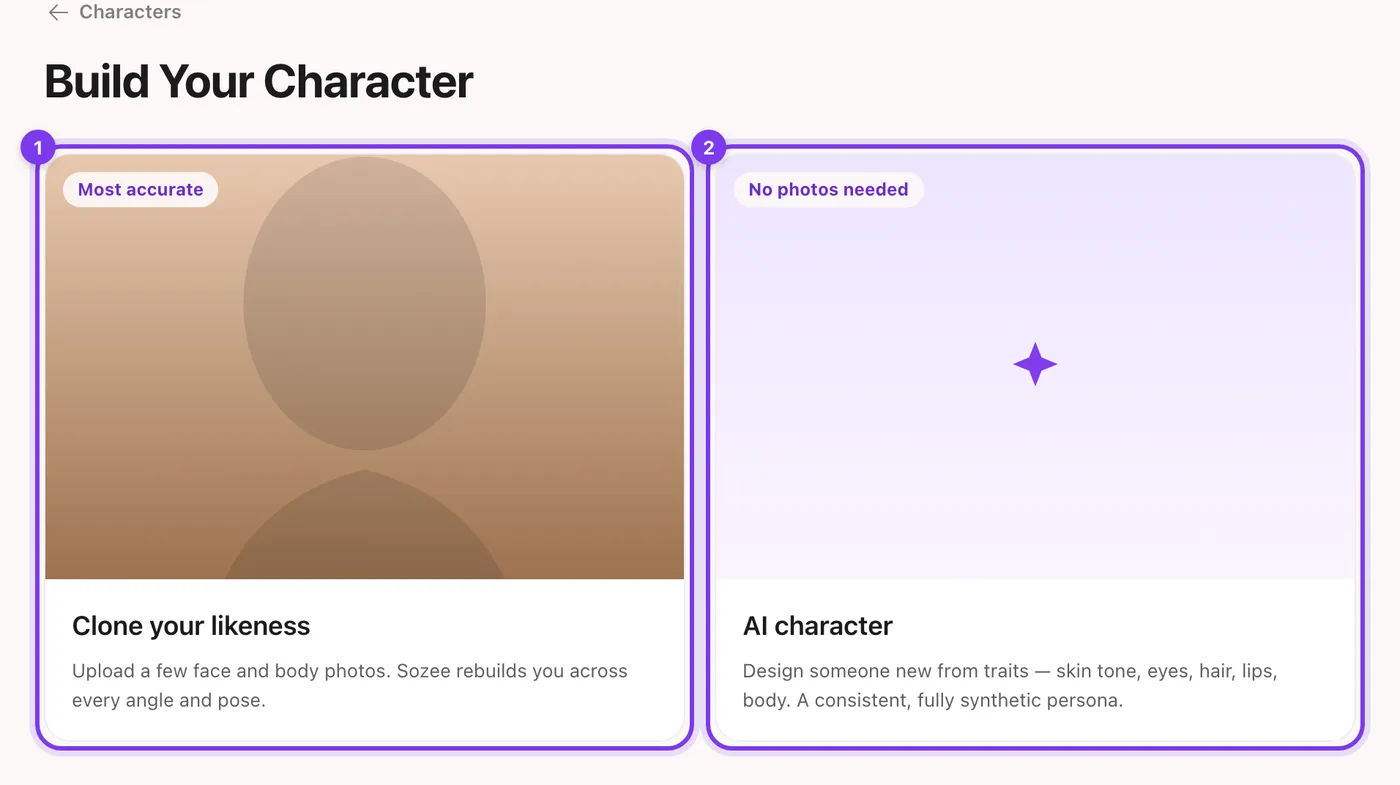
- Clone your likeness. Upload a few face and body photos, and Sozee rebuilds you across every angle and pose. See how to choose your photos.
- AI character. Design someone new from traits such as skin tone, eyes, hair, lips and body. A consistent, fully synthetic persona.
Every account can hold at least one character. Creator and Agency plans include more character slots.
The Create page: your modes
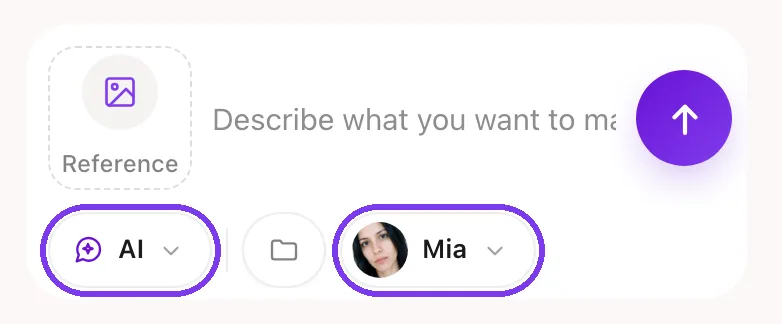
The Create page is where you make content. Along the bar at the bottom of the screen you choose a mode.
- AI. Describe what you want in plain words and Sozee works out the details for you. It's the mode you land on.
- Image. Make photos from a prompt. Pick your character from the character button, or choose No character for an image made from your text alone.
- Video. Make videos. Choose how to start: Starting Image (animate a photo from your Vault), Explore Video, Clone Reel (the same video, with your character), From a Video (recreate a video you upload) or Describe An Idea (a video from words).
- Voice Note and Live Mode. Make a voice note in your character's voice, or stream as your character live.

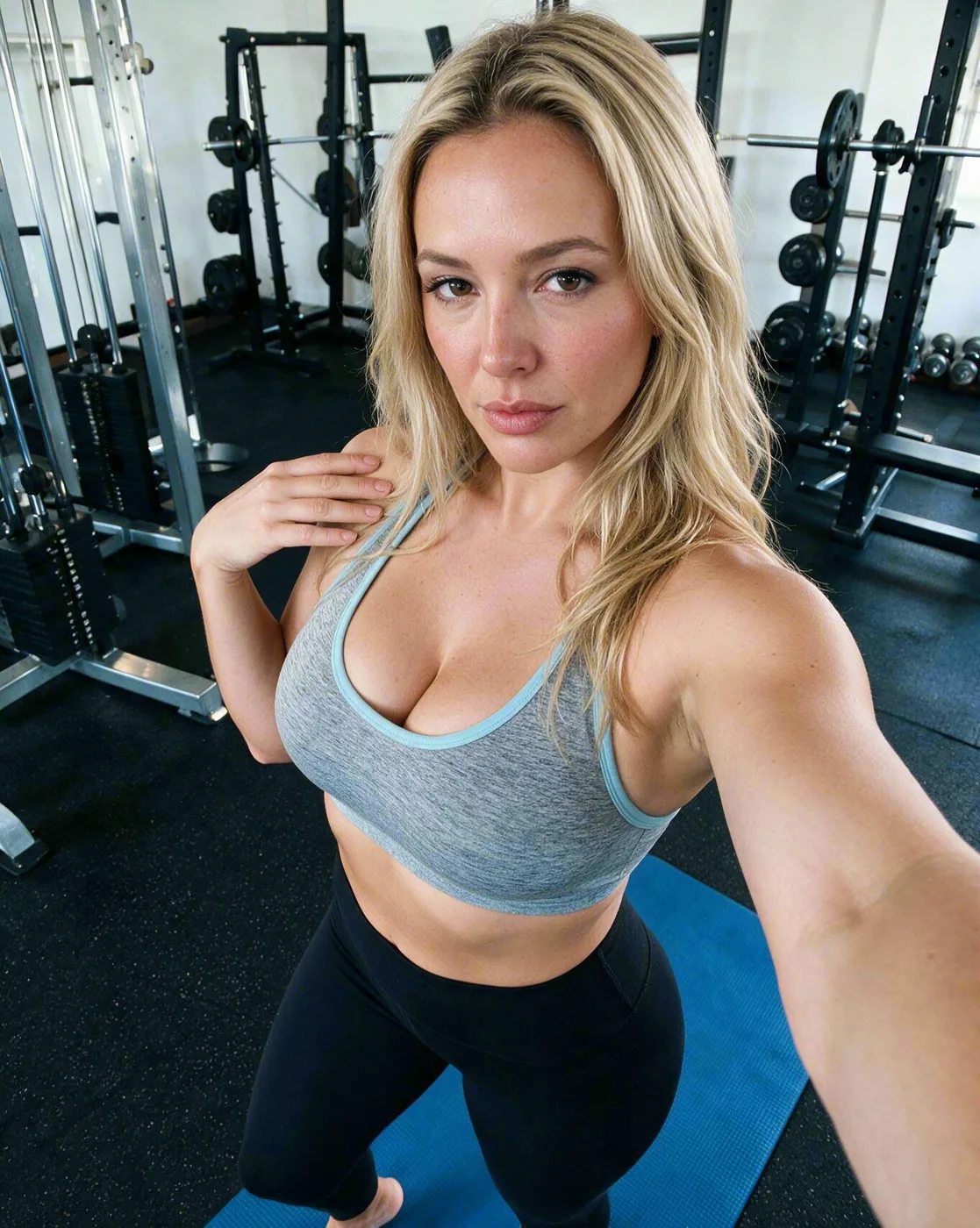
Made in Sozee.
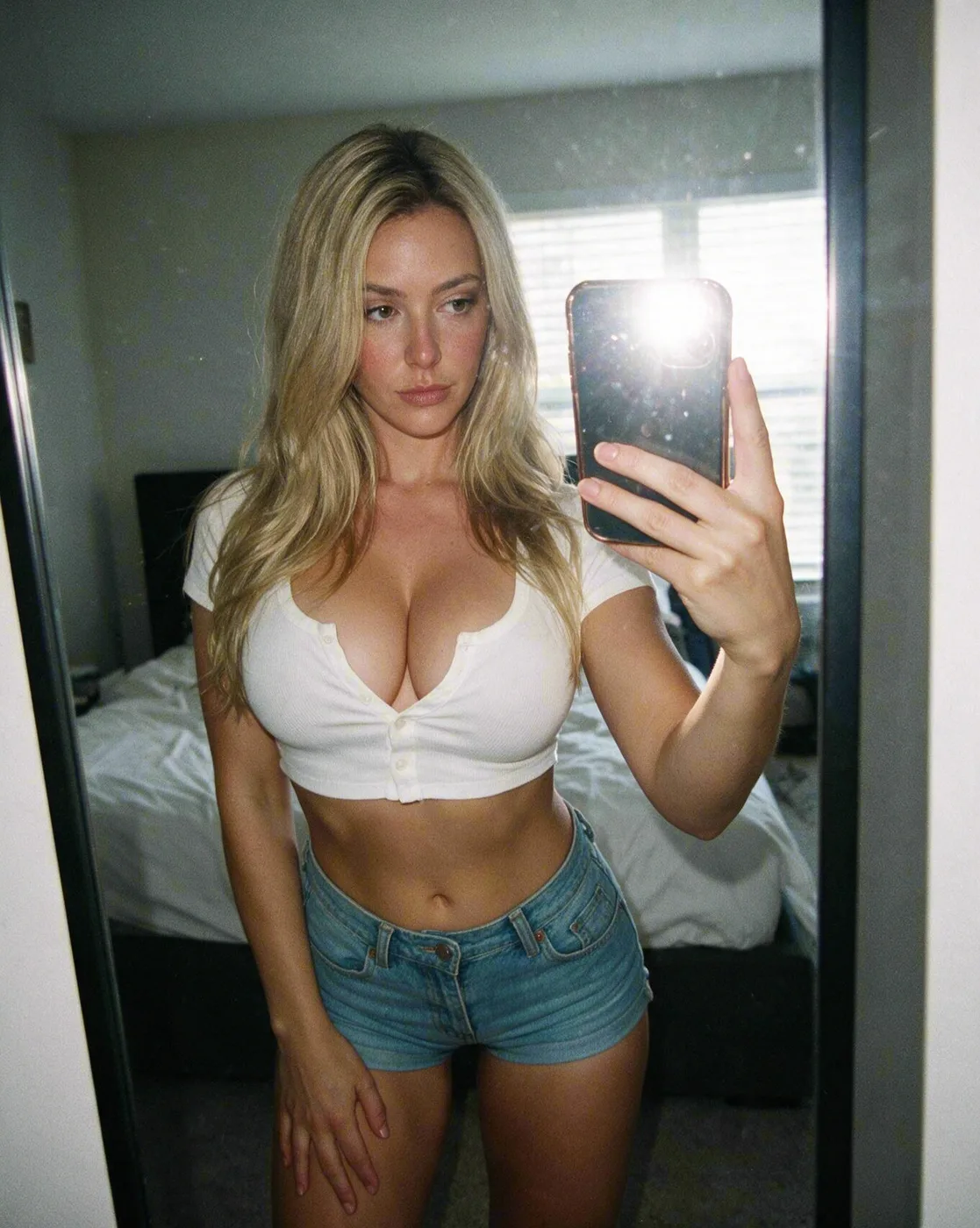
Your finished photos and videos are saved in your Vault, where you can open, edit, download and organise them.
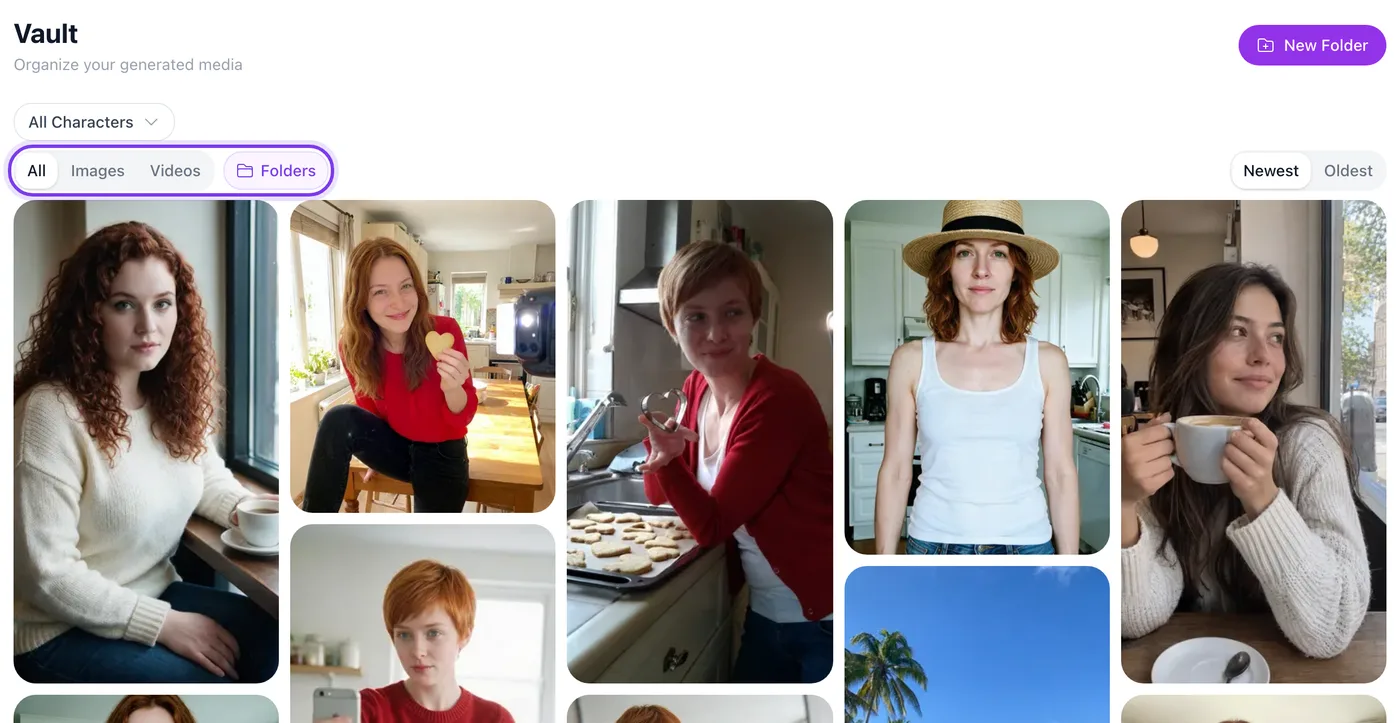
Image settings
| Setting | Options |
|---|---|
| Quantity | 1, 2 or 4 images per prompt |
| Resolution | 1K, 2K or 4K (character images) |
| Aspect ratio | 4:5, 1:1, 3:4, 9:16 or 16:9 |
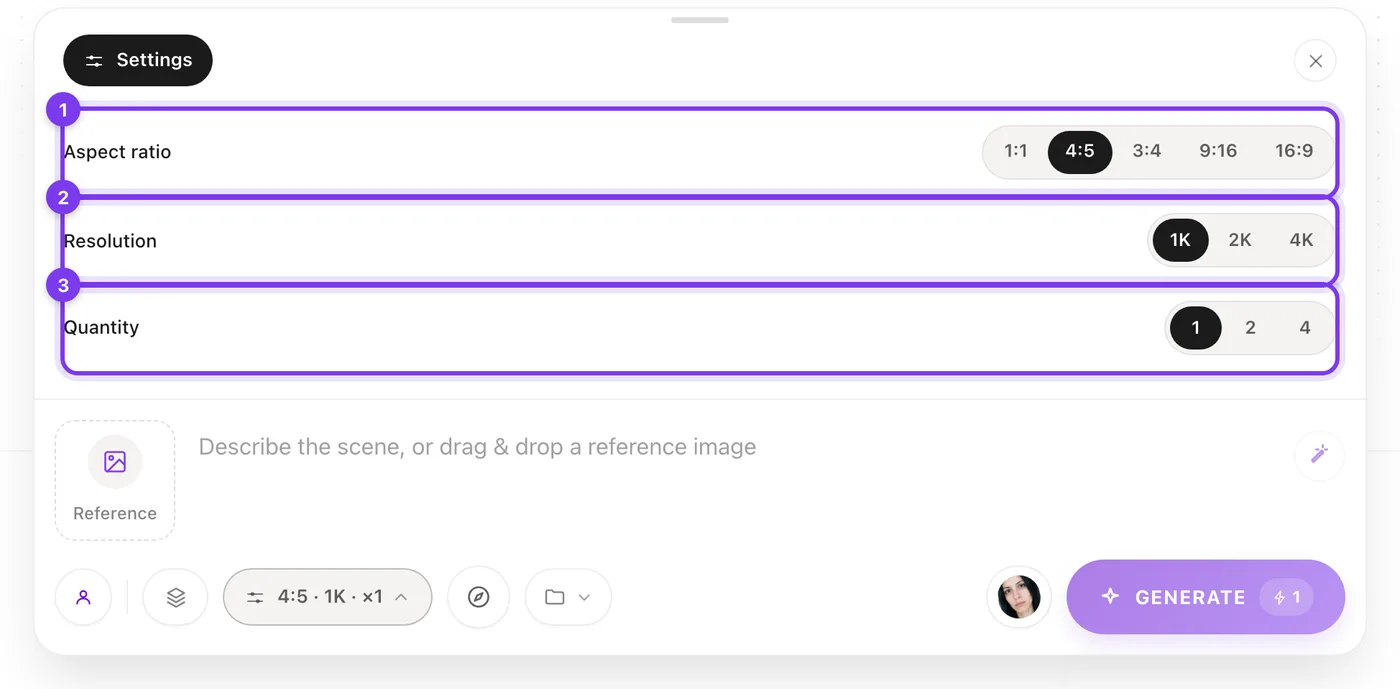
- 1K suits social media posts and quick content. 2K and 4K give more detail, for larger displays and prints.
- Each image you make uses credits, so 4 images cost four times as much as 1. Higher resolutions cost more per image. See how credits work.
- 2K, 4K and the aspect ratios other than 4:5 are part of the paid plans.
Video settings
You set the length, resolution and shape in the last step of the video flow, before you generate.
| Setting | Options |
|---|---|
| Length (Starting Image and Describe An Idea) | 5, 10, 15, 30, 60 or 90 seconds |
| Length (Explore Video) | 5, 10 or 15 seconds |
| Resolution | 480p or 720p |
| Aspect ratio | Auto, 1:1, 4:5, 9:16 or 16:9 |
Made in Sozee.
Your first steps in Sozee
- Browse Explore Explore is the home page. Scroll through what other creators have made for ideas you'd like to try with your own character.
- Create your character Add your face and body photos, or design an AI character, in Characters.
- Make your first photos Open Create, choose Image, pick your character and describe a scene. Start with 1K and a quantity of 1 or 2 while you find your feet.

In the app. Your character (1), the prompt (2) and the settings (3). The price shows on Generate. - Fix what's nearly right Open a photo and use the tools beside it, such as Comment Edits or In-paint, instead of starting again. See the editing tools guide.
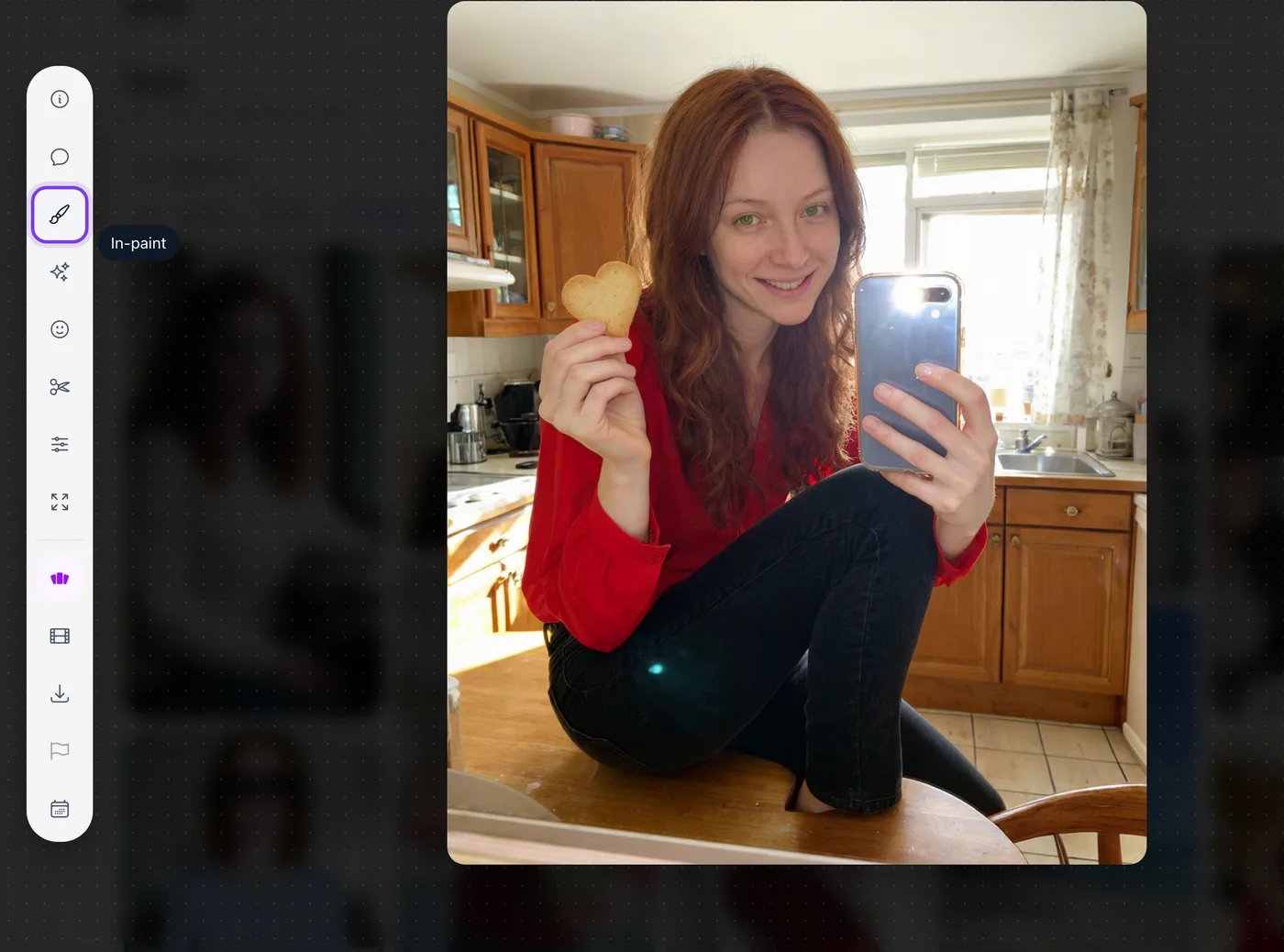
In the app. The tools sit in the rail beside an open photo. - Try Agent When you'd rather describe a whole task, such as a photo set or a video like one you've seen, open Agent in the top navigation. See the Agent guide.

In the app.
Need a hand?
If you have a question, want prompting advice or want to learn more, the support team is here to help. Use the chat button in the app to talk to the Sozee support team.
You know the basics. Time to make something. Create your character
Next, read how credits work.
Related guides
- How to choose photos to train your AI character — How to create an AI model of yourself: which face and body photos to upload, what to avoid, and how Sozee builds a consistent character from them.
- How Sozee credits work — How Sozee credits work: what AI photos, videos, edits and voice cost, Pay As You Go versus a plan, and how to make credits go further.
- How to write prompts in Sozee — How to write AI image prompts that work: copy-ready AI photo prompts, the structure of a strong prompt, and examples for selfies, outfits and settings.