Agent: research, make and schedule from one chat
Agent is a chat that does the work. Tell it what you need in plain words, and it finds what's trending, makes the photos, videos and voice notes with your Character, writes the captions and queues the posts. Everything happens in one conversation, and nothing is made until you confirm it.
Agent · 7 min read · Updated 2026-11-11

What you'll learn
- Where to find Agent, and where your old Copilot chats went
- What Agent can do, and how to start each task
- How to bring in links, uploads and your saved libraries
- The difference between cloning a video, recreating it and making one like it
- How to brief Agent so the first result is the one you wanted
Where to find it
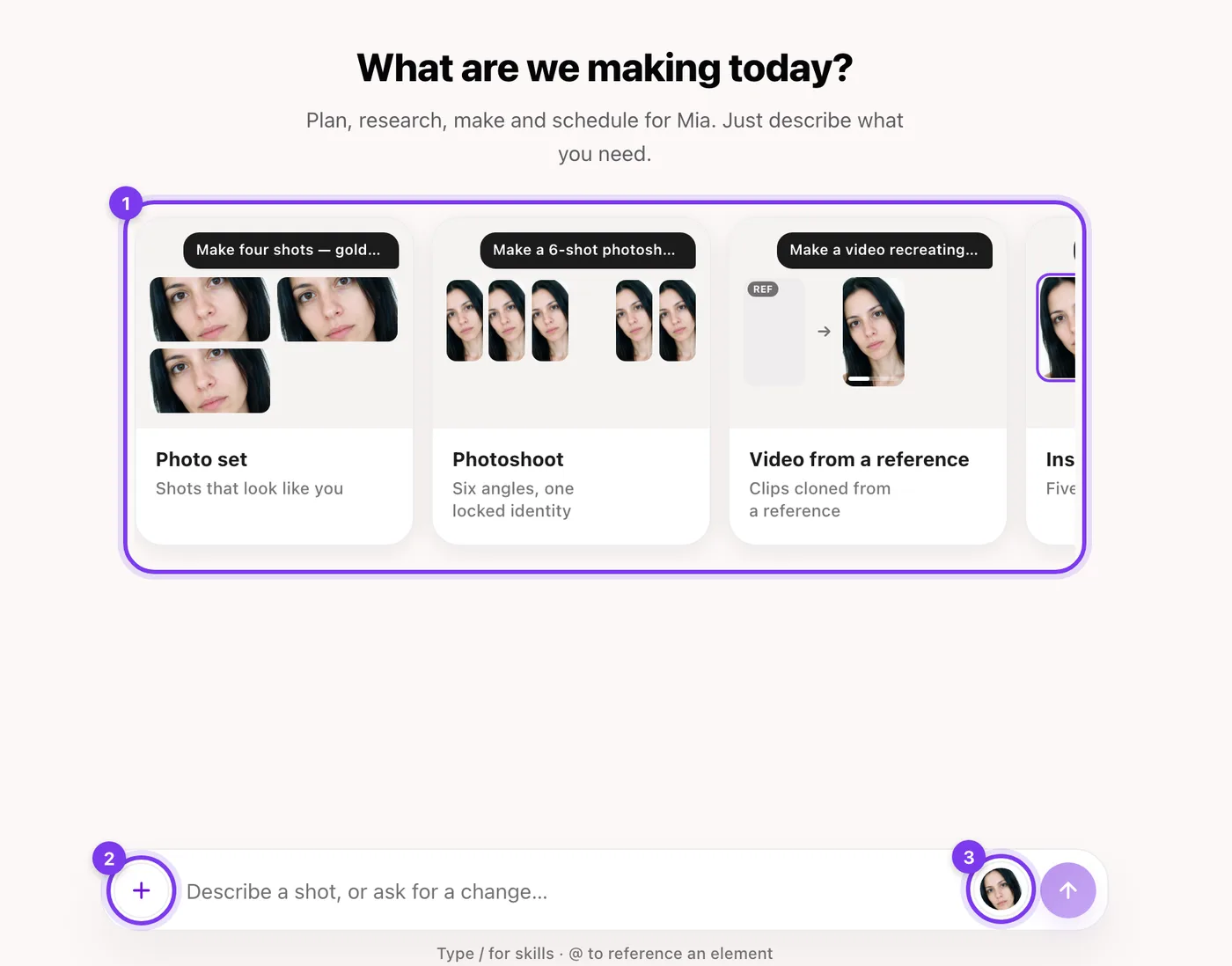
Agent is in the top navigation, between Create and Characters, where Copilot used to be. Open it and you land on “What are we making today?” with a row of starting points underneath. Your conversations are listed on the left under Chats, with New chat at the top and a search to find an old one.

What Agent can do
Each starting point on the first screen is one thing Agent knows how to do. Tap a card and it writes a ready-made request into the message box. It never sends it for you, so change the details first, then send. You can also type / in the message box to search the same list.
Make
- Photo set: shots that look like you.
- Photoshoot: six angles, one locked identity.
- Video from a reference: clips cloned from a reference.
- Instagram carousel: five slides built for saves.
- Instagram story: vertical, in the safe zone.
- Voice note: a voice note, 15 seconds.
Made in Sozee.
Find and write
- Research trends: viral posts in your niche.
- Start from a viral post: a winning post, cloned or recreated with your Character.
- Make one like this: a video's format, about your Character's life.
- Content ideas: ideas drawn from the backstory.
- Write captions: copy in your Character's voice.
Post and set up
- Schedule posts: queue posts to every platform.
- Create an AI character: design a face, body and vibe from scratch.
- Set up my clone: add photos, verify and train your likeness (shown until you have a Character).
Step by step
- Pick your Character The Character button sits next to Send in the message box. Tap it to choose who you're creating as. Agent remembers the pick for next time.
- Say what you want Tap a starting point or type it yourself. Add references with the + button, or your saved libraries with @. Both are covered below.
- Answer what it asks When Agent needs a decision, such as which outfit, which language or what the video is about, it shows a card with choices. Tap one, or type your own answer.
- Check the plan, then confirm Before anything is made, Agent shows a card with what it's about to do. For a video, that's the plan scene by scene. Nothing starts and nothing is spent until you press Confirm. Want a change? Say so in the chat and it updates the plan.
- Keep going in the same chat Results arrive in the conversation. Ask for the next step right there: “write a caption for this”, “make two more like the second one”, “schedule it for Friday morning.”
Bring in references
The + button in the message box adds a reference to your message. You can add up to four references per message.
- Select from Vault: use something you've already made.
- Upload a photo: a photo of your Character to edit or build on, or a reference to match a pose, outfit or scene.
- Upload a video: a clip of your Character to edit or build on, a video to clone (same movement and cuts), or someone else's video to recreate (see the next section).
- Upload audio: a voice sample. MP3, WAV or M4A, up to 4 MB.
- Reel URL: paste an Instagram or TikTok link. Agent clones a dance or a lip sync and recreates other videos, and tells you which before any price.
- Social post URL: use any post as a reference. Paste a link to a video post and Agent clones or recreates it, and tells you which.
Clone it, recreate it or make one like it?
Found a video that's working for someone else? Agent can use it three ways, and knowing which one you're getting makes the biggest single difference to what comes back.
| Option | What you get | Use it when |
|---|---|---|
| Clone this reel | The same video, your Character. The same movement and the same cuts, with your Character in place of the person. | The movement is the hit: a dance or a lip sync. |
| Recreate this video | A new video based on it. The same structure and pacing, filmed new with your Character, so it won't match the original move for move. | The content is the hit: a talking video, a tutorial, a day in the life. |
| New story, same style | Make one like this. A new episode about your Character's own life, told in that video's format. | The format is the hit: a storytime, a day in the life, a “things I'd never do” list. |
Agent offers Clone this reel on dance and lip-sync posts, and clones a dance or lip-sync link you paste. If you ask to recreate a dance or a lip sync, it's cloned instead, and Agent tells you so before it shows a price. For New story, same style, Agent asks What is it about: pick a topic or type your own.
You'll meet these choices when you upload a video, and on the posts Agent finds for you with Research trends or Start from a viral post. To clone a video you upload, pick A video to clone. A photo post offers Use as inspiration instead.
Briefing Agent well
Agent asks when something's missing, but every question it has to ask is a round trip. The more of these you put in your first message, the faster you get there: who, what, where it's going and the feel.
Don't do this
“Make some content”: for which Character, what format, which platform? “Do something like that viral one”: which one? Paste the link with +, then Reel URL. “Make it in my place”: Agent doesn't know your place unless you pick it with @.
Do this instead
“Make an Instagram carousel of Mia's morning routine, cozy and warm, for saves.” A pasted reel link, then “Make one like this, about Mia's first week at the gym.” “Four shots of Mia in @Loft apartment wearing @Black slip dress, golden hour.”
From chat to posted
When something's ready, ask Agent to post it: “schedule this to Instagram for Friday at 6pm.” It drafts the post with the media and caption and shows it as a card. Press Schedule post, or Post now to publish straight away. Nothing goes out until you press it.
Made in Sozee.

Quick checklist
- Agent is in the top navigation. Old Copilot chats are in Chats, marked Earlier.
- Tap a starting point or type /. The request is a draft until you send it.
- + for links, uploads and Vault, up to four references per message.
- @ for your saved Environments, Outfits and Objects.
- Clone for the same movement and cuts. Recreate for a new video based on it. Make one like this for a new story in the same format.
- Nothing is made, spent or posted until you confirm the card.
Start with a trend, a link or a half-formed idea. Agent takes it from there. Open Agent
Related guides
- How to write prompts in Sozee — How to write AI image prompts that work: copy-ready AI photo prompts, the structure of a strong prompt, and examples for selfies, outfits and settings.
- Comment Edits: point at it, say what changes — Comment Edits lets you pin notes on an AI photo and send every change at once. How to place comments, add a reference picture and word them well.
- Edit moments: video editing inside Sozee — Edit video with AI in Sozee: mark a moment in a clip, describe the change, and keep the rest of the video as it was. Steps, tips and limits.