Comment Edits lets you leave notes directly on a photo, the way you would mark up a proof. Pin a comment on each spot you want changed, attach an outfit or product to show exactly what you mean, and send every change in one go.
Edit · 5 min read · Updated 2026-11-11
What you'll learn
Where to find Comment Edits
How to pin comments and send your edit
How to show the change with a reference picture
How to write a comment that gets the result you pictured
Where to find it
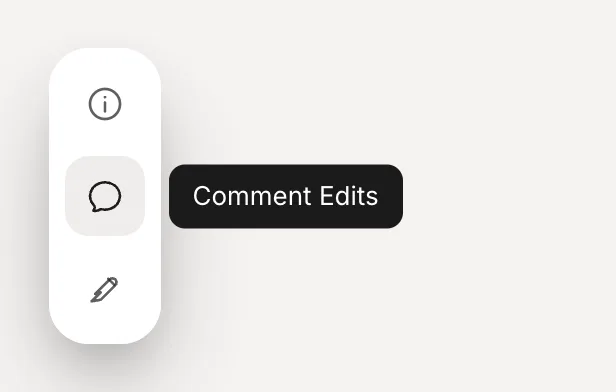
Comment Edits lives in the image viewer. Open any photo from the studio or from your Vault and look at the tool rail beside the image. Comment Edits is the second tool, directly under Info.
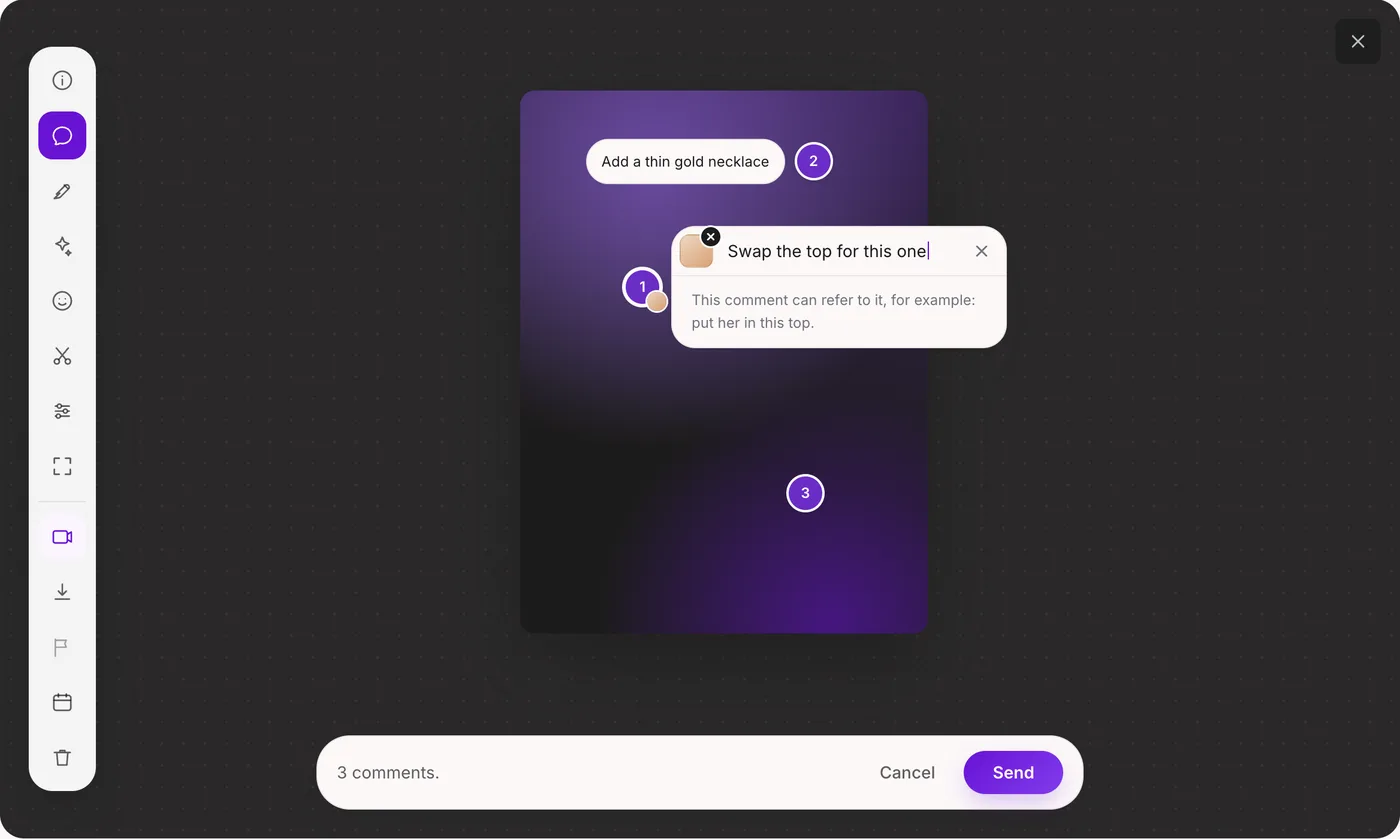
In the app. Comment Edits sits second in the tool rail, right under Info.In the app. Three comments on one photo. Each numbered pin carries its own note, and the bar at the bottom sends them all at once.
Step by step
Open Comment Edits Open the photo and choose Comment Edits from the tool rail. The bar at the bottom reads “Tap the image to add a comment.”
Click or tap the spot you want to change A numbered pin drops where you clicked. Put it right on the thing you mean: the top, the necklace, the lamp in the corner.
Write what should change there Type your note in the comment box. One change per comment works best.
Add a reference picture, if it helps Use the + next to a comment to attach the exact item you want. See the next section.
Repeat for every change, then press Send Add as many comments as you need, up to eight, and press Send to send them together. Your edited photo arrives as a new version in the same board, and the original stays untouched.
On your phone
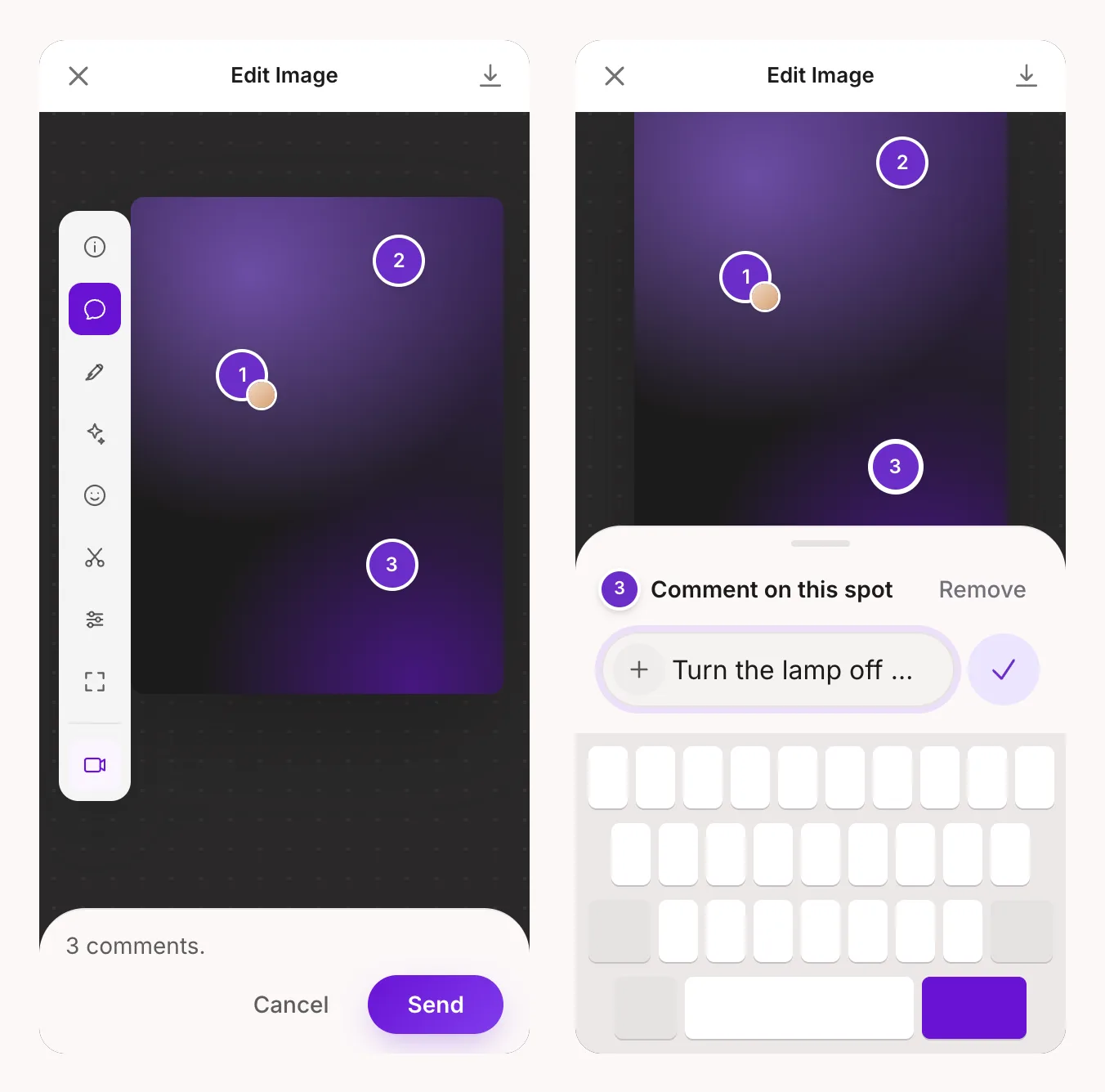
In the app. Tap the image to drop a pin. Each note opens in a sheet above the keyboard.
Show it, don't describe it: reference pictures
Some changes are hard to put into words. “A red ribbed crop top with a twist at the front” still leaves room for guessing. A reference picture removes the guessing: attach the actual item, and the comment can simply say “swap the top for this one.”
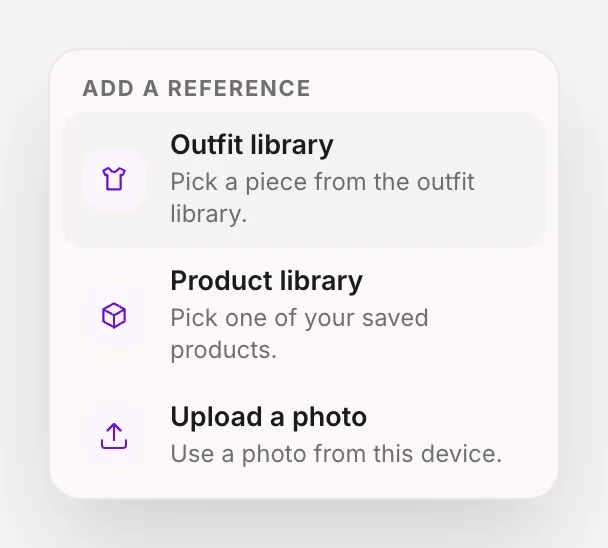
Press the + beside a comment and choose where the picture comes from.
In the app. The + next to a comment opens the reference menu.
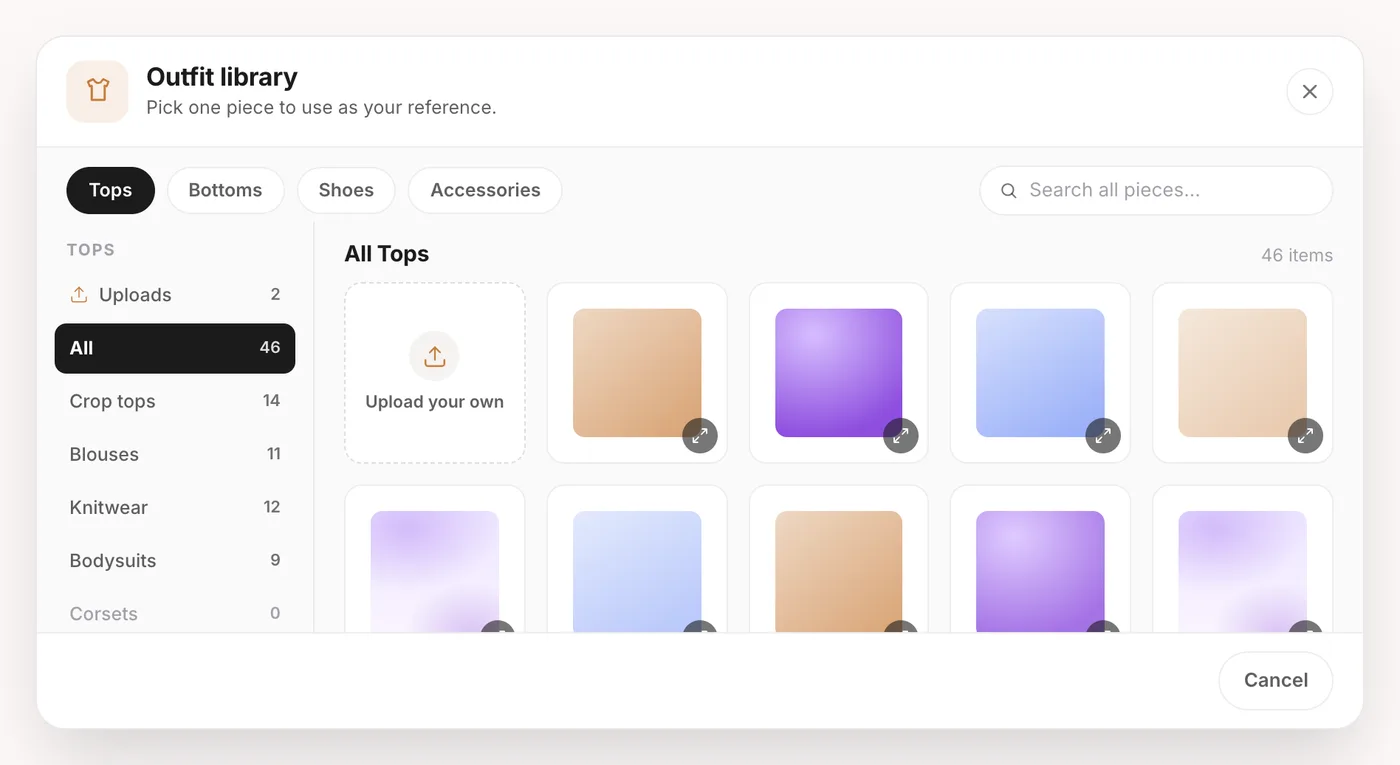
Outfit library. Pick a piece from the outfit library.
Product library. Pick one of your saved products: the bag, the drink, the brand deal item.
Upload a photo. Use a photo from your device. A clean product shot on a plain background works best.
In the app. Picking from the Outfit library: choose one piece, and it attaches to that comment.
Writing comments that land
Each comment tells Sozee two things: where (the pin) and what (your note). The pin already handles where, so spend your words on what the spot should look like when it's done.
Don't do this
“Make it better”: better how? There's nothing to act on. “Fix the top, add a necklace and change the lighting”: three changes crammed into one pin. “The thing on the left”: the pin is on it already, so describe the result instead.
Do this instead
“Swap the top for this one” with the top attached from your Outfit library. Three pins, three notes: one on the top, one on the neckline, one on the lamp. “Turn the lamp off so the room is lit by the window.”
Made in Sozee.
BeforeAfter
One change to one spot: a necklace added, the rest of the photo kept.
Quick checklist
Photos only, from the studio or your Vault.
Up to 8 comments per edit, one change per comment.
Up to 4 reference pictures per edit, one per comment.
Each note up to 280 characters.
Every edit is a new version. The original is never overwritten.
If something goes wrong
If your connection drops while you're sending, the bar asks you to send again. It's safe to do so: a retry finishes the same edit and never charges you twice. If an edit doesn't finish, add your comments again and resend.
Open a photo you almost love, pin what's off and let Sozee make the changes. Open your Vault
Related guides
Edit moments: video editing inside Sozee — Edit video with AI in Sozee: mark a moment in a clip, describe the change, and keep the rest of the video as it was. Steps, tips and limits.
Editing tools: fix your images in post — Use Sozee's AI photo editor to fix images instead of starting over: inpaint one area, change an expression or color, and upscale to 4K.
Agent: research, make and schedule from one chat — Sozee's Agent works like an AI social media manager: research what's trending, make photos and videos of your character, and schedule posts in one chat.