Edit moments: video editing inside Sozee
Got a clip that's almost right? Edit moments lets you mark the exact seconds you want changed, say what should be different and keep everything else. No regenerating the whole video over a few bad seconds.
Edit · 6 min read · Updated 2026-11-11
What you'll learn
- Where to find Edit moments
- How to mark a moment on the timeline and send your edits
- The difference between a change for one moment and a change that stays
- The rules that keep your edits clean
Where to find it
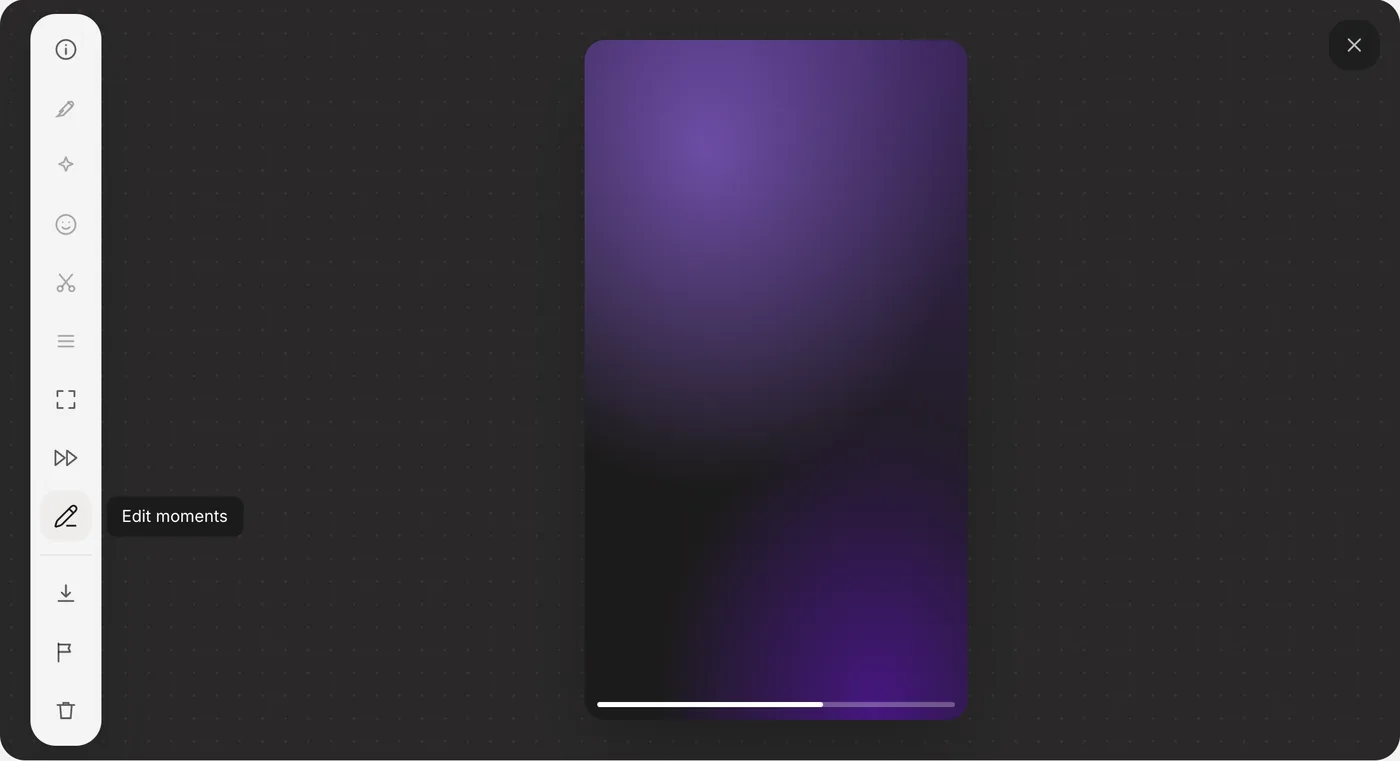
Edit moments lives in the video viewer. Open any finished video from the studio or from your Vault, and choose Edit moments from the tool rail beside the video. A timeline opens under the video with a play button, the current time, a ruler in seconds, and your Cancel and Send edits buttons.
Made in Sozee.
Step by step
- Play the clip and find the moment Use play and the timeline to find the seconds you want to change.
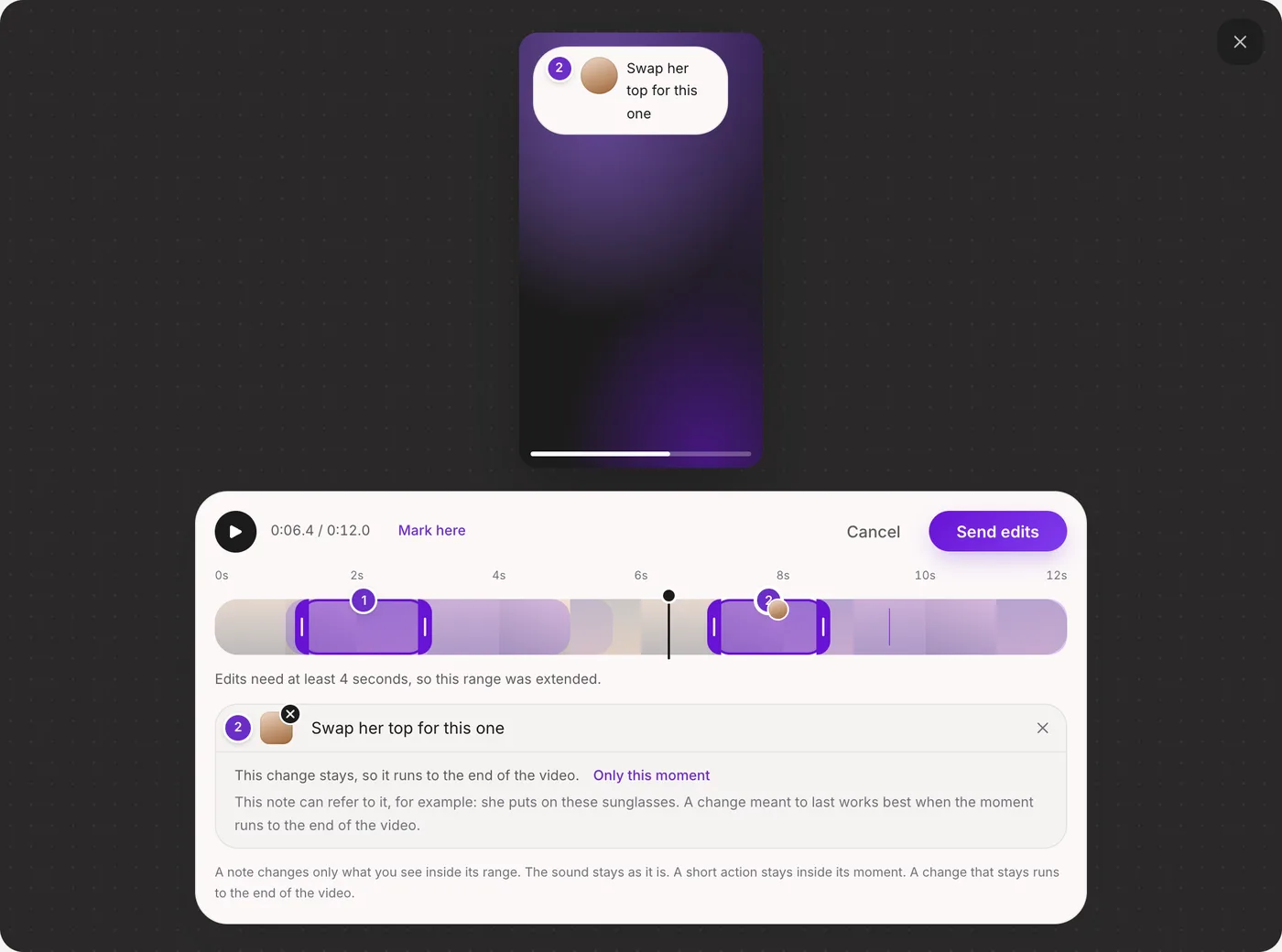
- Drag across the timeline to mark it A numbered range appears. Drag its start and end handles to adjust it.
- Say what should change there The note box asks “What should change here?” Describe what you want to see in that moment.
- Add more moments if you need them You can mark up to three moments in one edit, each with its own note.
- Press Send edits Send edits waits a moment until every note has been read. Your edited video takes a few minutes and appears in your Vault when it's ready. The original video stays as it was.
On your phone
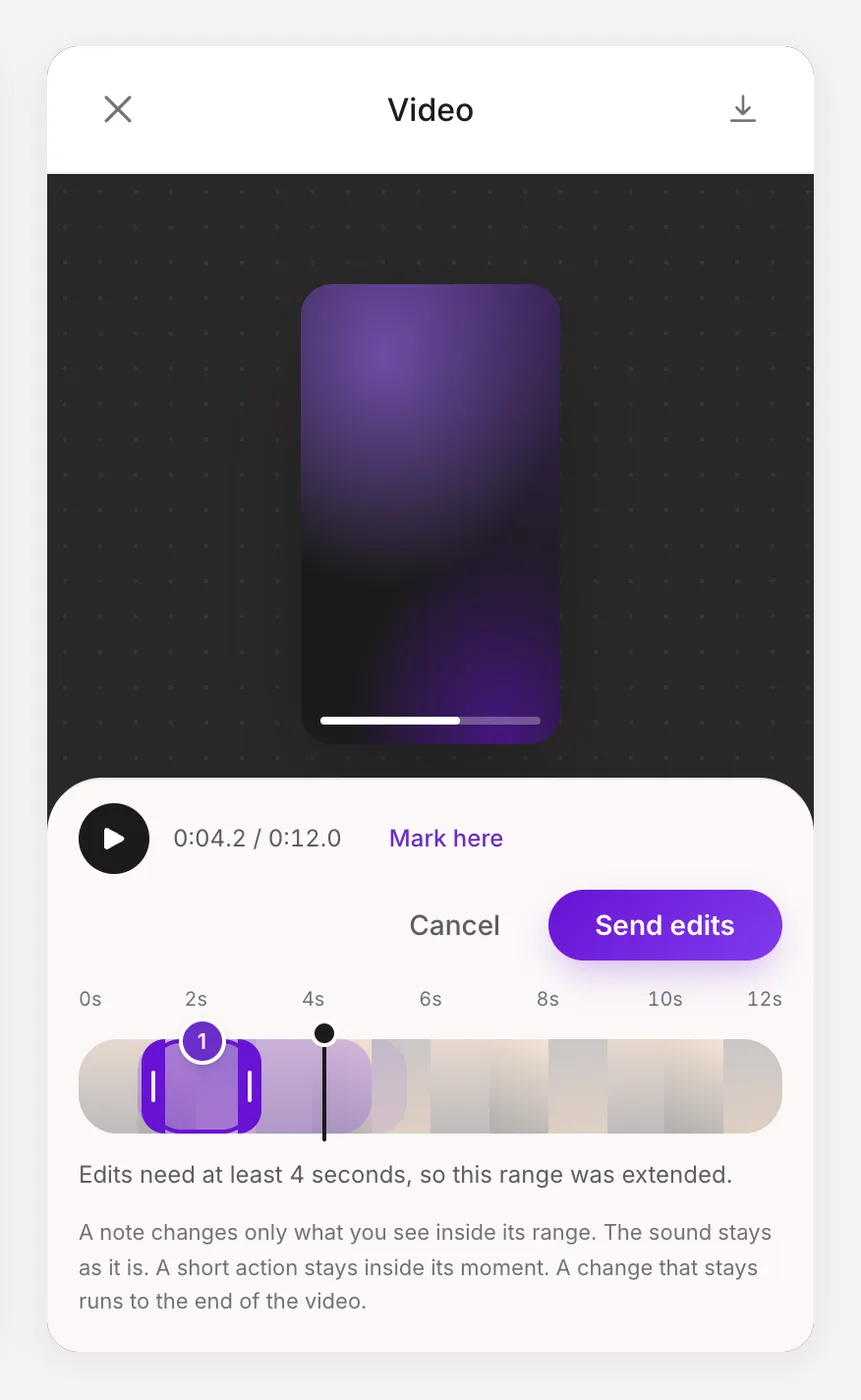
One moment, or a change that stays
Not every edit is the same kind of change, and Edit moments treats them differently.
- A short action. “Smile at the camera here” or “she waves.” Something that happens and is over. It stays inside the moment you marked.
- A change that stays. A new outfit, a new background, a different hairstyle. Once it changes, it should stay changed, so Sozee runs it from your moment to the end of the video.
When your note describes a change that stays, the timeline stretches that moment to the end of the video and tells you: “This change stays, so it runs to the end of the video.” If you really did mean just that moment, press Only this moment to switch it back. You can flip it again with Keep it to the end.
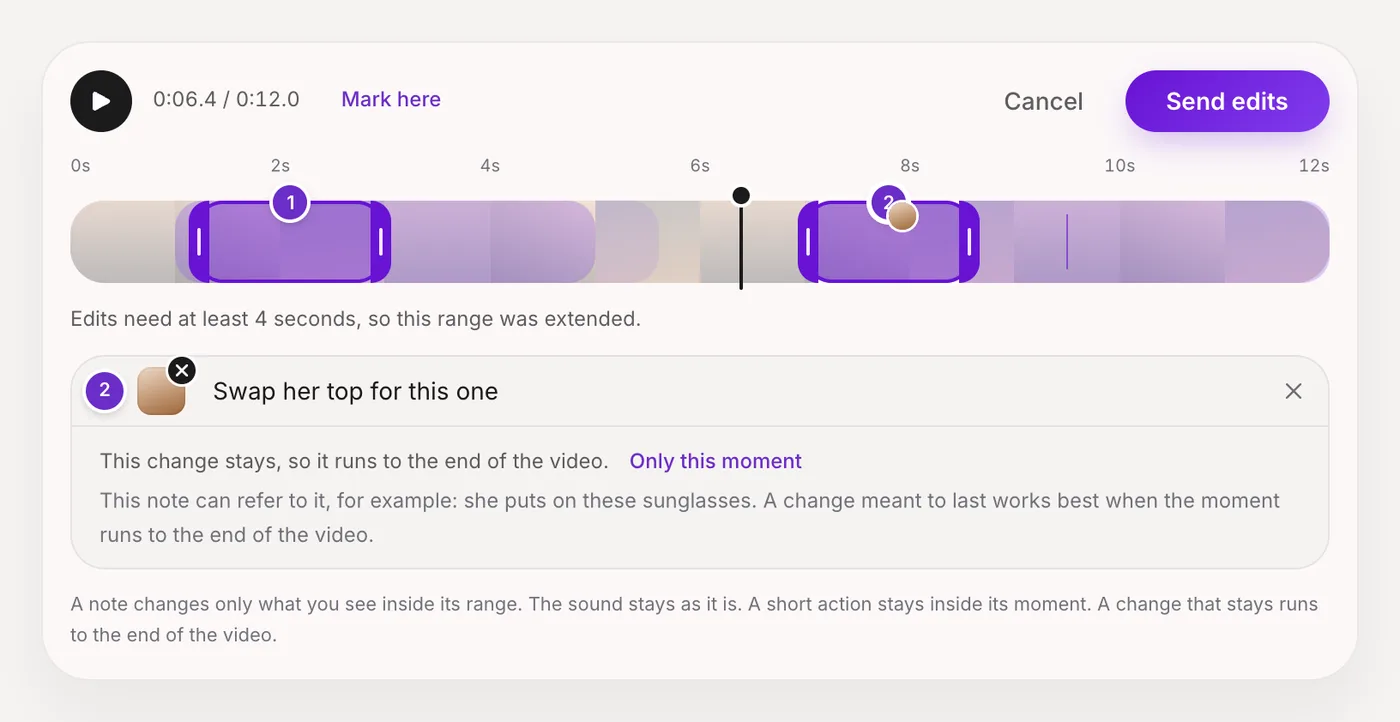
Show it with a reference picture
Like Comment Edits on photos, each moment can carry a reference picture from your Outfit library, your Product library or a photo you upload. Your note can then point at it directly, for example “she puts on these sunglasses.”
A change meant to last works best when the moment runs to the end of the video, so if you're swapping an outfit with a reference, leave it on Keep it to the end.
The rules that keep edits clean
- Each moment is at least 4 seconds. Mark something shorter and it's extended for you, and the timeline tells you so. A range may also be nudged to a natural pause so the edit blends in.
- Up to 3 moments at a time. Need more? Send these, then run another edit on the result.
- Moments can't overlap. If two ranges touch, combine the notes into one range or move one of them.
- The sound stays as it is. Edit moments changes what you see, never what you hear.
Writing notes that land
Don't do this
“Make this part better”: nothing to act on. One long range covering three different changes with one note. A new outfit set to Only this moment: it will vanish when the moment ends.
Do this instead
“Smile at the camera here” on the few seconds where it should happen. One moment per change, each with its own short note. “Swap the top for this one” with the top attached, kept to the end.
Quick checklist
- Finished videos only, from the studio or your Vault.
- Up to 3 moments, at least 4 seconds each, no overlaps.
- One change per moment, written as the result you want.
- Outfits, backgrounds and hair: keep them to the end.
- The sound and the original video are never changed.
Open a video that's nearly there, mark the seconds that aren't and send your edits. Open your Vault
Related guides
- Comment Edits: point at it, say what changes — Comment Edits lets you pin notes on an AI photo and send every change at once. How to place comments, add a reference picture and word them well.
- Editing tools: fix your images in post — Use Sozee's AI photo editor to fix images instead of starting over: inpaint one area, change an expression or color, and upscale to 4K.
- Agent: research, make and schedule from one chat — Sozee's Agent works like an AI social media manager: research what's trending, make photos and videos of your character, and schedule posts in one chat.