Starting Image turns a photo you've already made into a short video. You choose the photo, say what should happen, pick the length and quality, and Sozee animates it with your character.
Video · 5 min read · Updated 2026-11-11
What you'll learn
Two ways to start a video from a photo
How to direct the motion
Which length, resolution and shape to choose
What it costs and how to get a better result
Two ways to start
Image to video in Sozee is called Starting Image. It uses photos from your Vault, so make or pick the photo first.
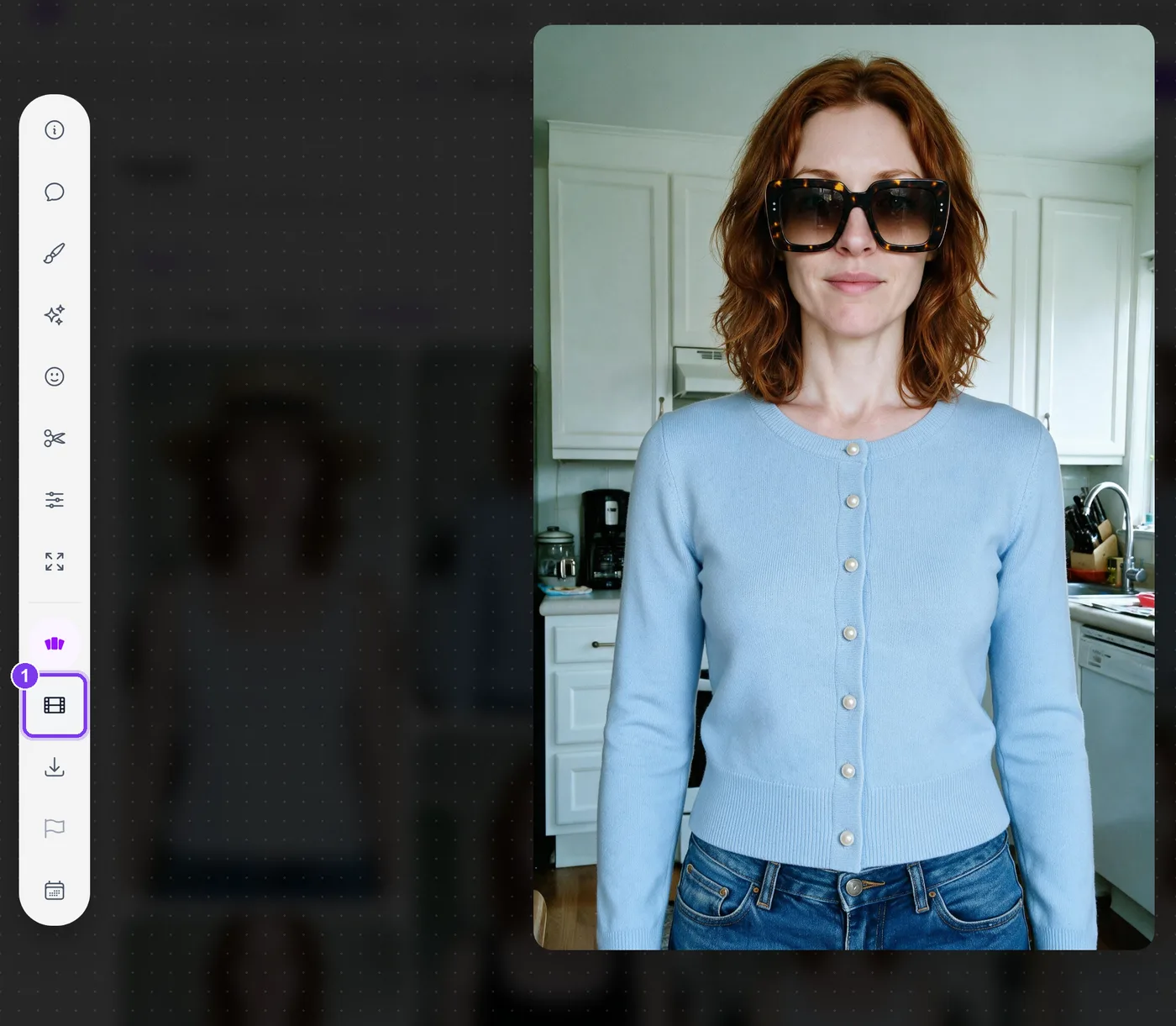
From a photo you're looking at. Open any photo in your Vault and choose Convert to video in the tool rail. You land straight on the motion step with that photo picked.
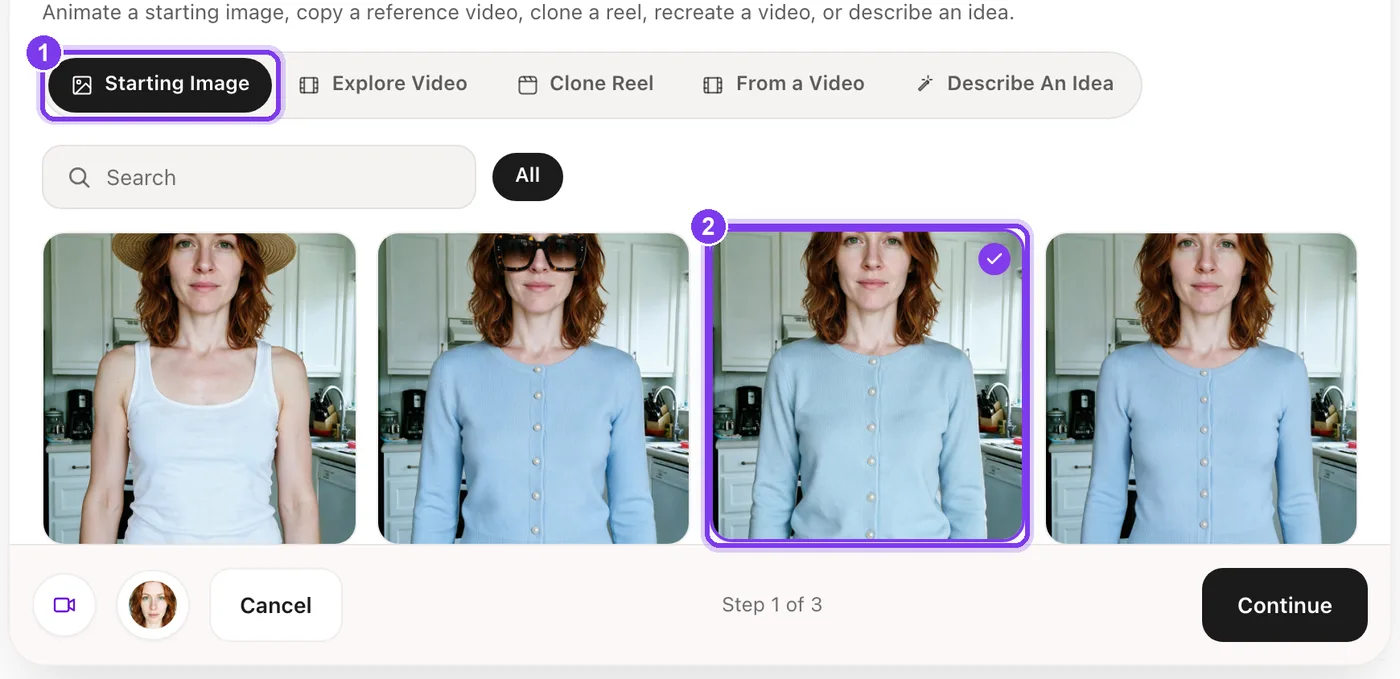
From the Create page. Open Create, choose Video under the prompt and keep Starting Image selected, then pick a photo from the grid.
In the app.Convert to video (1) in the tool rail of an open photo.
Step by step
Choose Starting Image and pick a photo On the Create page, choose Video, then Starting Image. Your Vault photos appear in a grid, with a search box and your folders. Click the photo to animate and press Continue.In the app.Starting Image (1) and the photo you picked (2).
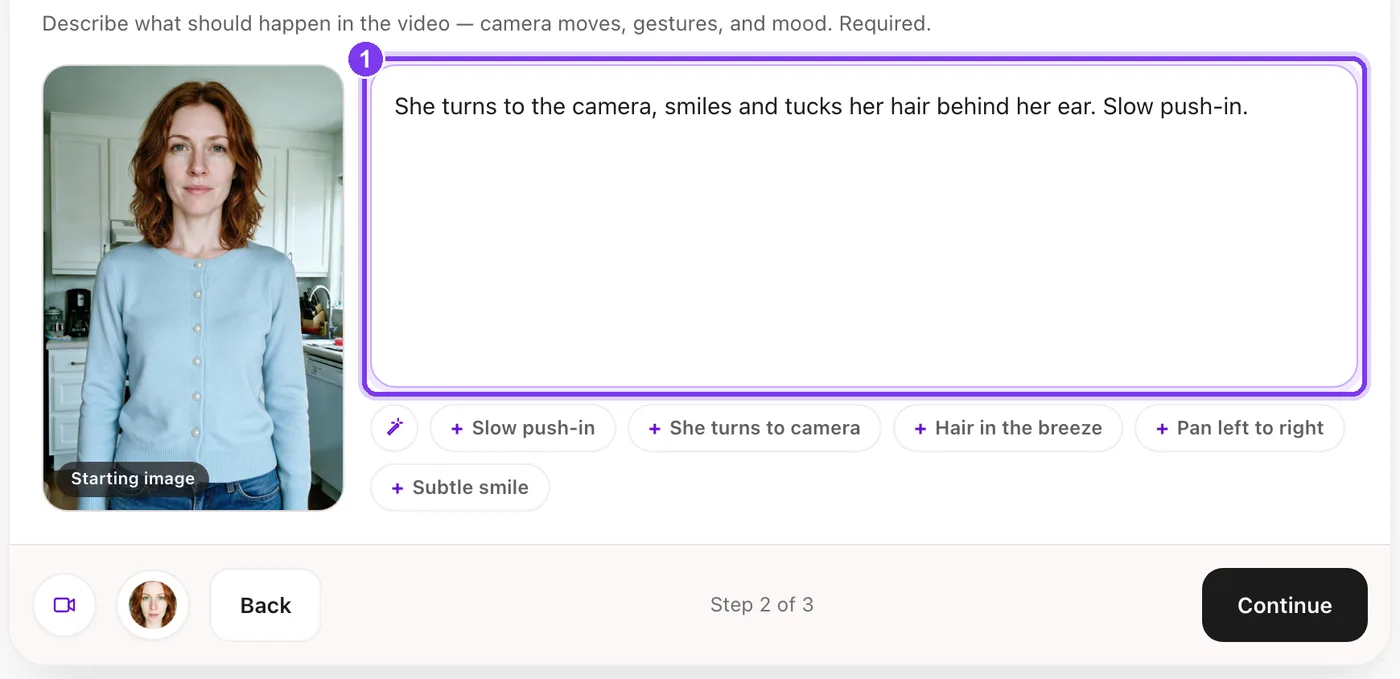
Direct the motion Describe what should happen: the movement, the gestures, the camera and the mood. This field is required. Tap a suggestion such as Slow push-in or She turns to camera to add it.In the app. Write the motion in the box (1). The suggestions underneath add common moves.
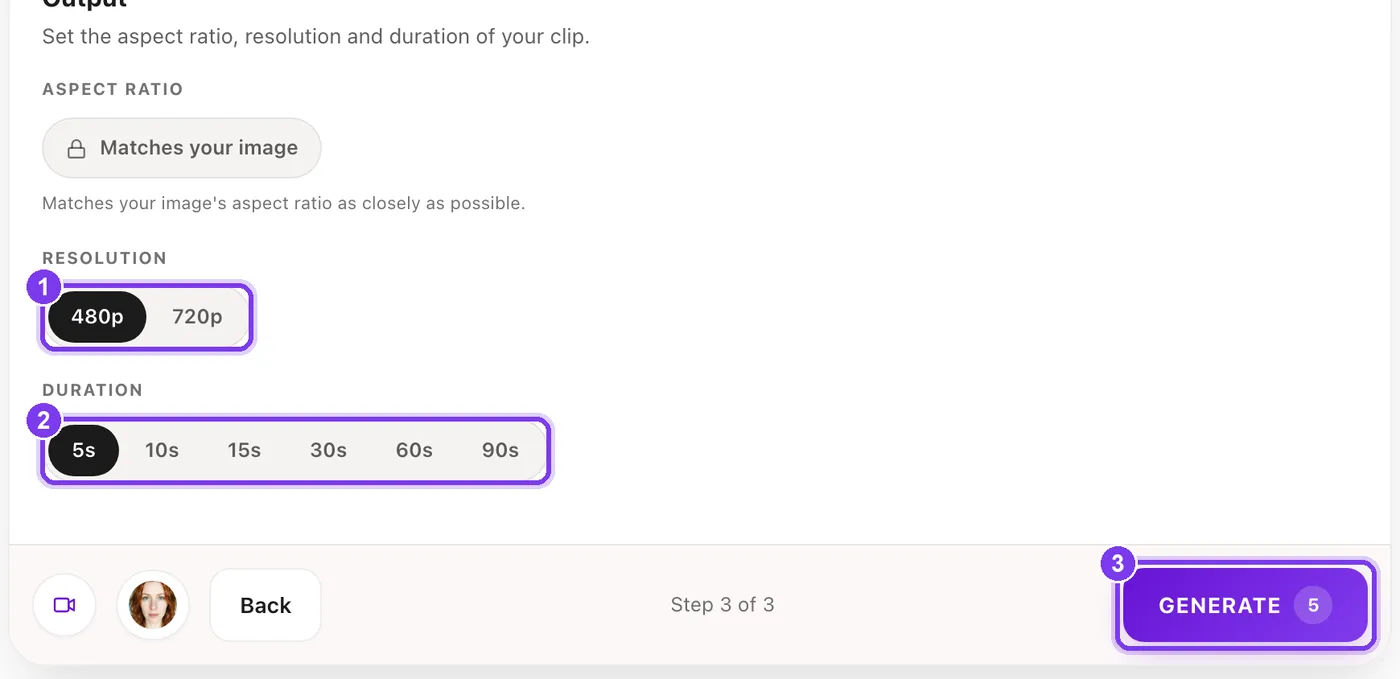
Set the output The shape matches your photo automatically. Choose 480p or 720p, and a length of 5, 10, 15, 30, 60 or 90 seconds. The price is on Generate.In the app. Resolution (1), duration (2) and Generate with its price (3).
Generate Press Generate. The video arrives in the same board as the photo and in your Vault.
How to describe the motion
The photo already sets the person, the outfit and the place. Spend your words on what changes over time.
Vague
“Make it move.” “She looks nice.” “Cinematic.” Nothing here says what should happen.
Clear
“She turns from the window to the camera, smiles and tucks her hair behind her ear. Slow push-in.” One action, then the next, then the camera.
Made in Sozee.
A short video made in Sozee: a small, natural movement in a still scene.
Settings and cost
Setting
Options
Shape
Matches your photo
Resolution
480p or 720p
Length
5, 10, 15, 30, 60 or 90 seconds
Cost
1 credit per second at 480p, 2 at 720p
A 10-second video costs 10 credits at 480p and 20 at 720p. You always see the price on Generate before anything is made. Making videos is part of the paid plans, including Pay As You Go.
Other ways to make a video
Describe An Idea. No photo needed: describe the scene in words. See text to video.
Clone Reel. The same movement and cuts as a reel you paste, with your character.
From a Video. A new video based on one you upload.
UGC. A talking-to-camera video with a script. See AI UGC videos.
Pick your favorite photo and give it some life. Open Create
Related guides
Text to video AI: make a video from an idea — Text to video AI in Sozee: describe a scene in plain words, pin a setting or outfit, review the expanded prompt and get a video starring your character.
AI UGC videos: make UGC with your character — Make AI UGC videos in Sozee: pick a format, write a brief, approve the script and render a talking-to-camera video of your character, with captions.
Edit moments: video editing inside Sozee — Edit video with AI in Sozee: mark a moment in a clip, describe the change, and keep the rest of the video as it was. Steps, tips and limits.