How to schedule Instagram and TikTok posts
Social Planner is Sozee's built-in scheduler. Connect your character's accounts once, then schedule photos and videos to Instagram, TikTok, X, Facebook, Reddit and Fanvue, and see how each post did in Analytics.
Post and grow · 6 min read · Updated 2026-11-11
What you'll learn
- How to connect Instagram, TikTok and other accounts
- How to create and schedule a post
- How to set your posting times
- How to read your results
Where to find it
Social Planner is in the top navigation. On the left you'll find Posts, Calendar and Analytics under Publishing, and Connected Accounts and Schedule Settings under Settings. The New Post button sits at the top.
Step 1: connect your accounts
- Open Connected Accounts In Social Planner, choose Connected Accounts and pick the character the accounts belong to.
- Add a platform Press + Add Instagram, + Add TikTok or the button for any platform listed: Instagram, TikTok, Twitter/X, Facebook, Reddit and Fanvue. Sign in on the platform's page and approve the connection.
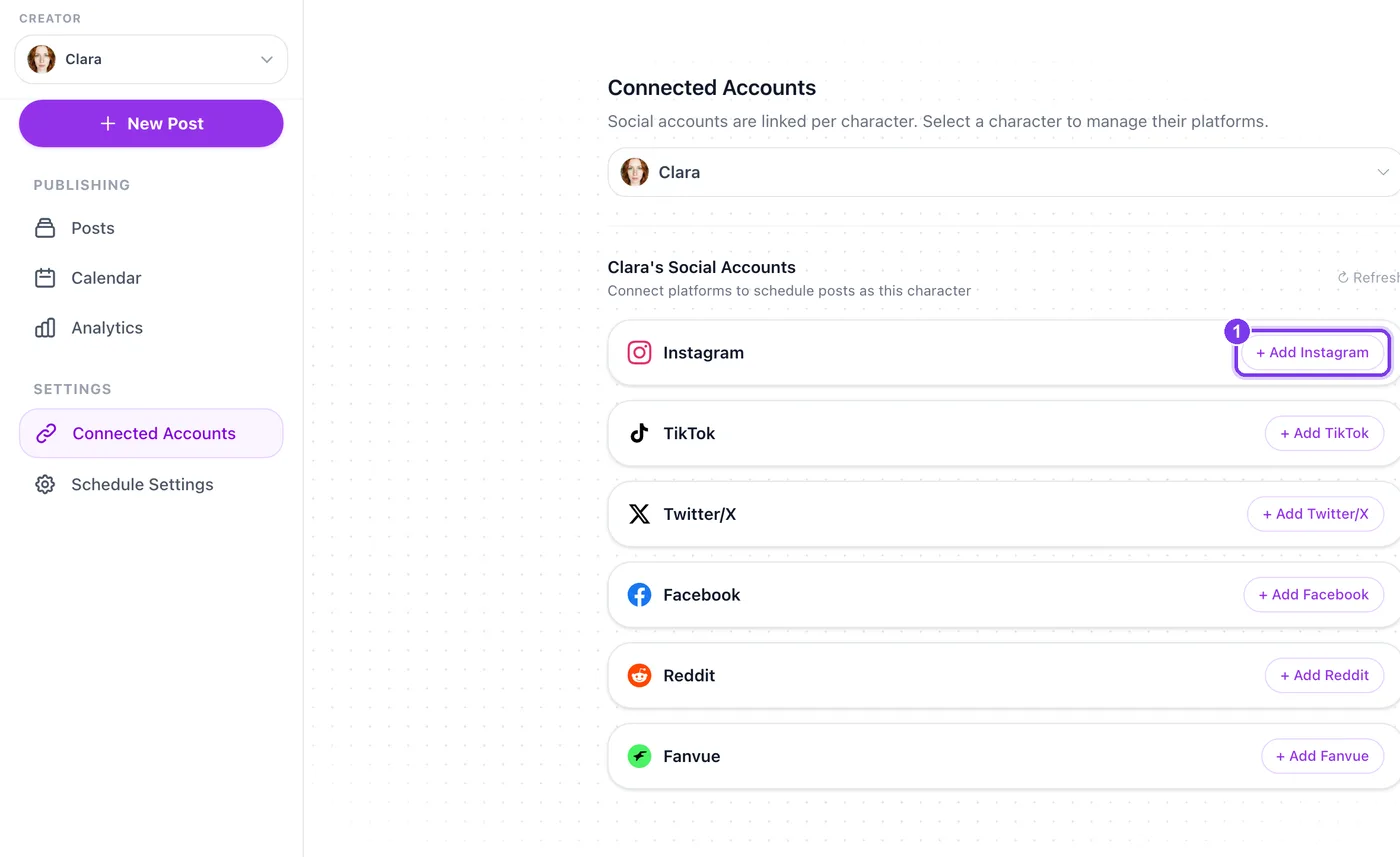
In the app. Each platform has its own add button (1). - Come back to Sozee A banner confirms the account is connected. You can add more than one account per platform.
Step 2: create and schedule a post
- Press New Post Or start from the content itself: every photo and video in your Vault has a Schedule Post button.
- Choose where it goes Under Post To, pick the platforms. A platform you haven't connected yet is greyed out.
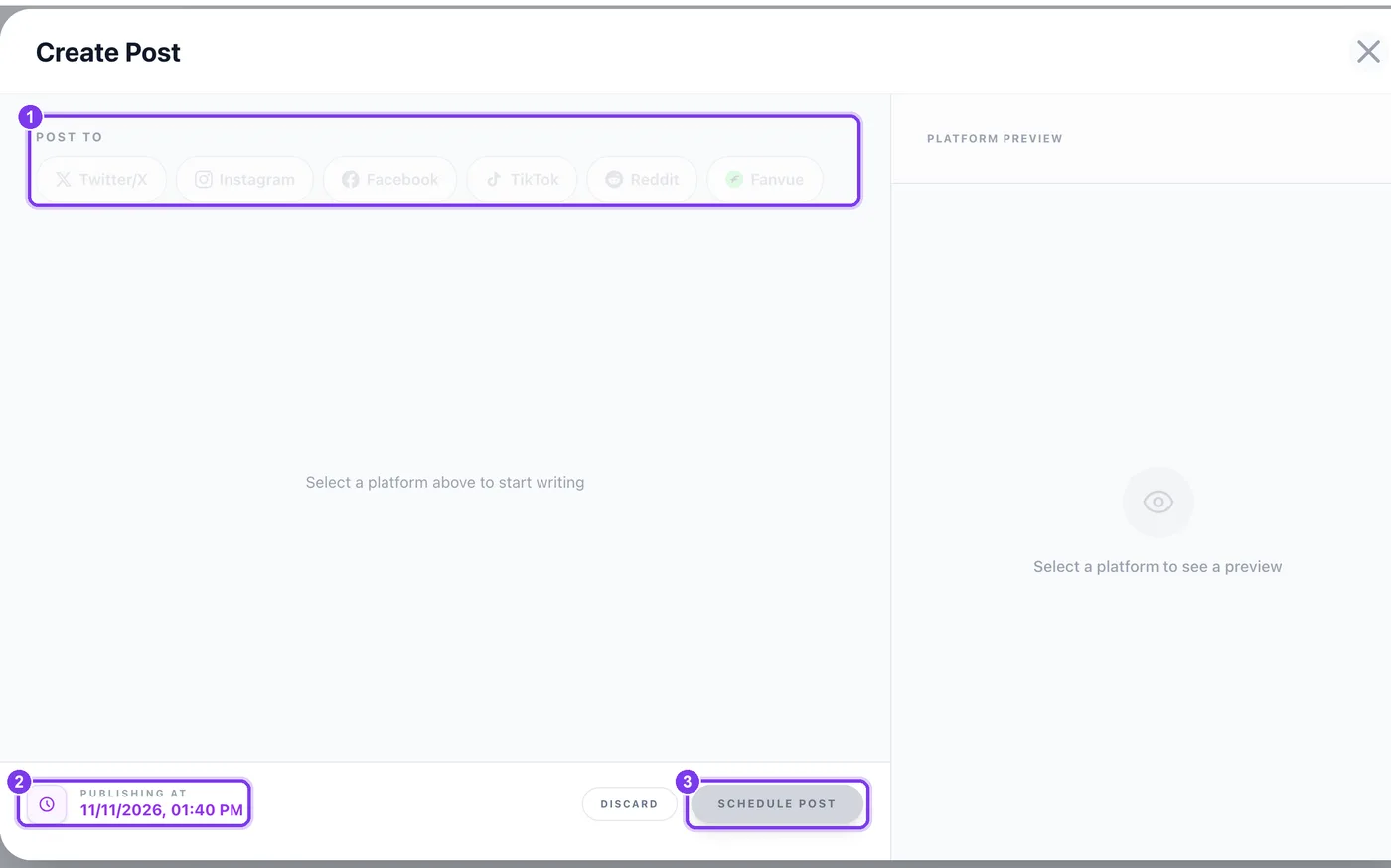
In the app. Post To (1), the publishing time (2) and Schedule Post (3). - Add the media Use Browse Vault for something you made in Sozee, or Upload an image or video.
- Write the caption Type it in the caption box, or use Draft with AI: enter a Post Topic, choose a Brand Voice and let Sozee write a first draft for you to edit.
- Set the platform options Each platform has its own settings. On Instagram choose the Format: Photo, Carousel (up to 10 items), Reel or Story. On TikTok choose who can view it and whether to allow comments, duets and stitches. Reddit needs a subreddit.
- Pick the time and schedule Under Publishing at, choose a date and a time from Quick Times or Custom Time, then press Schedule Post.
Step 3: set your posting times
Open Schedule Settings to set your Timezone and your daily posting slots. Every date and time in the calendar and posts list shows in that timezone, and empty slots appear as suggestions you can fill.
- Pick slots you can keep. Two or three a day you'll actually fill beat eight that sit empty.
- Reorder with the arrows. In Posts, use Move up and Move down on a post that hasn't gone out yet.
- Check the calendar weekly. The Calendar view shows gaps at a glance.
Read your results
Analytics shows how your posts are doing. Filter by All Posts, Via Sozee or Organic, and by the last 7, 30 or 90 days.
- The totals. Total posts, impressions, reach and likes.
- Platform Overview. Impressions, reach, likes, comments, shares and engagement for each platform.
- Follower Growth. How your audience is changing.
- Post Performance. Every post with its numbers, so you can see which ones worked.
Made in Sozee.
Mistakes to avoid
- Connecting the wrong account. Check which account you're signed in to before connecting Instagram or Facebook.
- Linking accounts to the wrong character. Accounts belong to the character picked in Connected Accounts.
- The same caption everywhere. A caption that works on Instagram may not suit Reddit or X. Edit it per platform.
- Posting a 4:5 photo as a Story. Stories and Reels are vertical. Make them at 9:16.
Connect your accounts once and let the calendar do the rest. Open Social Planner
Related guides
- Agent: research, make and schedule from one chat — Sozee's Agent works like an AI social media manager: research what's trending, make photos and videos of your character, and schedule posts in one chat.
- How to make an AI influencer — How to make an AI influencer in Sozee: plan the persona, create a consistent character, make a first photo set, then post and grow on social.
- Image to video AI: turn a photo into a video — Image to video AI in Sozee: pick a photo from your Vault, describe the motion, choose length and quality, and turn it into a video of your character.