Reference photos: copy any pose
A reference photo turns any image into a photo of your character in the same pose and composition. This guide covers how it works, how to use it on desktop and mobile, and how to pick references that give good results.
Create · 5 min read · Updated 2026-11-11
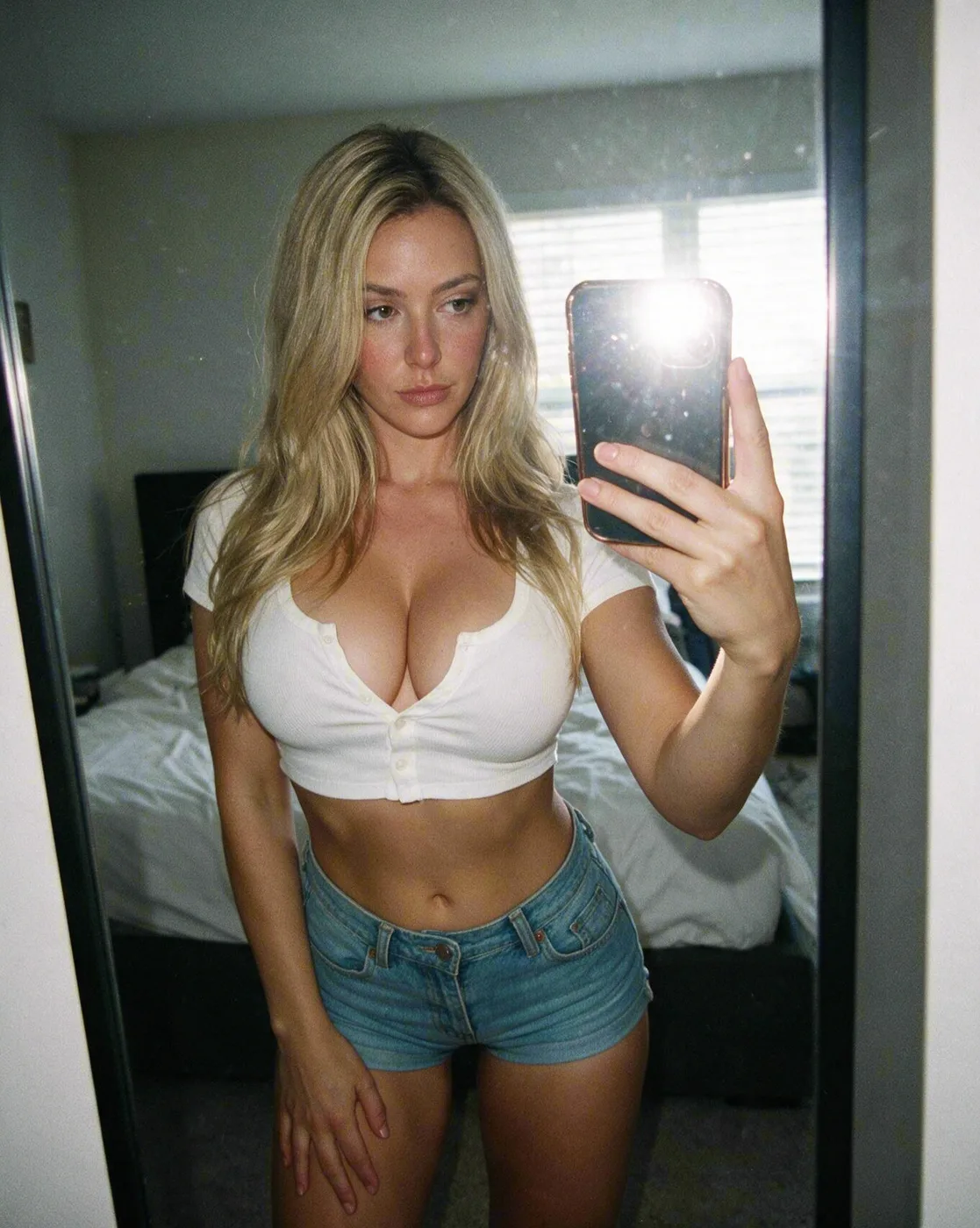
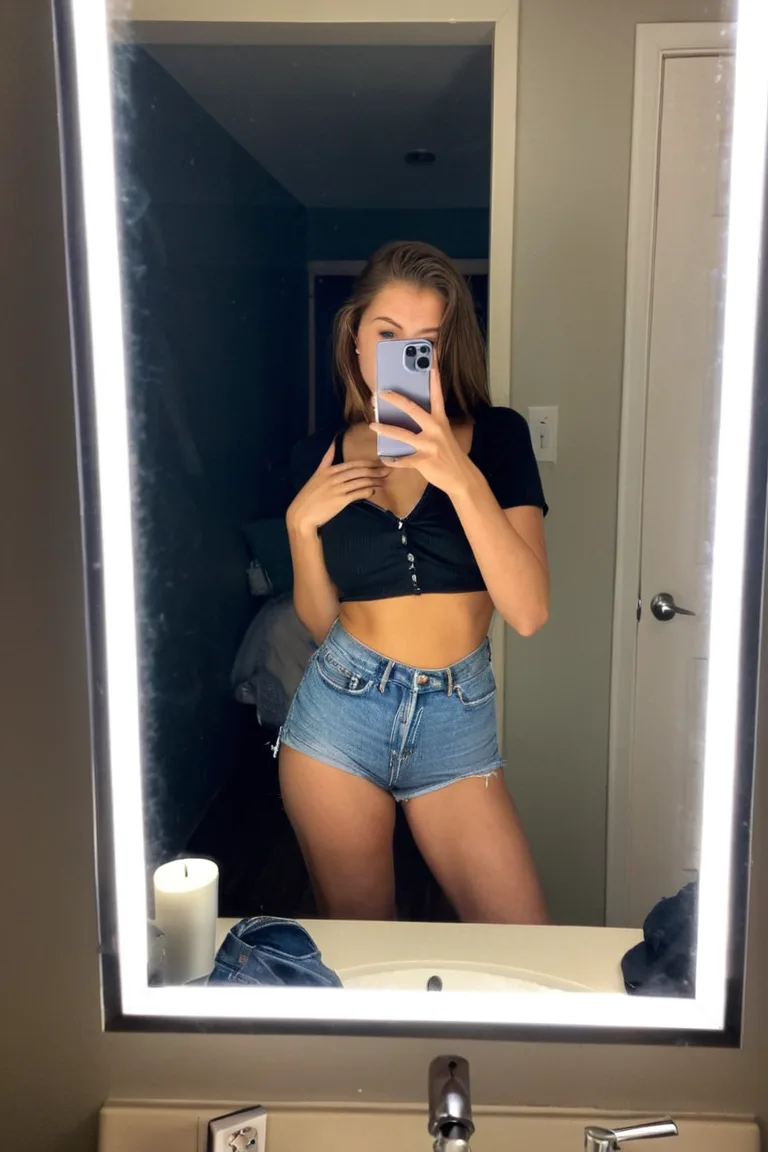
What you'll learn
- Why reference photos make posing easier
- How to add a reference on desktop and mobile
- What makes a good reference, and what to avoid
- How to get the best results, and change details afterwards
What are reference photos?
A reference photo shows Sozee exactly which pose, composition or scene you want. Instead of describing a complex pose in words, you upload an image and Sozee reads and reproduces it.
Made in Sozee.
How it works
- Upload a reference Drag and drop, or click to add any image as a reference.
- Sozee analyses the image It picks out the pose, composition, lighting and scene details.
- A prompt is written for you A detailed prompt is created automatically from the reference, so you don't need to write one.
- Generate with your character Your character appears in the same pose and composition as the reference.
Why use reference photos
- The pose you wanted, first time. Skip the trial and error of describing a complex pose. See a pose you like, use it as a reference and get it right on the first try.
- Consistent content. Make a series of images with matching compositions, for a coherent content library or for following trends.
- Time saved. No more long prompts trying to describe exactly what you want. A picture really is worth a thousand words.
- Trends while they're current. See a viral pose or a trending photo style? Recreate it with your own character while the trend is still running.
How to use reference photos
On desktop: drag and drop
- Choose your character On the Create page, choose Image and pick your character from the character button.

In the app. Your character (1), the prompt (2) and the settings (3). - Find the reference slot The Reference slot sits next to your character in the bar at the bottom of the screen.
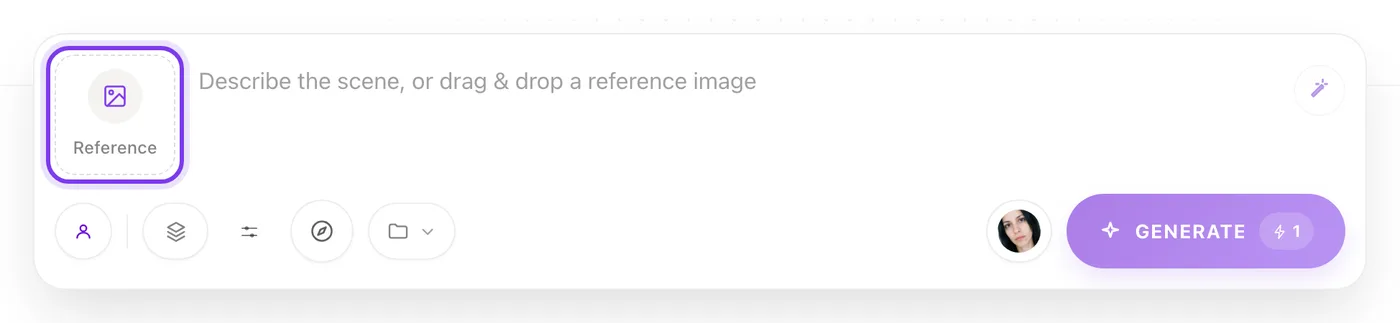
In the app. The Reference slot, at the start of the bar. - Add the image Drag any image from your computer or browser onto the slot, or click it to upload.
- Wait for the analysis A loading spinner shows while Sozee reads your reference.
- Check the prompt The prompt fills in with a description of the reference image. While the reference is attached, the prompt is set by the image and can't be edited.
- Generate Click Generate to make your image.
On mobile: tap to add
- Choose your character Pick your character on the Create page.
- Open the prompt Tap the prompt bar to open it.
- Find the slot You'll see your character's photo with a reference slot next to it.
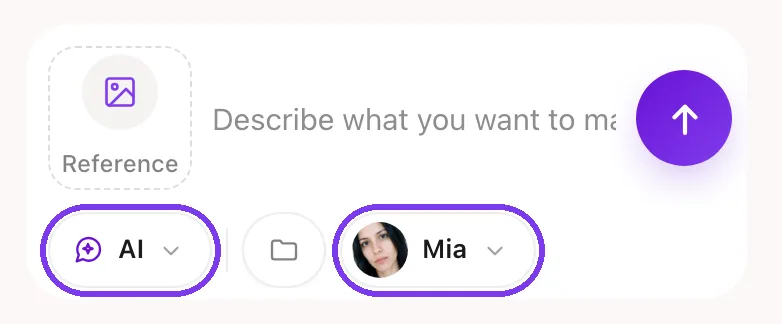
In the app. - Add a photo Tap the reference slot to add a photo from your device.
- Let Sozee read it Sozee analyses the image and writes the prompt.
- Generate Tap Generate to make your image.
Choosing good reference photos
What makes a good reference
A clear subject that is the main focus. Good lighting, which helps Sozee read the scene. A visible pose that isn't hidden. A single person rather than a group. High resolution, because clearer images give better results.
What to avoid
Blurry or low-quality images, where the pose is hard to read. Heavily cropped images without enough context. Complex scenes with several people. Extreme close-ups, since full-body or upper-body shots work better. Unusual angles, since standard camera angles give better results.
Ways to use them
- Social media trends. See a trending pose on Instagram or TikTok? Save the image and use it as a reference to recreate the trend with your character. You stay current without a photoshoot.
- Artistic inspiration. Like the composition of a famous painting or photograph? Use it as a reference to make your own version with your character in that classic pose.
- Product and brand shots. Have a style in mind for your brand? Use reference images from professional shoots to keep your content consistent.
- Content series. Making a themed series? Use similar reference photos to keep the look consistent across many generations.
Tips for the best results
Turn any image into content with your character. It's as easy as drag and drop. Try it now
Related guides
- How to write prompts in Sozee — How to write AI image prompts that work: copy-ready AI photo prompts, the structure of a strong prompt, and examples for selfies, outfits and settings.
- How to choose photos to train your AI character — How to create an AI model of yourself: which face and body photos to upload, what to avoid, and how Sozee builds a consistent character from them.
- Editing tools: fix your images in post — Use Sozee's AI photo editor to fix images instead of starting over: inpaint one area, change an expression or color, and upscale to 4K.