Billing and account management
Everything you need to manage your plan, understand your billing and change your account at any time. It covers Pay As You Go, subscriptions, the Billing page, team access and cancelling.
Account · 7 min read · Updated 2026-11-11


What you'll learn
- How Pay As You Go and auto top-up work
- Which plans there are and how to subscribe
- How to manage, change or cancel your plan on the Billing page
- How to invite your team
Pay As You Go: buy credits as you need them
Pay As You Go lets you use Sozee with no subscription and no monthly commitment. It suits anyone who creates now and then, or wants to try the platform first.
- 10 credits for $10 to start. Your first purchase gets you going, and you can buy more credits at any time, in the amount you choose at checkout.
- Credits never expire. Credits you buy stay in your account until you use them.
- The full set of tools. Pay As You Go includes the same creative tools as Creator, with one character slot.
- Auto top-up (optional). Where it's available on your account, auto top-up refills your credits when your balance runs low. You choose the refill amount, from $10 to $50, and the balance that triggers it.
Getting started with Pay As You Go
- Open Pricing Go to Pricing in the top navigation and choose Pay As You Go.
- Buy your first credits Finish your purchase on the secure checkout page.
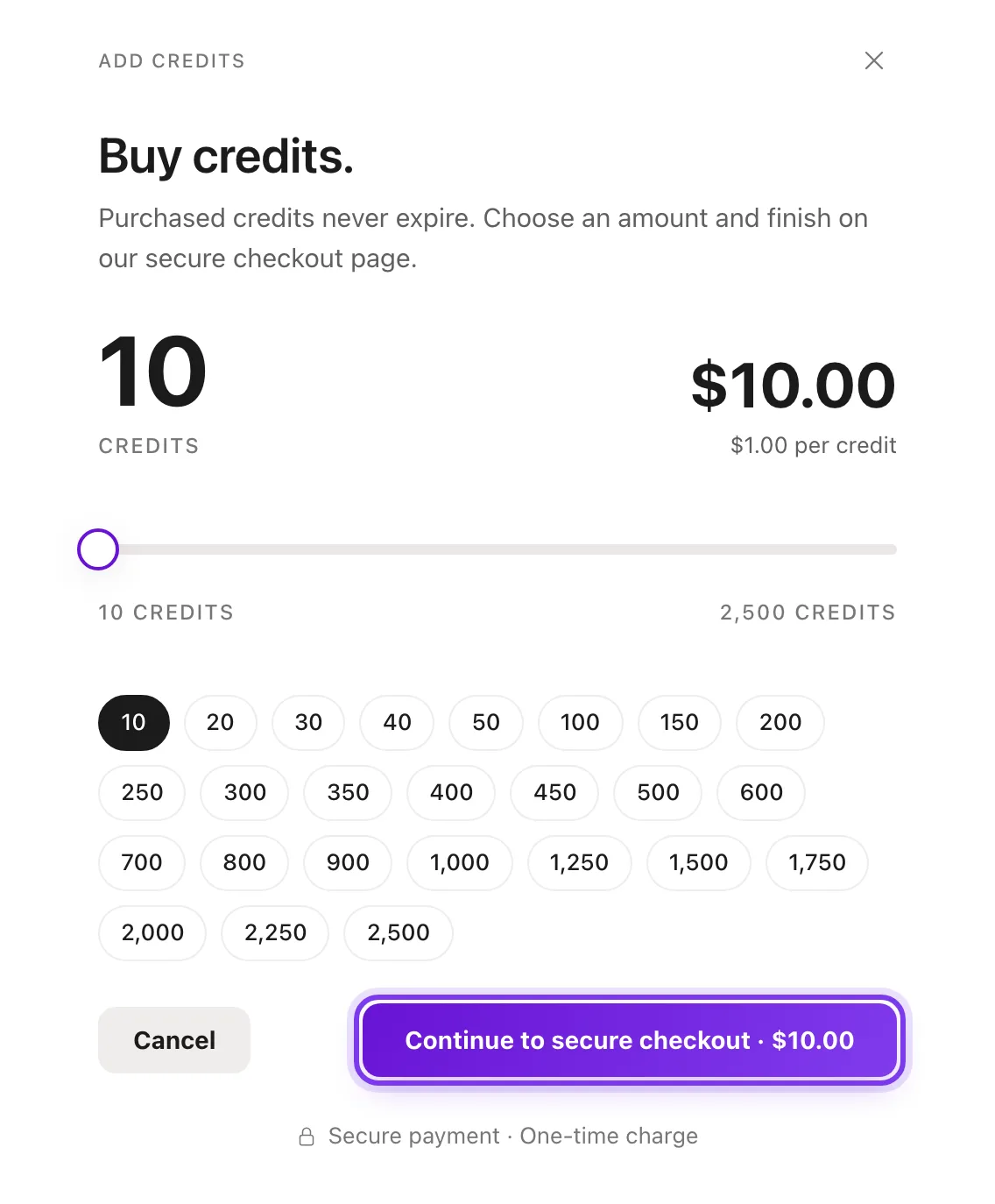
In the app. Choose an amount, then continue to the secure checkout. - Turn on auto top-up Optionally, open your account, go to Usage and set up Auto top-up.
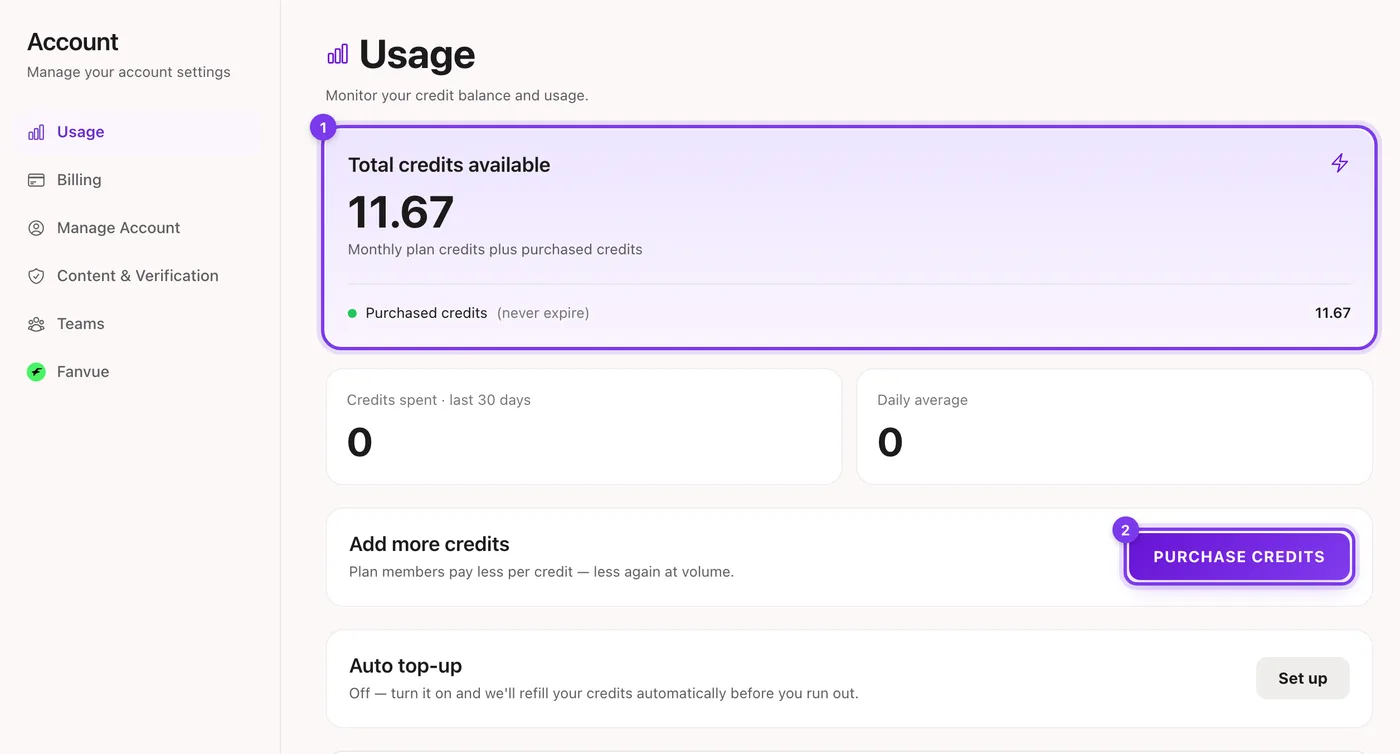
In the app. - Start creating Credits are taken as you use each feature, and you see the price first.
To buy more later, open your account menu and choose Top up. See how credits work for the cost of each feature.
Subscribing to Sozee
A subscription gives you a monthly credit allowance at a lower price per credit.
| Plan | Price | Credits each month | Good to know |
|---|---|---|---|
| Creator | $59.99 a month | 150 | More character slots than Pay As You Go |
| Agency | $149.99 a month | 450, shared with your team | Team seats for your manager or staff |
How to subscribe
- Choose a plan Go to Pricing in the top navigation, or to Choose a plan on your Billing page.
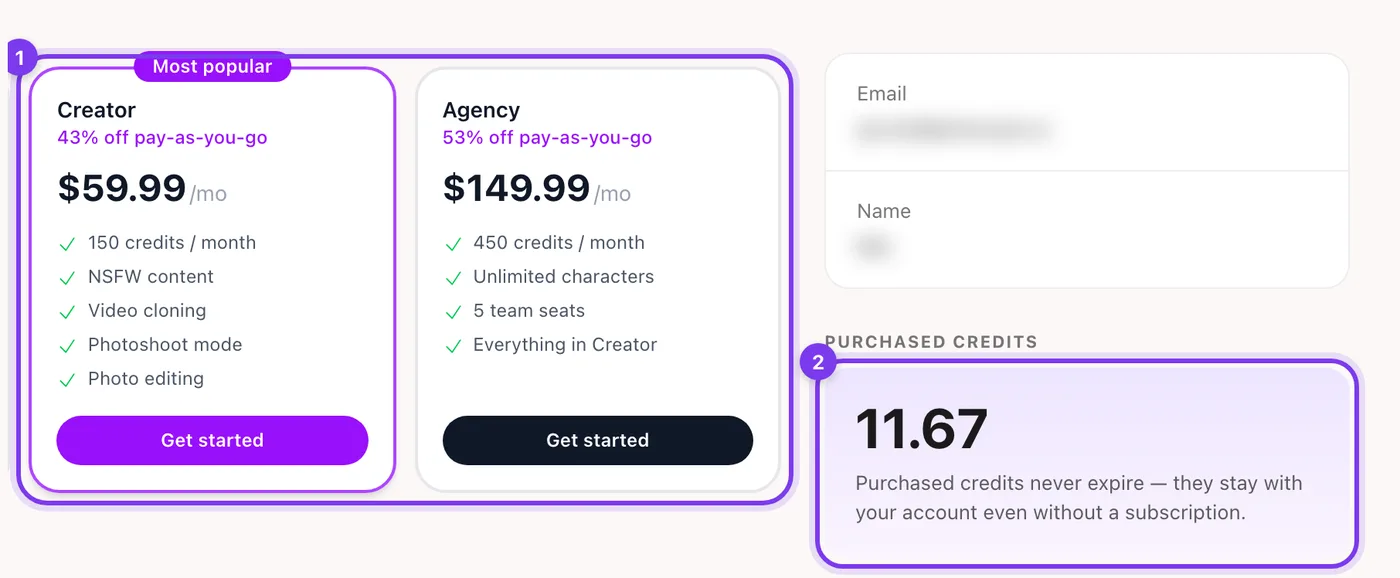
In the app. Plans (1) and the credits you bought (2) on the Billing page. - Pay Finish on the secure checkout page.
- Start creating Your monthly credits arrive once the payment is confirmed.
Managing your plan on the Billing page
Open your account and choose Billing. Everything about your plan is on this one page.
- Current subscription. Your plan, its status and your next billing date.
- Change plan. Move to another plan as your needs change.
- Update payment method. Change the card on file to keep your plan running.
- Invoice history. Every payment, for your records.
- Purchased credits. The credits you've bought, which never expire.
Work with your team
Content creation is often a team effort. On the Agency plan you can give a manager, an assistant or a creative partner access to your Sozee account, without sharing your login.
- For creators. Hand content creation to your manager or assistant so you can focus on the bigger picture.
- For managers and agencies. Work directly in a client's account to make content and manage their library, with only the permissions they need.
How to invite team members
- Open Teams Open your account and choose Teams.
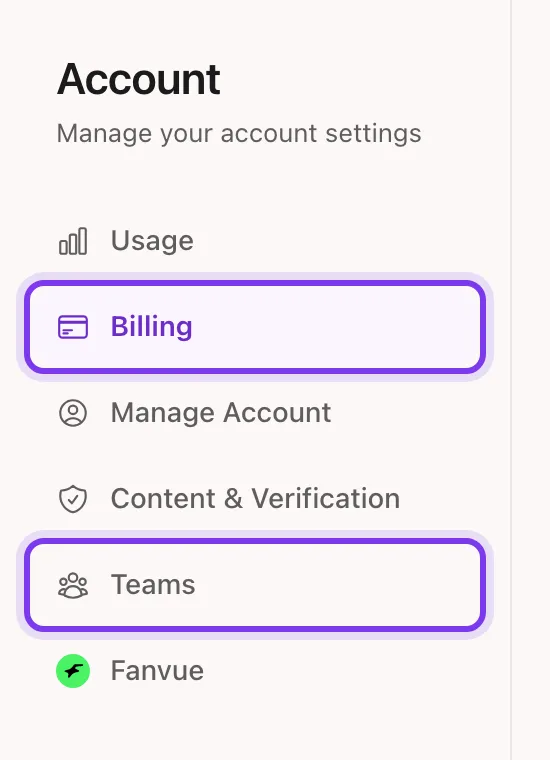
In the app. - Invite Click Invite members.
- Add their email Add one person, paste a list or upload a CSV file.
- Send the invite Send it. Invitations expire after 7 days.
Your team member receives an email invitation. Once they accept, they can work in your account. The Teams page also has tabs for Members, Invitations, Roles and Usage, so you can choose what each person can do and see what they've used.
How to cancel your subscription
You can cancel your subscription at any time.
- Open Billing Open your account and choose Billing.
- Start cancelling Under your current subscription, click Cancel subscription.
- Follow the steps A few short screens show what you keep and may offer you an alternative. You can choose Keep my plan at any point.
- Confirm Pick the reason that fits best and click Cancel subscription to confirm.
What happens after you cancel
- You keep full access until the end of your current billing period.
- Credits you bought separately stay in your account. The monthly credits from your plan end with the subscription.
- Your likeness stays on file but locked, so if you subscribe again you can pick up where you left off.
- Changed your mind before the period ends? Choose Resume subscription on the Billing page.
Have a question?
If you have a question about your plan, run into a problem or just want advice, the support team is ready to help. Use the chat button in the app to talk to the Sozee support team.
Manage your plan, payment method and invoices in one place. Open Billing
Related guides
- How Sozee credits work — How Sozee credits work: what AI photos, videos, edits and voice cost, Pay As You Go versus a plan, and how to make credits go further.
- Getting started with Sozee — Start making AI photos and videos of your own character in Sozee: create the character, pick a mode, choose quality and make your first set.
- Agent: research, make and schedule from one chat — Sozee's Agent works like an AI social media manager: research what's trending, make photos and videos of your character, and schedule posts in one chat.