
Key Takeaways For Background Variety
- Instagram tools like GIF stickers, solid fills, and Green Screen effects change backgrounds instantly without leaving the app.
- Green Screen and phone cutout techniques swap any saved image or texture behind your subject in seconds.
- At-home props, lighting shifts, and angle changes create authentic visual variety using only items already in your space.
- Sozee lets you build reusable AI environments once and generate unlimited consistent backgrounds without travel or re-shooting.
- Sozee supports a repeatable 7-post rotation system that turns background variety into a sustainable weekly content strategy.
Use In-App Background Hacks For Fast Variety
How To Use Instagram’s GIF Background Feature
Instagram Stories support animated GIF stickers through an in-app sticker tray powered by GIPHY, so you can search and apply animated backgrounds without leaving the app. Follow this exact menu path:
- Tap the + icon at the top of the screen and select Story.
- Set a photo or video as your base layer.
- Tap the sticker icon (the smiley face with a folded corner) at the top of the editing screen.
- Tap the GIF option near the top of the sticker tray to open the GIPHY search bar.
- Search terms like “story background,” “pattern,” or “texture” to find full-frame animated backgrounds.
- Layer your photo cutout or text stickers on top of the GIF.
Once placed, GIF stickers can be resized by pinching with two fingers, repositioned by dragging, and layered by repeating the sticker process. Instagram does not natively animate .gif files uploaded to the Feed, because the platform renders only the first frame. Convert GIF-style feed content to a looping MP4 before uploading.
Solid And Gradient Fills Using The Draw Tool
Upload any photo to a Story, tap the draw tool, pick a color from the palette, then press and hold the screen to flood the entire background with a solid hue. Switch to the highlighter tool for a semi-transparent color wash that lets the original photo show through. This process takes under 30 seconds and produces a clean, branded background with zero external tools.
When To Use This: Quick Stories, low-effort variety, and beginners who want instant visual change without learning new software.
Use Green Screen And AI Tools For Custom Scenes
How To Use Green Screen For Fake Backgrounds
Instagram’s Green Screen effect is available for use in both Stories and Reels, though availability can depend on the Instagram app version and account. Follow these steps:
- Open the Reels or Story camera.
- Tap the effects search bar and search “Green Screen.”
- Select the Green Screen effect from the results.
- Tap the image icon that appears and select any photo from your camera roll as your live background.
- Record your content with the chosen background active behind you.
This feature places you in front of any image you have saved, such as a downloaded cityscape, a product flat lay, a branded gradient, or an AI-generated scene.
Phone Cutout Techniques
On an iPhone running iOS 16 or later with an A12 Bionic chip or newer, you can touch and hold the subject of a photo to lift it from the background. Paste the cutout over a new downloaded texture, gradient, or AI-generated scenic view. This workflow happens entirely within the Photos app and uses no third-party software.
AI Background Replacement With Sozee
Creators who need unlimited background variety at scale can use Sozee to generate new environments from their living room instead of traveling to a studio or re-shooting. Sozee is an AI Content Studio that lets you build reusable environments once and shoot in them indefinitely. Its locked likeness feature keeps the same face consistent across every generated image.
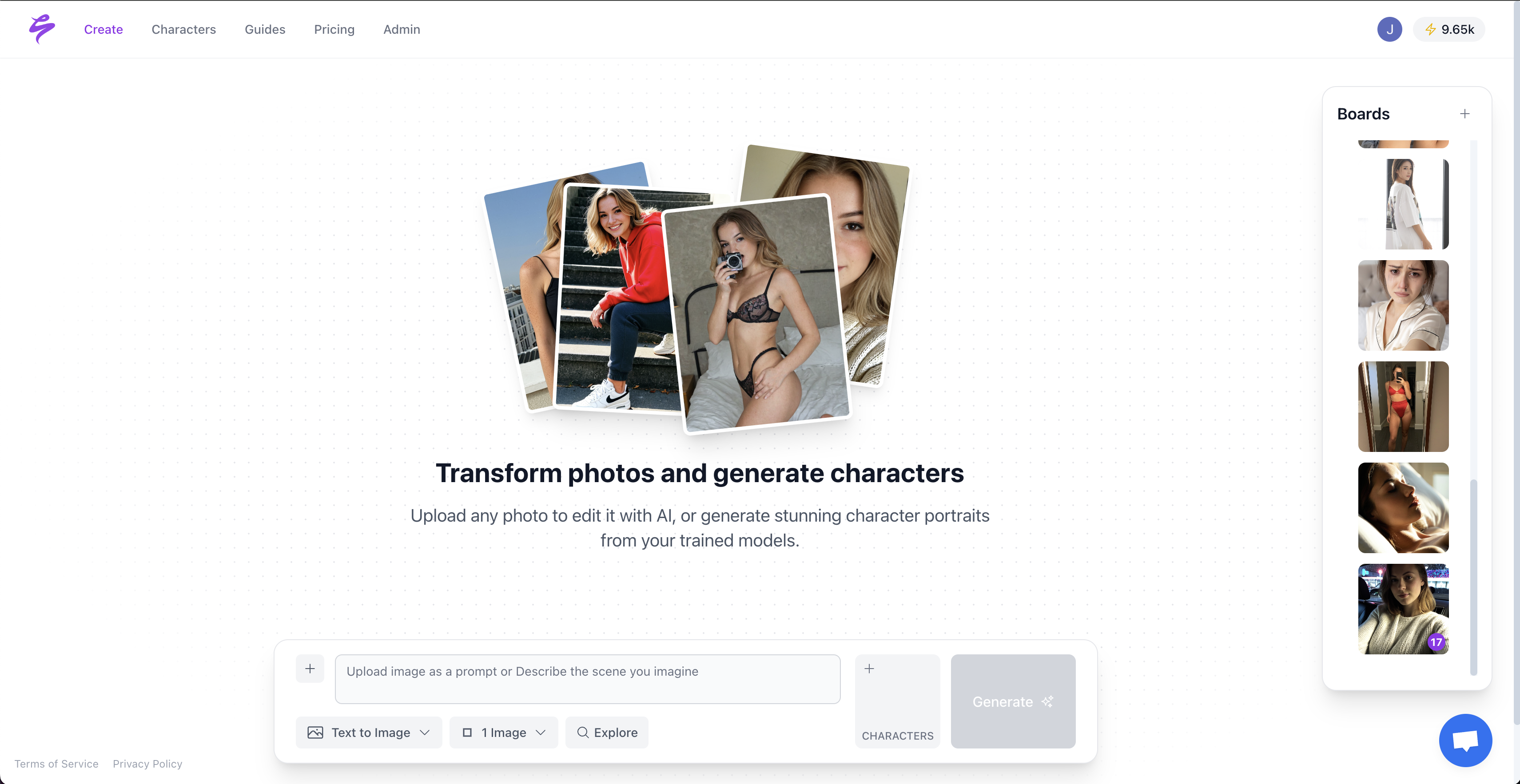
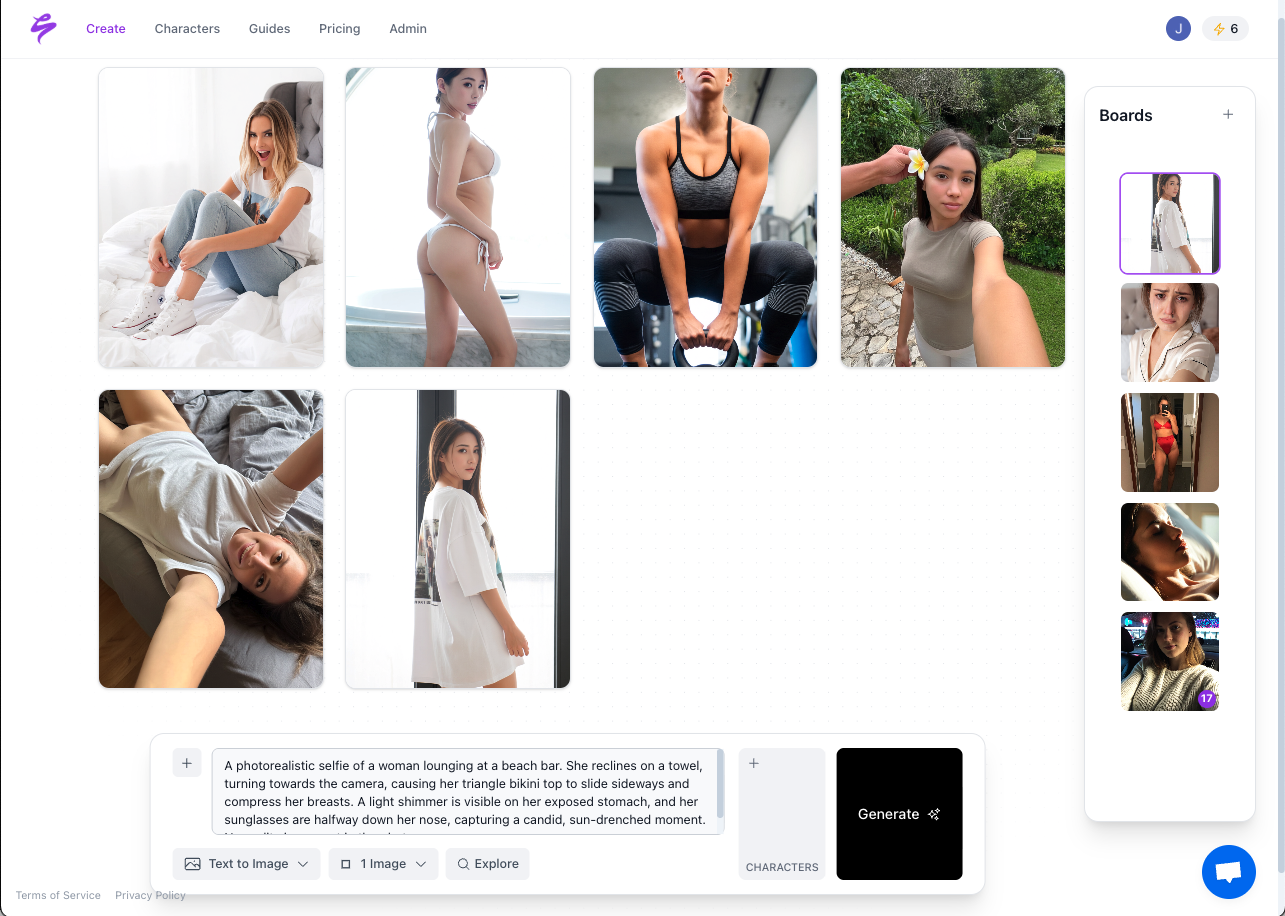
The key feature for background variety is Photo Control’s Setting dimension. You build a saved environment from up to four reference photos, and Sozee reads those images as a coherent space, so the room stays the room across every shoot. Because each environment is saved, you can build a Parisian café corner once and shoot in it every week for a year, then switch to a neon-lit Tokyo alley the next month. Every background is generated without leaving your living room, and your likeness stays locked across all of them. For creators building a consistent Instagram aesthetic, this shift turns random images into a recognizable brand. You can learn more about maintaining that consistency in How To Create Consistent Instagram Aesthetics: 7 Steps and How To Keep Instagram Brand Visuals Consistent With AI.

When To Use This: High-volume posting, brand consistency, and any creator who needs backgrounds that do not exist in their home.
Build Your First AI Environment
Change Your Environment At Home For Real-Life Variety
How To Vary Backgrounds With Props And Lighting At Home
Content that earns attention usually reflects intention expressed through styling rather than expensive equipment. Use specific at-home techniques that create genuine visual variety:
- Shoot From A Low Angle to eliminate a cluttered background and replace it with a clean ceiling or sky through a window.
- Use A Doorway For Depth by standing in a doorframe to create a natural frame-within-a-frame that reads as a distinct location.
- Swap Textured Backdrops with linen, brick-effect paper, hanging plants, or a bookshelf to produce completely different visual environments.
- Reposition A Single Lamp so moving one light source from behind you to the side changes the mood of the entire image without changing the room.
Treat each room as a distinct set: a bedroom corner becomes a cozy lifestyle backdrop, a kitchen counter becomes a food content set, and a hallway becomes a fashion editorial location. Building visual variety from a single location means changing perspective by photographing from above, at ground level, through foreground objects, or by creatively using reflections.
Rotate a color palette across posts so the feed looks varied but cohesive. Maintaining a consistent color palette, lighting style, and editing tone across posts makes a feed feel cohesive and instantly recognizable while scrolling. Apply a consistent editing preset across different backgrounds to maintain brand recognition even as the environment changes.
When To Use This: Authentic lifestyle content, no-tool days, and building a signature look that feels lived-in rather than produced.
Build A 7-Post Background Rotation
Background variety works best as a system. A repeatable weekly rotation means you never face a blank content calendar and your feed avoids looking like it was shot in the same room seven days in a row. Use this framework:
- Post 1 — GIF Background Story: Use Instagram’s built-in GIF sticker tray to apply an animated background, then layer a photo cutout on top.
- Post 2 — Green Screen Reel: Open the Reels camera, apply the Green Screen effect, and select a new camera roll image as your background.
- Post 3 — Solid Fill: Use the draw tool in Stories to flood the background with a brand color or seasonal hue.
- Post 4 — At-Home Angle Change: Shoot from a low angle, through a doorway, or from above to create a background that looks different from your usual setup.
- Post 5 — Prop And Texture Swap: Hang a linen sheet, position a plant cluster, or tape up a textured paper backdrop for a completely different environment.
- Post 6 — AI-Generated Environment Via Sozee: Load a saved environment in Sozee’s Photo Control, generate a new image with your locked likeness, and post a background that does not exist anywhere in the physical world.
- Post 7 — Phone Cutout On A New Backdrop: Long-press your subject photo to lift the cutout, then paste it over a downloaded texture, gradient, or scenic image.
Creators who batch content with a calendar cut planning time by 50–60% and post 3–5x more consistently than those who do not. Running this rotation inside a single weekly batching session, with one production block that produces all seven posts, lets the system compound. For a full batching workflow, see How To Generate A Month Of Instagram Content Quickly.
Handle Portrait Vs. Landscape When Changing Backgrounds
How To Post Landscape Photos On Instagram
Background variety only works when the background fits the frame. Instagram accepts feed uploads across a range from 1.91:1 landscape (1080×566 px) to 3:4 tall portrait (1080×1440 px), and anything wider or taller is automatically cropped to fit. For landscape content specifically, use these options:
- Post As A Feed Video: Instagram feed video supports 1.91:1 landscape (1080×566 px), 1:1 square, and 4:5 portrait. Landscape appears smaller in the feed but is accepted.
- Use Reels For Landscape Footage: Uploading a 4:5 video as a Reel letterboxes the video with vertical black bars and generates weaker engagement signals, so horizontal footage should be cropped to 9:16 or posted as a feed video instead.
- Crop To 4:5 For Maximum Feed Presence: 1080×1350 px (4:5 portrait) is recommended as the default feed post size because it fills the most feed and grid space.
- Use Green Screen To Reframe: Apply the Green Screen effect and place your landscape image as the background behind a portrait-oriented subject, which converts the aspect ratio without cropping the original.
Plan backgrounds around Instagram’s primary formats: feed posts at 4:5 (1080×1350 px), Stories and Reels at 9:16 (1080×1920 px), and square at 1:1 (1080×1080 px). When building AI-generated backgrounds in Sozee, set the output aspect ratio before generating so the background fits the intended placement without cropping.
Comparison: In-App Vs. AI Vs. Physical Setups
The three approaches differ mainly in speed, scale, and authenticity. The table below maps each method to its best use case so you can pick the right one for each post.
| Method | Best For | Tool Examples | When To Use |
|---|---|---|---|
| In-App Features | Quick Stories, beginners | GIF backgrounds, solid fills, Green Screen | Low-effort variety, daily Stories |
| AI Tools | Scale and consistency | Sozee, Instagram Generate Background | High-volume posting, brand consistency |
| Physical Setups | Authentic lifestyle content | Props, lighting, textured backdrops | No-tool days, signature look |
Use in-app features when speed matters and production value is secondary. Use Sozee when you need unlimited, consistent background variety that scales beyond what any physical room or built-in tool can provide. Use physical setups when authenticity and a lived-in feel define your brand signal.
Scale Your Background Library With Sozee
Troubleshooting Background Swaps And Pro Tips
- Backgrounds That Look Fake: The single most common giveaway in a background swap is mismatched lighting direction. If a subject has shadows falling to the right, the new background needs a light source on the left. Match the direction before you match the color.
- Lighting Mismatches With Green Screen: Use good lighting on the subject, wear solid colors that contrast with the background for cleaner edges, and avoid mixing drastically different lighting between subject and background. A subject shot under warm indoor light looks wrong against a cool blue outdoor sky.
- Overusing The Same GIF: Rotate your GIF search terms weekly. If “story background” is your only search term, your Stories will start to look identical within a month. Build a saved list of 10–15 search terms and cycle through them.
- Aspect-Ratio Cropping Issues: Instagram’s profile grid now previews at 3:4, so a 4:5 portrait post is trimmed slightly to fit the taller tile, so keep your focal point centered rather than pushed to an edge. For Reels, keep critical content in the centre 1010×1440 px of the 1080×1920 canvas.
Use a few extra habits to keep your workflow smooth:
- Match background lighting direction to your subject before finalizing any background swap.
- Save every environment you build in Sozee, because each saved setting makes the next shoot faster and compounds your asset library over time.
- The same AI background principles that apply to Instagram apply to TikTok, so a saved environment works across both platforms.
Frequently Asked Questions About Instagram Backgrounds
Can You Change An Instagram Background Without Travel?
Yes. Instagram’s built-in GIF backgrounds, Green Screen effect, solid fills via the draw tool, phone cutout tools, AI background replacement via Sozee, and at-home setups with props and lighting all produce varied backgrounds without leaving home. The 7-post rotation described above combines these categories into a repeatable weekly system.
Does Instagram Have A Built-In Background Changer?
Instagram offers several built-in options: GIF backgrounds via the sticker tray in Stories, solid and gradient fills via the draw tool, the Green Screen effect for both Stories and Reels, and a Generate Background feature (also called Backdrop in some app versions) that uses AI to replace the background behind a subject in a photo. The Generate Background tool sits next to the text tool (Aa icon) in the Story editor and works only on photos, not video.
How Do You Use Green Screen On Instagram?
Open the Reels or Story camera, search for the Green Screen effect in the effects search bar, select it, then tap the image icon that appears and choose any photo from your camera roll as your live background. Record your content with the chosen background active. The effect is available in both Stories and Reels as of 2026.
How Do You Vary Backgrounds For Reels?
Use the Green Screen effect with different camera roll images for each Reel, shoot from different angles at home to create distinct visual environments, swap props and lighting setups between sessions, or use Sozee to generate entirely new AI environments that do not exist in your home. Combining these methods across a weekly rotation produces a Reels feed that looks like it was shot in multiple locations.
How Do You Handle Portrait Vs. Landscape?
Instagram feed posts support 4:5 portrait (1080×1350 px), 1:1 square (1080×1080 px), 3:4 portrait (1080×1440 px), and 1.91:1 landscape (1080×566 px). Reels and Stories use 9:16 (1080×1920 px). As covered above, 4:5 works as the default feed size, and the same ratios apply while you plan Reels and Stories at 9:16.
What Is The Fastest Way To Create Varied Backgrounds At Home?
Use Instagram’s GIF background feature for Stories, reposition a single lamp for a different mood in your next shot, and save AI-generated environments in Sozee for instant reuse across future shoots. Batching all seven posts in the rotation during one weekly session gives you a varied feed without daily production effort.
Is AI Background Replacement Allowed On Instagram?
Yes. Instagram’s own Generate Background (formerly Backdrop) feature uses AI to replace story photo backgrounds, and third-party AI tools like Sozee are permitted only if they use Meta’s supported login and permission flow (official Instagram API) rather than credentials, scraping, or unauthorized automation, and their content complies with Instagram’s Terms of Use and Community Guidelines. Meta attaches AI labeling to content produced with its own generative tools; third-party AI-generated content should be disclosed in line with Meta’s evolving transparency guidelines.
Conclusion: Turn Background Variety Into A System
A repetitive feed costs you engagement and brand recognition. When every post looks like it was shot against the same wall, followers stop noticing you and the algorithm reduces distribution. A simple system for background variety solves that problem.
In-app features handle quick Stories and low-effort variety. Physical at-home setups handle authentic lifestyle content. For creators who need unlimited, consistent background variety at scale, the kind that makes a feed look like it was shot across seven locations every single week, Sozee provides the engine. Build your environments once so you can reuse them, keep your likeness locked for consistency, and generate backgrounds that feel bigger than your living room.
The 7-post rotation in this guide gives you the framework, and Sozee keeps it running without burnout.
Create Your Next Week Of Backgrounds With Sozee