Stripchat Monetization Workflow Automation: 7-Step AI System
Automate your Stripchat monetization with Sozee’s 7-step AI system. Replace manual shoots, scale content output, and grow revenue faster. Start free!
The Sozee teamJuly 18, 202611 min read
Key Takeaways
Manual content production caps earnings. Sozee’s automation replaces hours of shooting, editing, and posting with a repeatable 7-step workflow that scales output dramatically.
Three reference photos are enough to lock a consistent likeness or create an original character, which supports weeks of scheduled SFW teasers and NSFW sets across multiple platforms.
The Sozee Agent, Photo Control, and video tools turn simple prompts into finished shoots, video assets, and reel clones that feed directly into the Scheduler.
Automated posting, Vault organization, and Analytics with AI-versus-manual performance splits let creators measure ROI and reuse top-performing assets without extra effort.
Sign up for Sozee today at app.sozee.ai/sign-up to launch your Stripchat monetization workflow automation in a single afternoon.
Prerequisites and One-Afternoon Setup
Complete this checklist before you run the 7-step system so the workflow feels smooth from the first session.
Creator Onboarding
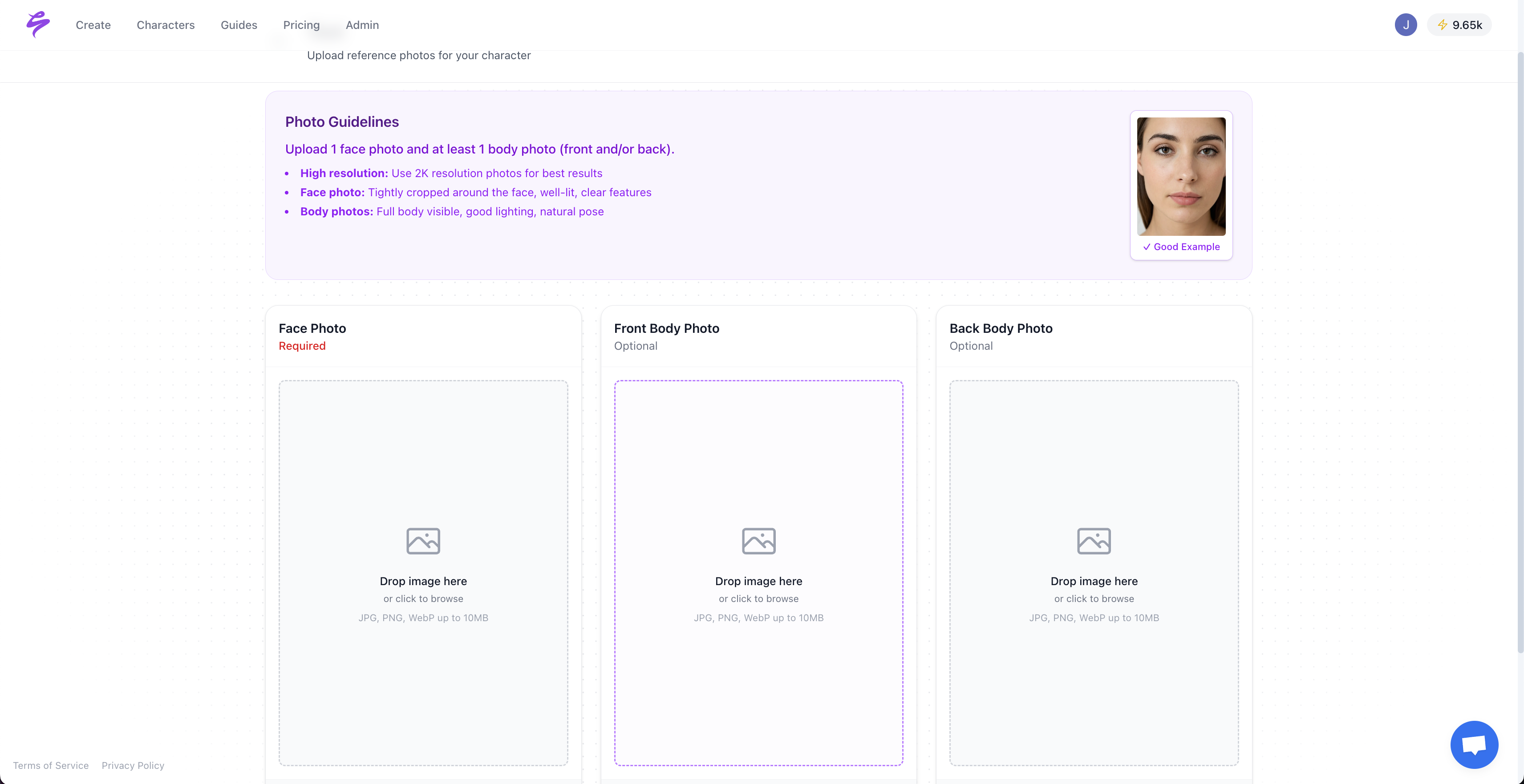
Three front-facing or varied-angle photos with consistent lighting for likeness locking
One front and one back body reference shot for full-body character accuracy
Login credentials for every platform the Scheduler will post to
A folder of any existing brand assets: logos, product props, or sponsor objects
A clear content calendar intention, even a rough weekly post target per platform
Compliance awareness: Before generating any content, confirm you understand the legal requirements that govern AI adult content distribution. The TAKE IT DOWN Act criminalizes nonconsensual publication of intimate images including deepfakes, so you must have documented consent for any real-person likeness. If you distribute to EU audiences, the EU AI Act requires machine-detectable watermarking on all AI-generated images and video from December 2, 2026. These rules affect how you cast characters in Step 1 and how you export and distribute assets in Step 5.
Step 1: Cast a Consistent Model or Character in Sozee
Navigate to the Cast section in Sozee and create your base model. Upload three photos and Sozee reconstructs your likeness instantly. From those face photos, the system generates front, quarter turn, side profile, and back angles so you gain a full rotational view without extra uploads. Adding one front and one back body shot then completes the full-body model and locks proportions and physique. No training period. No technical configuration.
GIF of Sozee Platform Generating Images Based On Inputs From Creator on a White Background
Creators who prefer full anonymity or want a fictional persona use the AI Character Builder instead. Select origin, ethnicity, skin tone, eyes, hair, physique, and any distinctive detail. The result is a face that has never existed and stays consistent from the first frame forward. You can manage multiple characters side by side under one account, which supports agency-scale roster management.
Step 2: Lock Likeness with Photo Control and Photo Shoot
With the character cast, open Photo Control to define how every image looks. Five dimensions shape each output.
Make hyper-realistic images with simple text prompts
Setting: the environment where the shoot takes place
Outfit: one piece per category such as tops, bottoms, shoes, and accessories
Shot style: framing and composition direction
Expression: the emotional register of the image
Object: up to four props per set, including sponsor products
For SFW teasers, choose a neutral Setting, a lifestyle Outfit, and a warm Expression to keep the tone approachable. For NSFW sets, Photo Shoot takes one image and builds a coherent set of up to ten around it. Identity, outfit, and environment stay locked while angle, pose, and expression vary to create a natural progression. You control how quickly the content moves from SFW to NSFW and where that progression stops, which sets both the pacing and the ceiling of your arc.
Pro Tip: Build a bedroom or studio Setting once from up to four reference photos. Sozee reads the room as a whole, so the environment stays consistent across every shoot that uses it. One environment setup yields months of reusable location assets.
Step 3: Use the Agent to Turn Ideas into Finished Shoots
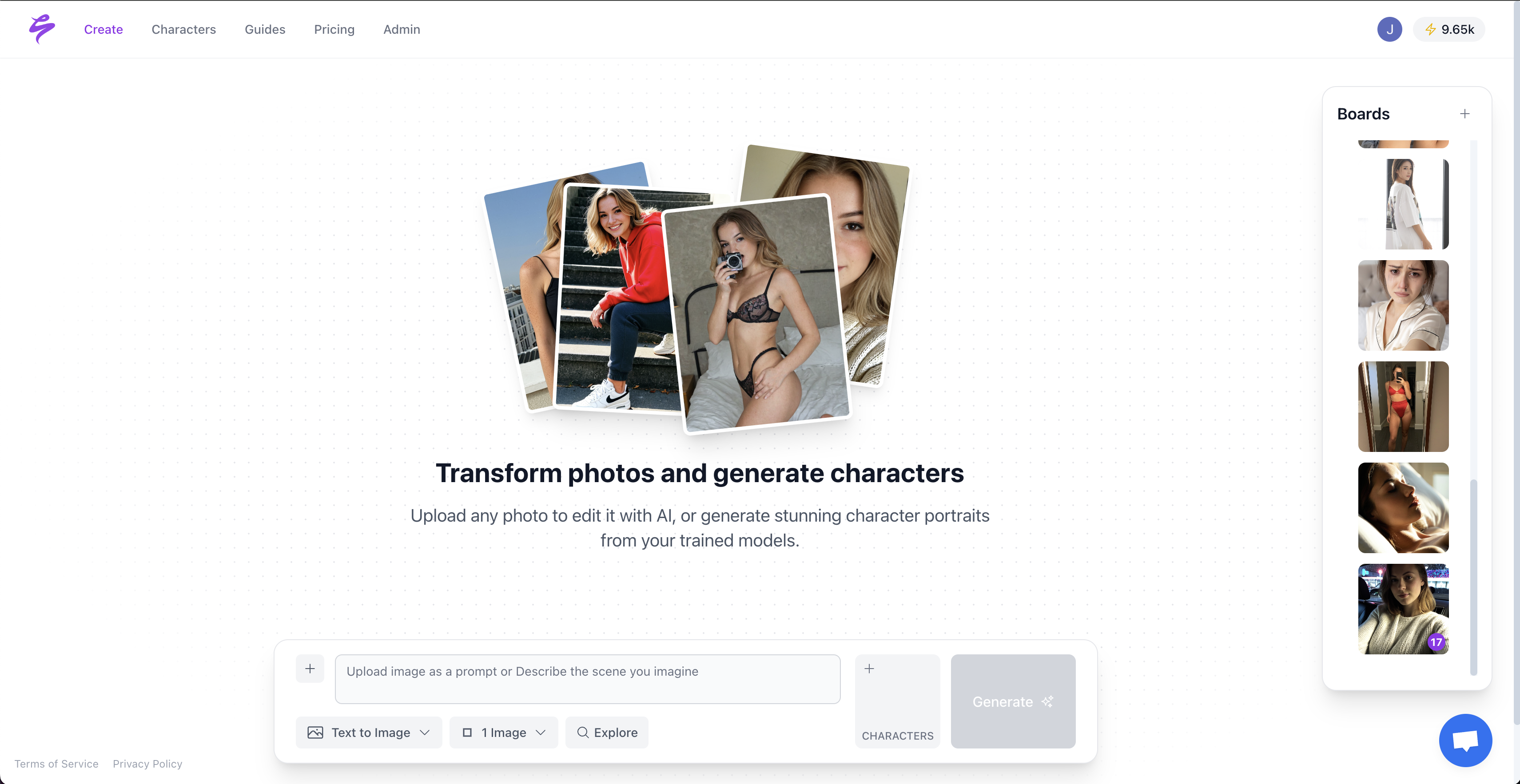
Creators who prefer not to configure Photo Control manually can hand the setup work to the Sozee Agent. Describe a rough idea in plain language, such as “poolside editorial, summer, playful,” and the Agent asks only for missing context like character choice, setting, wardrobe gaps, expression, and output count. Each step offers three paths: pick from the existing library, generate a new asset on the spot, or let the Agent decide.
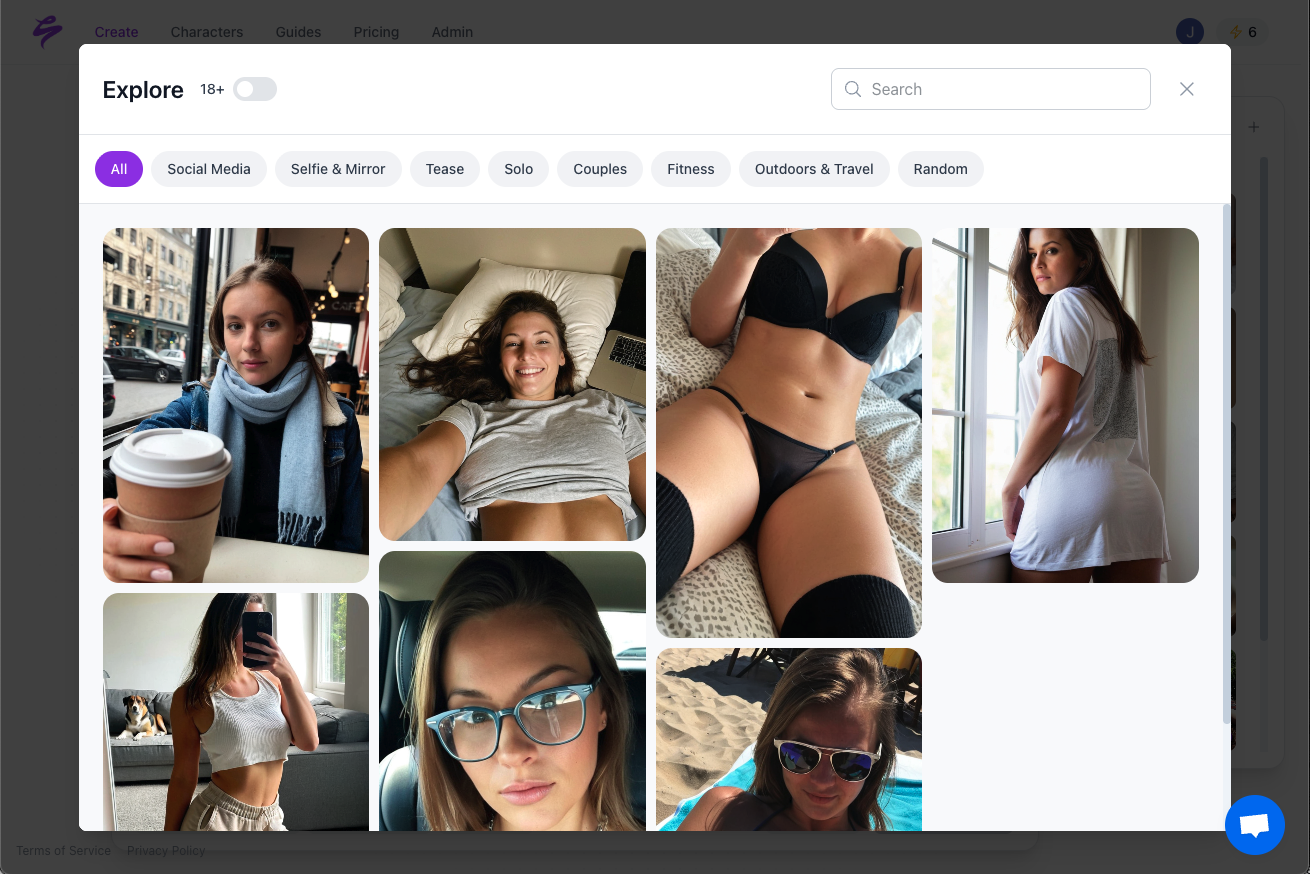
Use the Curated Prompt Library to generate batches of hyper-realistic content.
As you answer, the Agent translates your choices into the technical parameters that Photo Control needs. It writes directly into the prompt bar and Photo Control panel so you never manage the underlying settings. When the conversation ends, the shoot sits one tap away from Generate.
Common Pitfalls:
Inconsistent likeness across sets usually means the character was not fully cast in Step 1, so return to Cast and complete the body reference shots.
Generic outputs often come from leaving Setting and Expression at defaults, and extra specificity in those two dimensions produces the largest quality jump.
Reusing a vague prompt across multiple shoots breaks brand consistency, so save completed Photo Control configurations as named presets.
Step 4: Create Video Assets, Reel Clones, and Live Mode Snaps
Static images drive traffic, while video keeps viewers engaged for longer sessions. Sozee’s video suite supports three production modes.
Animate a still: Select any generated image, direct the motion such as camera moves, gestures, and mood, then export up to 1080p and fifteen seconds in every major aspect ratio.
Reel cloning: Paste an Instagram, TikTok, or YouTube link and Sozee rebuilds the motion of that reel in the creator’s locked likeness, which lets you reuse proven formats.
Live Mode: Run real-time character transformation on webcam or phone. The creator acts and the character performs while you snap frames during the session for promotional assets without a separate shoot.
These three video modes replace most traditional video production steps and remove the need for separate filming, editing, and formatting. AI tools can significantly reduce video production time compared to manual methods, and creators using generative AI tools can save hours each week. Video assets generated here feed directly into the Scheduler in Step 5.
Step 5: Connect the Scheduler to Stripchat and External Channels
Open the Scheduler and connect each platform per character so every persona has its own distribution map. Sozee supports Instagram, TikTok, X, Facebook, Reddit, and Fanvue. For Stripchat promotion, assets are exported and queued to the platform’s promotional tools on the same cadence as your social posts.
Each scheduled post carries a platform-specific caption, because tone and character limits differ across channels. A single asset generates four distinct captions automatically, one tailored to each channel’s style and space, which removes manual rewriting. Before you confirm, a live preview renders the actual post on every platform so you can check formatting and copy in context.
Step 6: Use the Vault and Analytics to See What Works
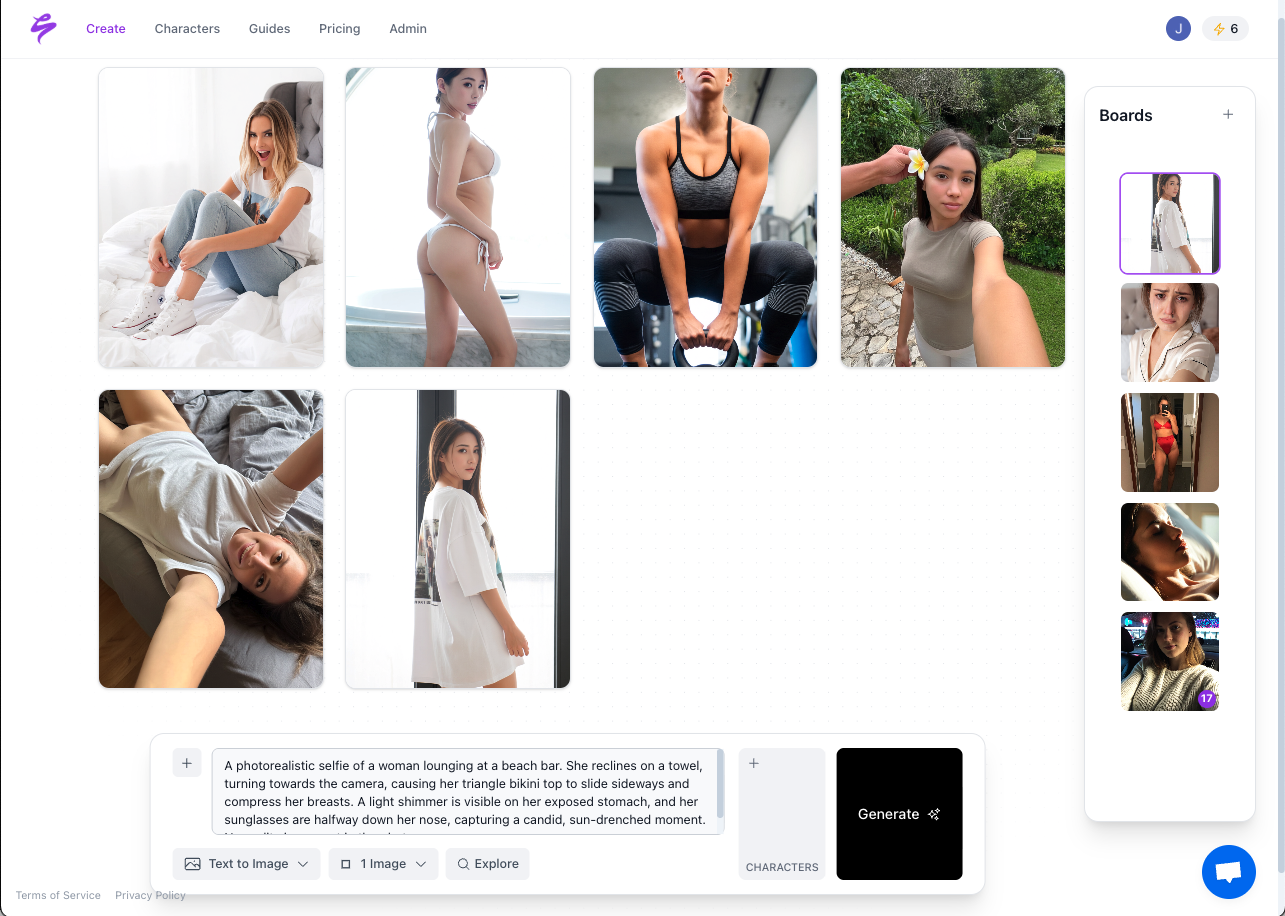
Every image, video, voice note, and Live Mode snap lands in the Vault, which organizes assets into folders at the moment of generation. The Vault feeds the Scheduler, the Agent, and Live Mode so you never re-upload files between tools.
Sozee AI Platform
The Analytics dashboard tracks impressions, reach, likes, comments, shares, and engagement rate. For Stripchat monetization workflow automation, the key feature is the performance split. Sozee separates what the AI system posted from what the creator posted manually, which makes the revenue contribution of the automation layer visible and measurable.
Pro Tip: Attach a sponsor’s product to the Object slot before generating a set. Every image in that shoot carries the product consistently. Save the Object to the library and reattach it for every subsequent campaign with that brand so you avoid re-briefing.
Step 7: Reuse Top Assets and Track Revenue Impact
Analytics data from Step 6 feeds directly into new production decisions. Posts with the highest engagement rates highlight which Settings, Outfits, and Expressions drive traffic. Those configurations already live in the library, so reactivating them for the next week’s shoot takes seconds instead of a full shoot day.
AI analytics can improve ROI and support stronger returns on marketing spend when you use performance data to refine content direction. The effect compounds over time. Every shoot makes the next one faster, and every analytics cycle makes the next shoot more targeted.
Before-and-After Results: Output and Time Savings
To quantify the workflow’s impact, the table below compares five key output metrics before and after implementing Sozee automation. These benchmarks, drawn from published AI content production studies, show how much efficiency and volume the 7-step system can unlock.
Metric
Before (Manual)
After (Sozee Automated)
Promotional posts per week
4
28+
Time per finished post
High
Low (review only)
Weekly production hours recovered
0
Substantial hours
Monthly video output (team unchanged)
Baseline
up to 10× baseline
Content creation time reduction
—
62% faster
Benchmarks drawn from published AI content production studies, including faceless channel posting frequency, agency video scaling, and AI content creation speed statistics.
Advanced Next Steps: Scale Across Characters and Client Rosters
Studios and agencies managing multiple models use Sozee’s Teams and Workspaces feature to centralize control. One login manages every client, and each workspace keeps its own characters, Vault, connected accounts, and credits fully isolated. A studio manager can set up shoots across an entire roster using the Agent and brief each character separately without switching accounts or rebuilding settings.
Agent infrastructure can replace several human production roles while increasing content output. In a multi-model studio, the Sozee automation layer handles much of the production work, and the Analytics split proves its contribution to each character’s revenue line.
Reel cloning enables A/B testing at scale. Identify a high-performing format on one character’s channel, clone its motion structure across three other characters, and let the Scheduler distribute all variants simultaneously. Analytics then reveals which audience responded best to which format, so the next production cycle runs on real performance data instead of guesswork.
Is my likeness private when I upload photos to Sozee?
Sozee’s privacy architecture treats your likeness as exclusively yours. Character models are private and isolated to your account, and the system never uses them to train Sozee’s models or share them with other users or third parties. If you prefer to operate with zero real-person exposure, the AI Character Builder generates an entirely original face and body from scratch with no source photos required. That character stays equally consistent and equally locked, with no connection to any real individual.
How does Sozee handle NSFW compliance for Stripchat content?
Compliance sits inside the platform’s setup flow instead of appearing as an afterthought. Sozee’s generation parameters enforce age restrictions, and all characters must appear clearly adult, because age ambiguity does not protect you under federal law. As noted in the Prerequisites, the TAKE IT DOWN Act criminalizes nonconsensual publication of intimate deepfakes, so Sozee’s verified self-upload system and consent architecture ensure that any real-person likeness used has explicit documented consent. For EU-distributed content, the watermarking requirements mentioned earlier apply from December 2, 2026, and creators distributing to EU audiences should confirm their content carries C2PA-compliant provenance metadata. When you face uncertainty, consult a qualified legal professional familiar with your jurisdiction before publishing.
Can the full workflow run on mobile, or is a desktop required?
The complete Sozee workflow, including Cast, Photo Control, Photo Shoot, Agent, Vault, Scheduler, and Analytics, is accessible on desktop, iPad, and mobile. Live Mode runs on your phone’s camera feed in real time. The Agent is designed so that creators who prefer not to navigate the full control panel can brief a shoot conversationally from any device and still arrive at a finished, scheduled post without touching the underlying settings manually.
How are credits consumed across the different creation modes?
Credit consumption varies by output type and resolution. Single-image generation from Photo Control consumes fewer credits than a full Photo Shoot set of ten images. Video generation, including animate a still, reel clone, or text-to-video, consumes more credits than static image production, and longer clips or higher resolutions up to 1080p consume proportionally more. The Agent itself does not consume credits, because credits are drawn only when you confirm generation. Upscaling to 2K or 4K from the Refine suite draws additional credits. The Vault, Scheduler, and Analytics features do not consume credits. Monitoring credit usage through the Analytics dashboard lets studios allocate production budget by character or campaign.
How do I measure the ROI of AI-generated content versus my manual posts?
Sozee’s Analytics dashboard provides a direct split between content the Scheduler posted and content you posted manually. Metrics tracked include impressions, reach, likes, comments, shares, and engagement rate, all broken out by source. This split forms the core mechanism for measuring the automation layer’s contribution to traffic and fan retention. To connect content performance to revenue, cross-reference the Analytics engagement data with Stripchat’s token and tip reporting for the same time periods. High-engagement AI posts that correlate with live session traffic spikes or subscription conversions reveal which asset types and schedules drive the strongest monetization outcomes. That data feeds back into Step 7’s asset reuse loop and compounds returns over time.
Conclusion: Launch Your Stripchat Monetization Workflow Automation
The 7-step Sozee system replaces the manual content ceiling with a repeatable, scalable production loop. Three photos become a locked character. Photo Control and the Agent turn that character into weeks of SFW teasers and NSFW sets. Video assets, reel clones, and Live Mode snaps fill every format the Scheduler needs. Automated posting reaches Stripchat, Instagram, TikTok, and Fanvue at the same time with platform-specific captions. The Vault organizes every asset. Analytics splits AI performance from manual performance. Revenue data and saved environments close the loop and make every subsequent shoot faster and more targeted.
The entire system can be set up in one afternoon so you remove the content ceiling quickly.