
Key Takeaways for Fast ManyVids Approval
- Use an MP4 container with H.264 video, AAC audio, constant frame rate, and stable bitrate to avoid ManyVids rejections.
- Export a 1080p SFW teaser under 60 seconds and a full NSFW video with matching technical specs.
- Confirm file size, codec, frame rate, and audio settings before upload to prevent silent post-processing failures.
- Sozee keeps likeness and visual quality consistent across every frame, which removes most re-shoots and re-exports.
- Lock your likeness with Sozee to export once, pass review, and move straight to monetization.
Prerequisites Before You Export Any ManyVids File
Set up your tools and deliverables before you touch export settings. This avoids last-minute changes that force re-renders.
- A desktop editor with custom export controls, such as Adobe Premiere Pro, DaVinci Resolve, or CapCut Desktop.
- Enough free storage for both master files and exports, because incomplete writes can corrupt uploads.
- Two deliverables: a SFW teaser and the full NSFW video. ManyVids Trust & Safety guidelines review these separately.
- Source footage captured at high resolution, which helps pass quality review and reduces visible compression artifacts.
With these pieces in place, you can move into exact export settings with fewer surprises later.
Step 1: Use MP4 Container with H.264 Video Codec
Export in an MP4 container with H.264 video for the safest ManyVids compatibility. Platforms validate the internal codecs, not just the .mp4 extension, so a file with the wrong codec can still fail after upload.
H.265 produces smaller files than H.264 at the same visual quality, but its decoder support on older devices and browsers remains limited. That gap makes H.265 risky for platform uploads. H.264, by contrast, decodes reliably across modern phones, desktops, and browsers, which is why it remains the default choice even with slightly larger file sizes.
Step 2: Set 1080p Resolution and Landscape Orientation
Export at 1920×1080 (1080p) in landscape orientation for both teaser and full video. ManyVids handles landscape 1080p most reliably, and buyers expect at least this level of clarity.
Portrait or square crops work well on social platforms but often look out of place in primary store listings. Incorrect orientation can also trigger review flags. If you plan to repurpose content for social feeds, create separate exports from the same 1080p master rather than changing orientation for the ManyVids upload.
Step 3: Lock Bitrate and Frame Rate for Stable Processing
Bitrate and frame rate cause most silent failures after a successful upload. ManyVids expects constant frame rate and a bitrate that stays within a predictable range. Variable frame rate, which is common in phone footage, and aggressive bitrate spikes can cause processing to fail without a clear error.
Use the editor-specific settings below to match platform expectations. These values assume 1080p at 30 fps.
Adobe Premiere Pro — Export Settings (H.264, 1080p):
- Format: H.264
- Preset: Match Source – High Bitrate, then override settings manually
- Resolution: 1920×1080
- Frame Rate: 30 fps, Constant Frame Rate (CFR)
- Bitrate Encoding: VBR, 2 Pass
- Target Bitrate: 10 Mbps | Maximum Bitrate: 12 Mbps
- Audio Codec: AAC | Sample Rate: 48 kHz | Bitrate: 192 kbps | Channels: Stereo
DaVinci Resolve — Deliver Page Settings (1080p):
- Format: MP4 | Codec: H.264
- Resolution: 1920×1080 | Frame Rate: 30 fps
- Quality: Restrict to 10,000 Kb/s (10 Mbps) target bitrate | Enable Multi-Pass Encode
- Audio Codec: AAC | Sample Rate: 48,000 Hz | Bit Depth: 16-bit | Channels: Stereo
CapCut Desktop — Export Settings (1080p):
- Resolution: 1920×1080 | Frame Rate: 30 fps
- Codec: H.264 | Bitrate: 10 Mbps
- Format: MP4
These settings create a predictable file that aligns with common platform pipelines. You will confirm them again in the upload checklist in Step 6.
Two-pass or multi-pass encoding improves file-size consistency. The encoder analyzes the video on the first pass and allocates bits more efficiently on the second pass. Enable this option whenever your editor supports it.
Step 4: Export a 1080p SFW Teaser Under 60 Seconds
ManyVids listings perform better with a separate SFW teaser that previews the full clip. With your codec, resolution, and bitrate locked, you now create the teaser as a second export.
Keep the teaser under 60 seconds and use the same 1920×1080 resolution, 30 fps CFR, H.264 video, and AAC audio as the full video. The teaser drives storefront clicks, so visual sharpness and clean audio matter as much as in the main clip. Mismatched specs between teaser and full video can introduce processing issues or visible quality jumps.
Step 5: Run the Sozee AI Pipeline to Keep Likeness and Quality Consistent
Export settings solve the technical side of approval, but they do not fix inconsistent source footage. Re-shoots and re-exports usually happen because lighting, angles, or likeness change between sessions. When that consistency breaks, even perfect codec settings cannot save the batch.
Sozee addresses this production problem at the source. You upload three photos, and Sozee reconstructs your likeness with locked consistency across every frame, set, and week. The system renders video directly at high quality in all key aspect ratios, so you avoid extra conversion passes.

The Sozee workflow lines up with the ManyVids delivery checklist:
- Cast: Build your character from three photos or generate an original AI character.
- Direct: Set Setting, Outfit, Shot style, Expression, and Object in Photo Control while likeness stays locked.
- Create: Generate the full NSFW video and the SFW teaser in one session with matching character, environment, and quality.
- Refine: Use Inpainting or Reimagine to fix specific frames instead of scheduling a re-shoot.
- Export: Output high-quality MP4 files that are ready for direct upload.
Build your first locked-likeness set in Sozee and skip the re-export cycle entirely.
Step 6: Upload to ManyVids and Verify Technical Specs
After upload, ManyVids runs its own post-processing pipeline. Confirm these details before you submit the listing.
- File size stays within the platform limit for a single upload.
- The file extension is .mp4 and the internal video codec is H.264, which you can verify with MediaInfo or VLC > Codec Information.
- Frame rate is constant rather than variable.
- Audio uses AAC stereo at 48 kHz.
- Teaser and full video are uploaded as separate files with correct content-type tags.
Processing time varies, but your video should enter a processing queue within minutes. If it enters a failed state instead, or processing stalls indefinitely, the cause usually traces back to a codec or frame-rate mismatch covered in the troubleshooting sections below.
Troubleshooting: Fix Mobile-Upload Failures
Screen recordings and phone camera footage often use variable frame rate, or VFR, where the time between frames changes throughout the clip. ManyVids expects constant frame rate, so its encoder struggles to keep audio aligned when it encounters VFR footage. Voices drift away from lip movement, and the file often fails post-processing.
Transcoding to constant frame rate before upload fixes this by locking frame timing. HDR video from phones can also cause compatibility problems, because some tools do not handle HDR metadata correctly.
- Convert VFR footage to constant frame rate in Handbrake or a desktop editor before uploading.
- Disable HDR recording on your phone or use a converter to remove HDR metadata.
- Avoid direct phone uploads. Transfer files to desktop, confirm specs, then upload.
- Confirm that the container is .mp4 with H.264 video and AAC audio.
Troubleshooting: Resolve Post-Processing Rejections
Uploads that fail during processing usually contain variable frame rate, unusual resolutions, incompatible audio, corrupt metadata, or unsupported encoding options. Check each of these areas when a file fails after a successful upload.
- Resolution mismatch: Confirm output is 1920×1080 or another standard HD resolution, not a non-standard crop.
- Bitrate issues: Use a 10 Mbps target bitrate for 1080p to avoid spikes that can trigger errors.
- Audio codec mismatch: Re-export with AAC stereo at 48 kHz and remove any surround or Dolby tracks.
- Corrupt metadata: Run the file through Handbrake with “Web Optimized” enabled to rebuild the moov atom and clean container metadata.
Advanced Workflow: Scale Consistent Sets with Sozee
Creators who earn consistently treat uploads as batches instead of one-off clips. They release multiple listings per week, each with a matched teaser and full video at the same visual quality.
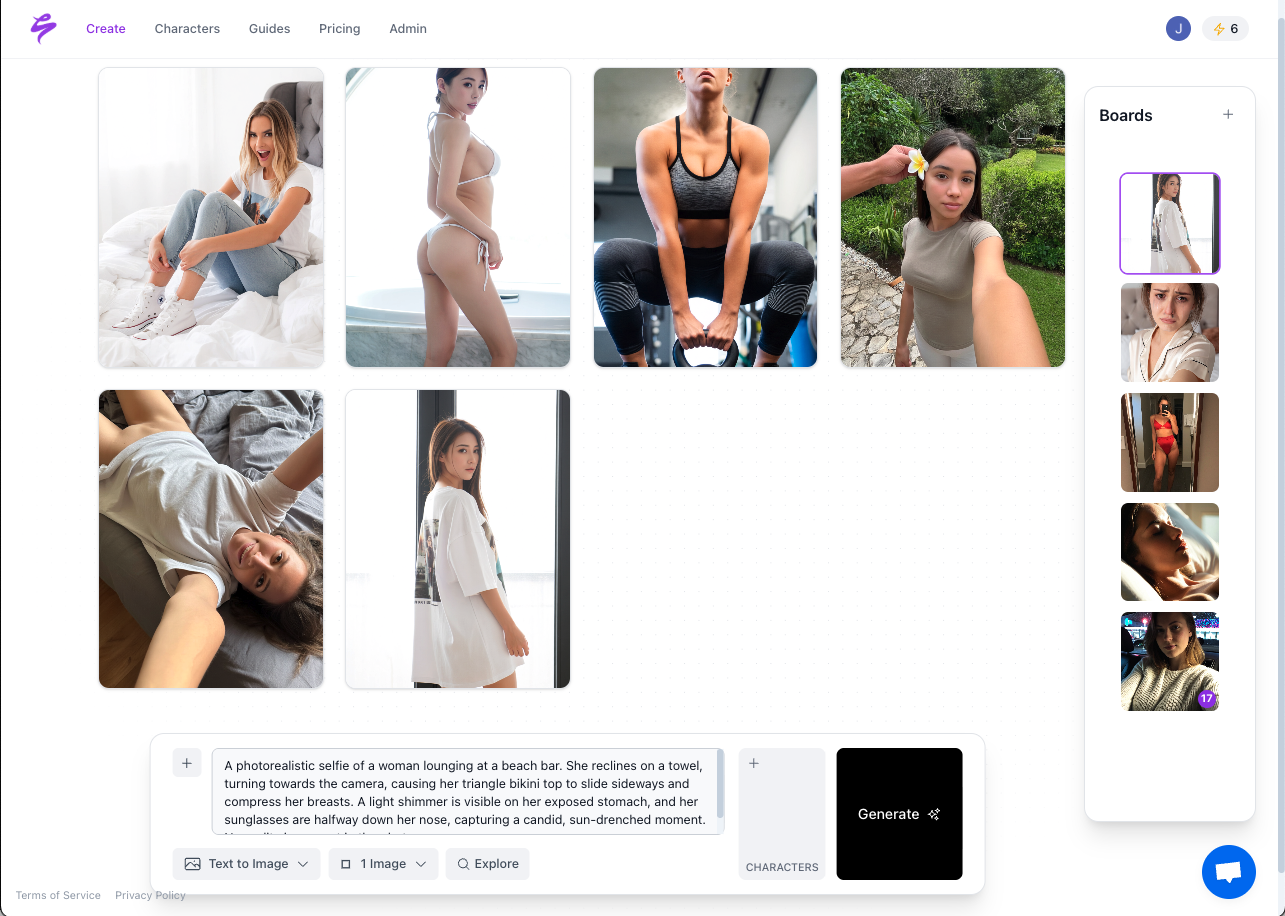
Sozee’s Photo Shoot feature takes one image and builds a coherent locked set around it. Identity, outfit, and environment stay constant while angle, pose, and expression change. That single session produces a complete SFW-to-NSFW arc with pacing and content controlled by the creator.
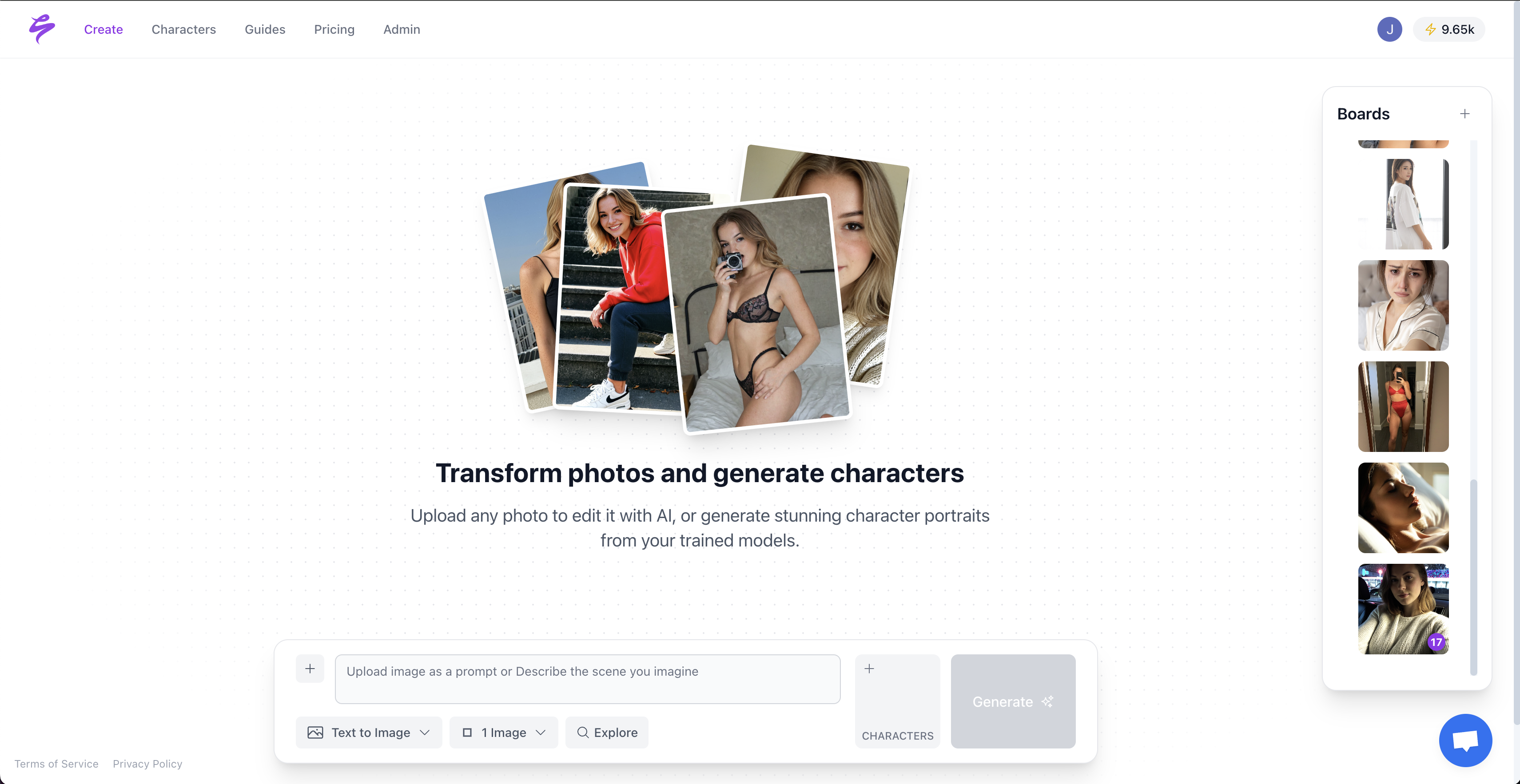
Reel Cloning lets you paste a reference video link and rebuild its motion in your locked likeness. This gives you a direct way to reuse proven formats across new listings without new shoots. Every setting, outfit, and environment you create in Sozee becomes a reusable asset, so each new batch takes less time than the last.
Start your first Sozee batch and build a reusable asset library for faster uploads.
Frequently Asked Questions
What is the maximum file size for a ManyVids video upload in 2026?
ManyVids accepts video files up to 5 GB per upload as of 2026. A 10-minute 1080p video at a 10 Mbps target bitrate produces a file of roughly 750 MB, which leaves plenty of headroom. If you approach the 5 GB limit with longer content, lower the target bitrate to around 8 Mbps or split the video into multiple parts.
Does ManyVids accept H.265 or HEVC video files?
No, you should stick with H.264 as explained in Step 1. Even if an HEVC file uploads successfully, it may fail during post-processing review. If your source footage was captured in H.265, transcode it to H.264 inside an MP4 container before uploading.
What frame rate should I use for ManyVids uploads?
Use constant frame rate at either 30 fps or 60 fps, depending on your source footage. If your camera captured at 30 fps, export at 30 fps CFR. If you shot at 60 fps and want smoother motion, export at 60 fps CFR. Always convert variable frame rate footage from phones or screen recordings to CFR before uploading.
What are the ManyVids teaser video requirements?
Teasers should stay SFW, run for a short duration, and match the technical specs of the full video. Export at 1080p, 30 fps CFR, H.264 video, and AAC audio to avoid mismatched specs that can cause rejection. Sozee’s Photo Shoot feature can generate both teaser and full video in one session so they share the same likeness and visual quality.
How does Sozee guarantee first-upload approval on ManyVids?
Sozee outputs video at the technical specs covered in Steps 1 through 3, which removes most manual encoder mistakes. The locked-likeness workflow in Step 5 keeps appearance and quality consistent across batches, so you spend less time fixing rejections and more time publishing.
Conclusion: Turn ManyVids Uploads into Repeatable Revenue
These steps give you a clear path from edit timeline to ManyVids approval. You choose a compatible container and codec, lock resolution, bitrate, and frame rate, export a matched SFW teaser, and verify specs before upload.
Sozee handles the production side of that workflow, as outlined in Step 5, so you can focus on the export and upload tasks covered here. Create your Sozee account and connect a consistent production pipeline to the exact export settings in this guide.