
Key Takeaways
- Most consumer AI image tools produce inconsistent results, so creators spend hours re-rolling prompts and fixing images by hand.
- Sozee Reimagine locks character likeness across five controllable dimensions and turns one reference image into a reusable brand asset in minutes.
- A six-step workflow guides you from casting a character to Reimagine, Photo Control, @-references, inpainting, and saving to the Vault for scheduling.
- Reusable libraries for environments, outfits, and objects speed up every future shoot, while analytics track impressions, reach, and engagement lift from scheduled posts.
- Ready to lock your brand identity and cut production time? Sign up for Sozee today and start creating consistent assets in minutes.
Set Up Sozee and Your First Character
Confirm a few basics before you open the Reimagine panel.
- A Sozee account (free or paid tier) — create one here
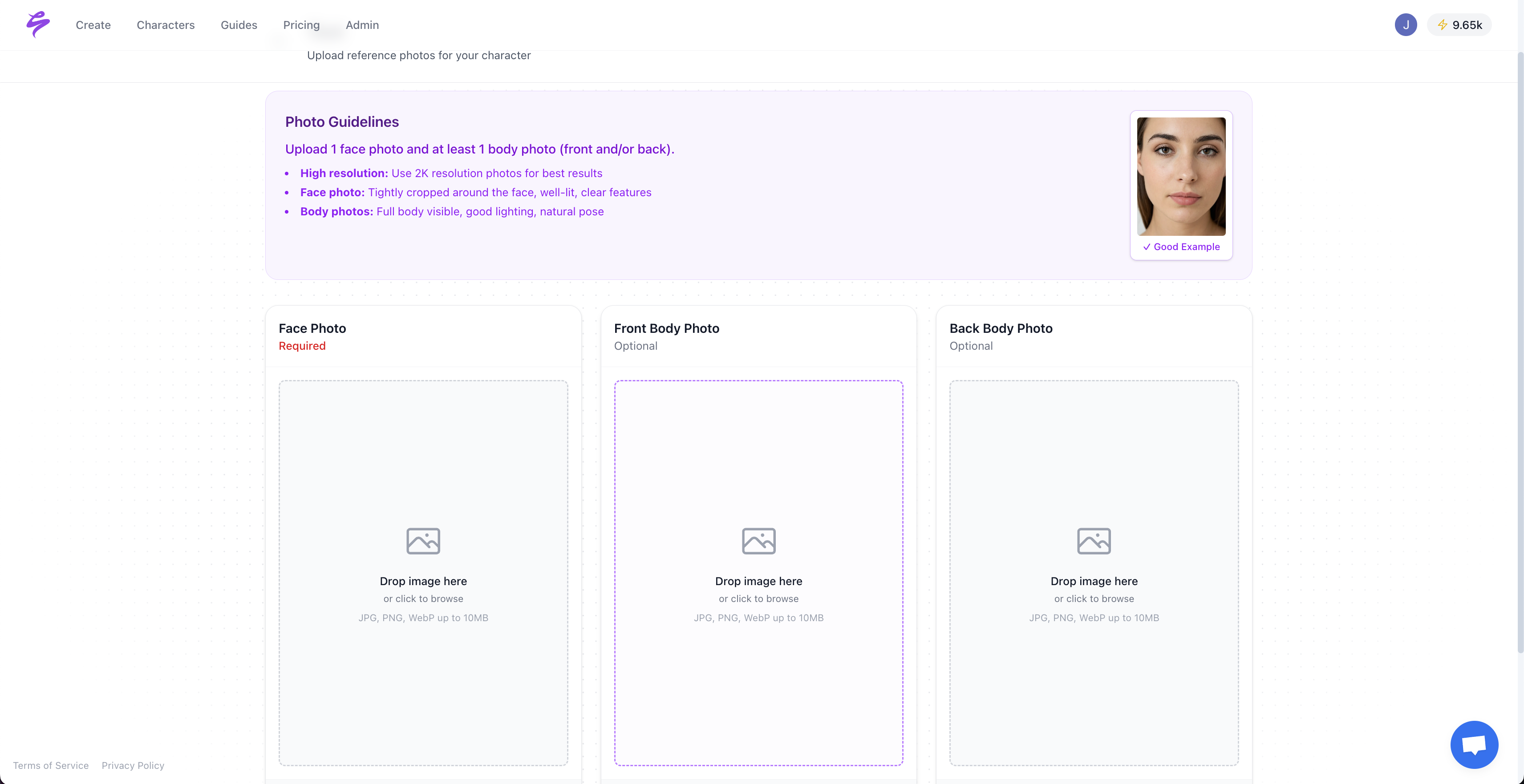
- At least three reference photos of your talent, or a completed AI Character built inside Sozee’s Cast panel
- A defined content goal, such as a weekly posting schedule, a brand deliverable, or a sponsored campaign brief
- A source image already in your Vault, or one ready to upload
Once your character and source image are saved, the full six-step workflow runs in a single session. This speed matters because creator weekly AI use has grown substantially, and the creators driving that growth are the ones who built reusable asset libraries first, which is exactly what this workflow helps you create. Let this setup become your foundation for every future campaign.
Build your first locked character now
Step 1: Cast or Select Your Locked Character
Open the Cast panel and select an existing character, or create a new one. To build from real photos, upload a minimum of three images. Sozee reconstructs the likeness instantly, with no model training and no waiting. To build from scratch, use the AI Character Builder and specify origin, skin, eyes, hair, physique, and any detail that must appear in every generation.
Anchor the character with a clear, front-facing reference image. Selecting the clearest front-facing image to anchor facial identity, hair, outfit, colors, and style is the recommended starting point for any character-consistency workflow. Sozee applies the same principle automatically. The front-facing frame becomes the identity anchor for every downstream generation.
Step 2: Open Reimagine from the Refine Panel
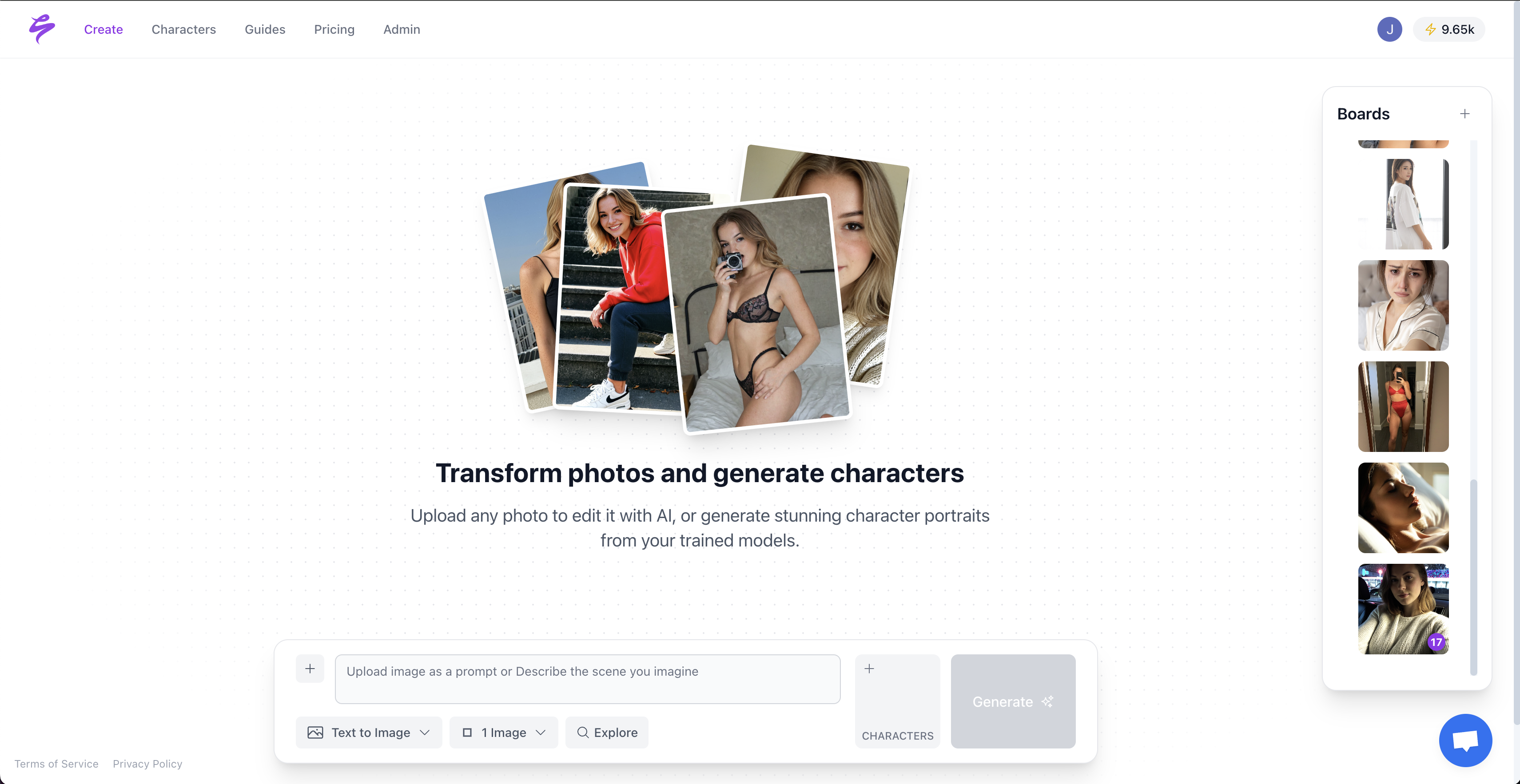
Navigate to the Refine panel and select Reimagine. Attach the source image you want to regenerate. This image becomes the structural anchor for the entire operation, so composition, framing, and likeness all reference it.

Image-to-image workflows allow creators to provide an existing photograph or prior generation as reference, enabling brand-consistent variations while preserving core structure better than pure text-to-image approaches. Sozee’s Reimagine feature applies this principle with likeness locking built in, so the character’s face and body remain stable while you change everything around them.
Step 3: Direct Changes with Photo Control’s Five Dimensions
Photo Control replaces the vague prompt bar with five explicit slots.
- Setting, where the shoot happens
- Outfit, what the character is wearing
- Shot style, how the frame is composed
- Expression, the emotional register of the face
- Object, props present in the scene
Fill each slot by uploading an asset, pulling from your library, or calling it inline with @. More precise slot choices create more stable output. Specifying composition language before the subject description improves consistency because image models process prompts left-to-right with token decay, giving earlier tokens greater influence. Photo Control handles this ordering automatically so you do not need to think about token placement.
Common pitfall: losing likeness with long prompts. Extensive free-text descriptions after filling the five Photo Control slots can override the likeness lock. Keep supplementary prompt text short and specific. If drift occurs, shorten the text field and rely on the control slots instead.
Step 4: Use @-References and Libraries for Fast Consistency
Type @ anywhere in the prompt bar to attach a saved environment, outfit, or object without breaking your flow. Each selection drops in as a color-coded chip, and Photo Control mirrors it in the matching control row.
Building a reusable library before a campaign session compounds every future shoot. Start with environments, since they define the space for everything else.
- Build environments from up to four reference shots. Sozee reads them as a whole space, so the room stays the same across every generation.
- Once your spaces are set, curate outfit libraries by category, such as tops, bottoms, shoes, and accessories, so a full look assembles from single-piece selections.
- Finally, save objects such as products, props, and branded items so they drop into any scene without re-uploading.
Pro tip: build the brand’s world once. Prompt-only workflows fail at catalog scale due to drift across operators, architectures, and time, and prompts plus unlabeled references are lost after months. Sozee’s library system moves locked configurations out of the prompt bar and into structured, reusable assets that stay consistent across every session.
Step 5: Refine with Inpainting and Background Swaps
Hit Generate and review the output against the source image. For targeted fixes, use Inpainting. Paint over the area to change, describe the change, and attach a reference if you have one. For full scene changes, use one-click background swaps.
Inpainting enables targeted edits by masking a specific region and applying a new prompt only to that area, preserving surrounding context such as lighting, shadows, and perspective without regenerating the full scene. This approach keeps your character stable while you experiment with details.
Common pitfall: forgetting to lock the same body reference. If the body reference changes between generations, proportions shift even when the face stays consistent. Always confirm the same character body reference is active before generating a new variation in the same set. Once you refine the output to match your vision, you are ready to save and schedule.
Step 6: Save to the Vault and Schedule Across Platforms
Save the approved output directly to the Vault and assign it to the right folder at the moment of generation. From the Vault, open the Scheduler and assign the asset to Instagram, TikTok, X, Facebook, Reddit, or Fanvue. Schedule per character, not per account, with a platform-specific caption and a live preview.
Pro tip: SFW-to-NSFW pacing for paid content. Use Photo Shoot to build a locked set of up to ten images from a single frame, and set the pacing and ceiling of the SFW-to-NSFW arc yourself. Schedule the SFW assets across free platforms first. Then release the full set to paid subscribers on Fanvue. The Vault keeps every asset in the same folder, so the handoff between platforms becomes a scheduling decision rather than a production task.
Save your first Vault-ready asset — sign up and complete the workflow today
Success Metrics That Show the Workflow Is Working
The Sozee analytics split view separates what Sozee posted from what you posted manually. This separation isolates the platform’s contribution to impressions, reach, likes, comments, shares, and engagement. Track a few key metrics after the first month of using this workflow, moving from production quality to business impact.
- Same-face consistency across every post in the period, reviewable by scrolling the Vault folder, proves the technical foundation is working.
- Total campaign delivery time, with a full month of content produced in a single afternoon once the character and library are built, shows efficiency gains.
- Impressions lift compared to the prior period, attributed to Sozee-scheduled posts in the analytics split, translates that efficiency into audience growth.
- Brand deal acceptance rate, since agencies and sponsors respond to consistent visual identity and the Vault provides the portfolio proof, converts growth into revenue.
Social marketers have substantially increased their use of AI for image editing. 58% of creators say their ability to compete with larger teams or studios feels stronger since using creative AI. The workflow above gives you a concrete way to capture that advantage.
Advanced Ways to Extend the Reimagine Loop
Once the core Reimagine loop is running, three extensions build on the compounding library effect described earlier.
- Photo Shoot sets: Feed any Reimagine output into Photo Shoot to build a locked, coherent set of up to ten images. Identity, outfit, and environment stay fixed while angle, pose, and expression vary. This approach can give you a month of content from one frame.
- Live Mode: Use approved Reimagine stills as the visual reference for Live Mode sessions. Act on camera while the character performs. Snap the frames you want in real time.
- Agent-driven weekly themes: Let the Agent read your top-performing Vault assets, identify what is working in the analytics split, and propose the next week’s shoot themes. The Agent can then write directly into the prompt bar and Photo Control panel, placing you one tap from Generate.
Frequently Asked Questions
How does Sozee Reimagine differ from Pixel Magic Editor?
Google Pixel Magic Editor is a consumer photo-editing tool designed to clean up or alter existing personal photos on Pixel devices. It has no concept of a locked character likeness, no reusable asset library, and no scheduling or analytics layer. Sozee Reimagine is a studio-grade feature inside a full creator monetization platform. It anchors every regeneration to a locked character identity, lets you direct changes across five explicit dimensions instead of typing a vague prompt, saves every output to a Vault, and connects directly to a multi-platform scheduler and analytics dashboard. The difference is the gap between editing a single photo and running a content brand.
Does the free tier allow commercial use?
Sozee’s free tier gives you access to the core Cast, Direct, and Create workflow so you can build a character, run Reimagine, and generate assets. Commercial use terms, including monetization on platforms like Fanvue, Instagram, and TikTok, are governed by the plan you are on. Review the current plan details on the Sozee site to confirm which tier covers your specific monetization use case before publishing commercially.
What are the output resolution limits?
Sozee supports image output up to 4K resolution and video output up to 1080p at up to fifteen seconds per clip. Upscaling to 2K or 4K is available inside the Refine panel for any image already in your Vault. You can generate at standard resolution for speed during the creative session and upscale only the approved finals before delivery or scheduling.
How is my likeness kept private?
Sozee’s privacy architecture isolates every character model to the account that created it. Your likeness is never used to train Sozee’s models or any third-party system, and it is never shared across accounts or workspaces. For agencies managing multiple talent rosters, each workspace is fully isolated with separate characters, separate Vaults, and separate connected accounts, so no talent’s likeness is accessible from another client’s workspace.
Can I run the full workflow on mobile?
Yes. Sozee’s interface is designed for desktop, iPad, and mobile. The Cast panel, Photo Control, Reimagine, Vault, and Scheduler are all accessible on mobile. Live Mode also runs on your phone camera. The Agent is available on every device, so if you prefer to direct a shoot conversationally rather than filling each control manually, you can do that from any screen.
How does Reimagine integrate with reel cloning?
Reel cloning and Reimagine sit in the same studio loop. Use Reimagine to produce a locked still with a specific look, setting, and outfit, then feed that still into the video workflow. For reel cloning, paste an Instagram, TikTok, or YouTube link and Sozee rebuilds the clip’s motion in your character’s likeness. The Reimagine output ensures the character entering the video workflow is visually consistent with the rest of your Vault, so stills and video assets match across a campaign.
How do I measure ROI inside Sozee’s dashboard?
Sozee’s analytics panel tracks impressions, reach, likes, comments, shares, and engagement rate for every post the Scheduler publishes. The split view separates Sozee-scheduled posts from posts you published manually, so you can isolate the platform’s direct contribution to your growth metrics. For agencies, this split is reportable per character and per connected account, giving clients hard data on content performance rather than estimates. Track approved assets per generation session, total campaign delivery time, and engagement lift period-over-period to build an ROI case for brand partners.
Put these answers into practice — run your first Reimagine session now
Read Next