
Last updated: July 7, 2026
Key Takeaways for Creators Using Sozee
- Daily posting on TikTok, Instagram, and OnlyFans needs consistent AI-generated faces without visible artifacts or identity drift, which generic tools rarely deliver.
- Sozee fixes the consistency problem with a three-photo or zero-photo likeness lock that keeps facial proportions, skin texture, and identity stable across every generation.
- The seven-step workflow covers likeness creation, skin micro-detail prompting, still-image batching, text-to-video and reel cloning, inpainting refinement, SFW-to-NSFW packaging, and analytics-driven scaling.
- Creators can move from reference photos to scheduled posts in under 30 minutes without training runs, external tools, or third-party scheduling platforms.
- Start creating realistic AI generated human faces now, and try Sozee for free.
Step 1: Create and Save Your Base Likeness in Sozee
Start inside Sozee and choose between two paths. Upload three reference photos, including a front-facing shot, a three-quarter angle, and a varied lighting shot, to reconstruct an existing likeness with hyper-realistic accuracy. You can also use Sozee’s original character generator to build a face that has never existed, consistent from the first frame, with no source photos required.
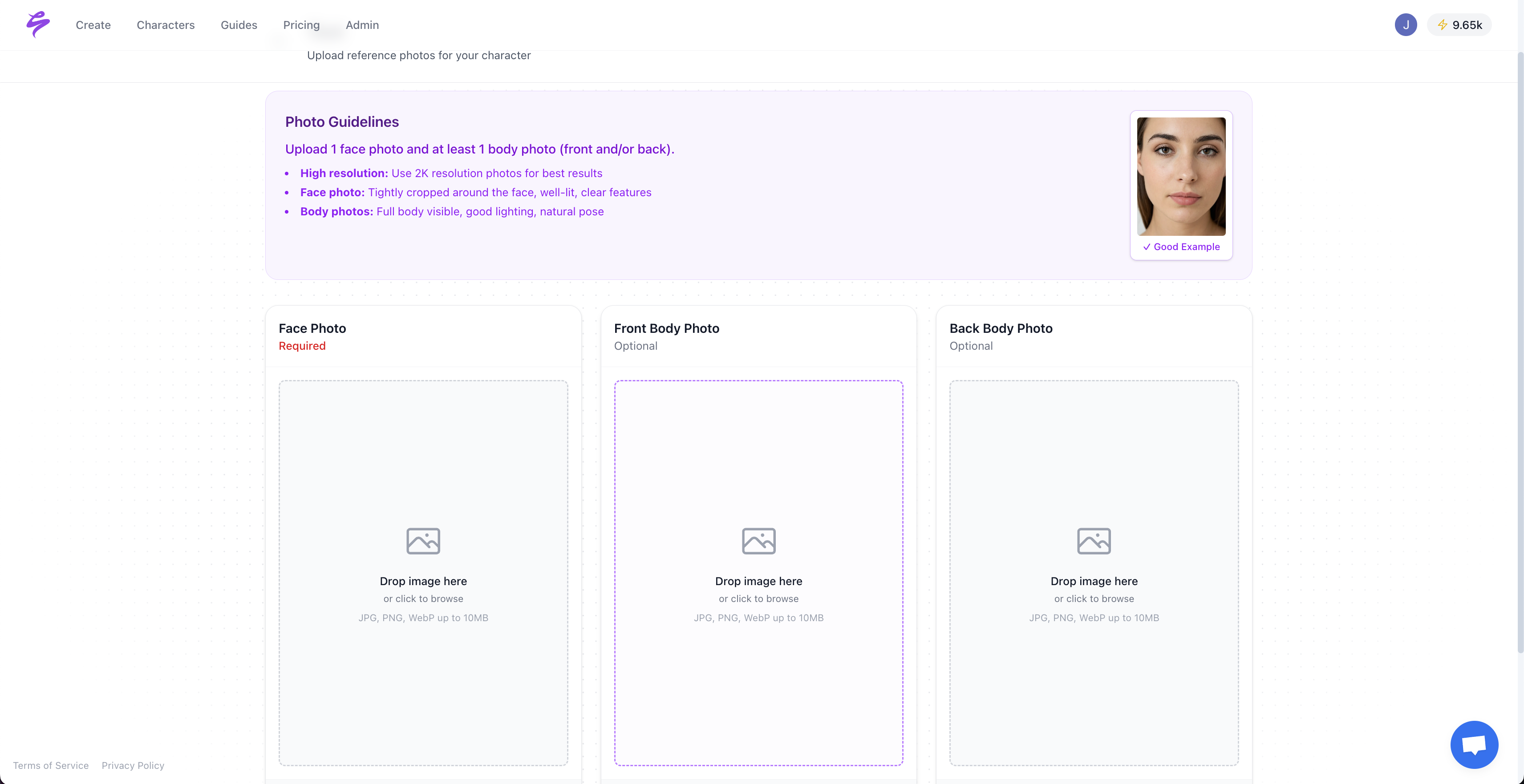
No training runs, no waiting period, and no external model setup are required. Sozee processes the reference set and locks the identity immediately. Multiple reference images across different angles and lighting conditions give the model a solid identity baseline, and Sozee’s three-photo minimum hits that threshold with minimal effort.
Once Sozee finishes processing the references, name and save the character to Sozee’s library so the platform can reference it in every future generation. This one-time save removes the need to re-upload reference photos for each new batch.
Step 2: Lock Skin Texture and Micro-Details for Photorealism
Commercial AI faces fail most often because the skin looks plastic. Many AI generators over-smooth faces and remove micro-details such as pores, fine lines, subtle redness, and natural variation, which produces outputs fans flag as artificial within seconds.
Use this photographer-style positive prompt block in Sozee’s prompt field:
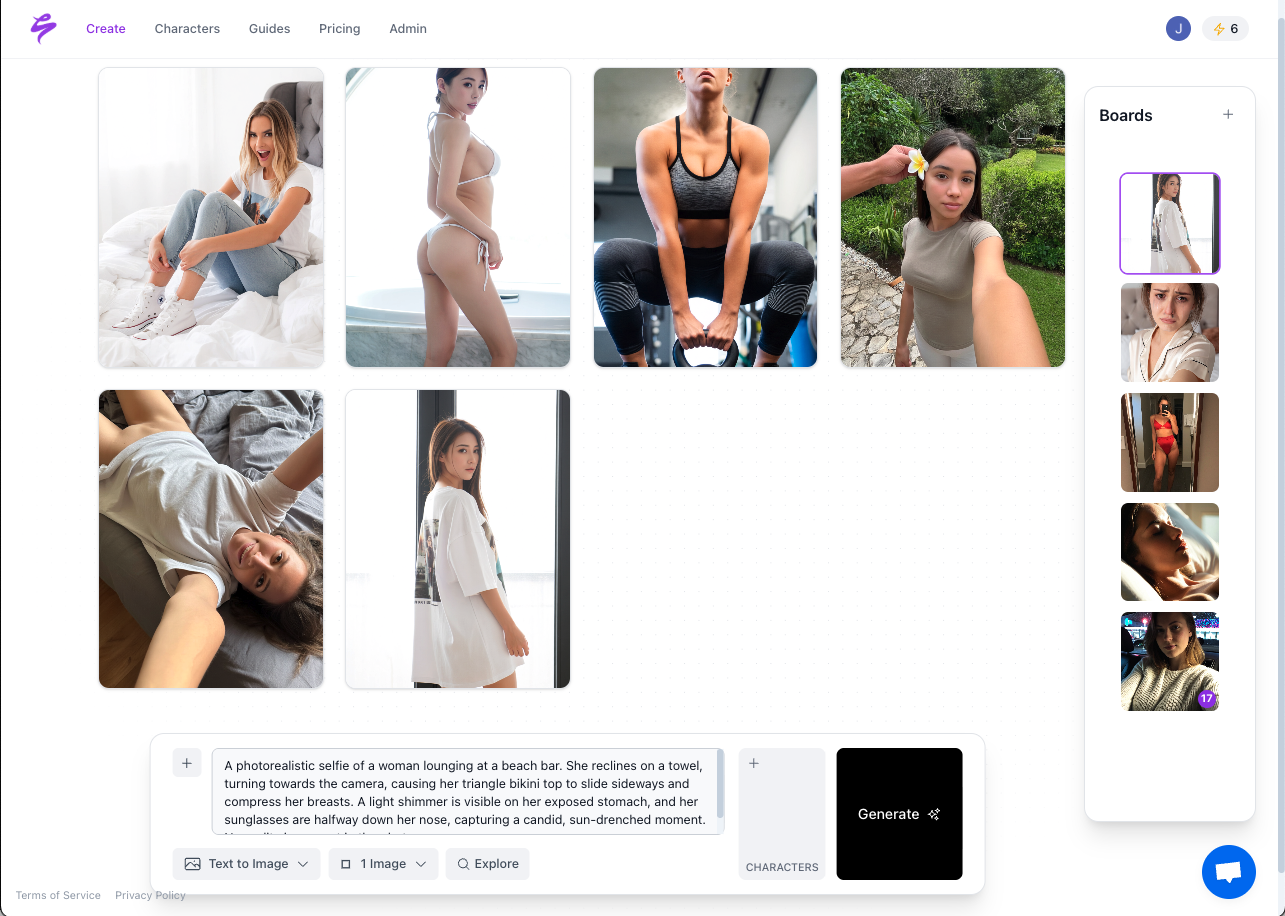
Ultra-realistic, photorealistic close-up portrait, unretouched. Skin shows visible pores and fine micro-texture, subtle natural imperfections, slight redness, uneven pigmentation, organic freckles. Shot on an 85mm portrait lens, shallow depth of field f/1.8, soft diffused window light, realistic shadows, subtle sensor grain.
Pair it with this reusable negative-prompt block:
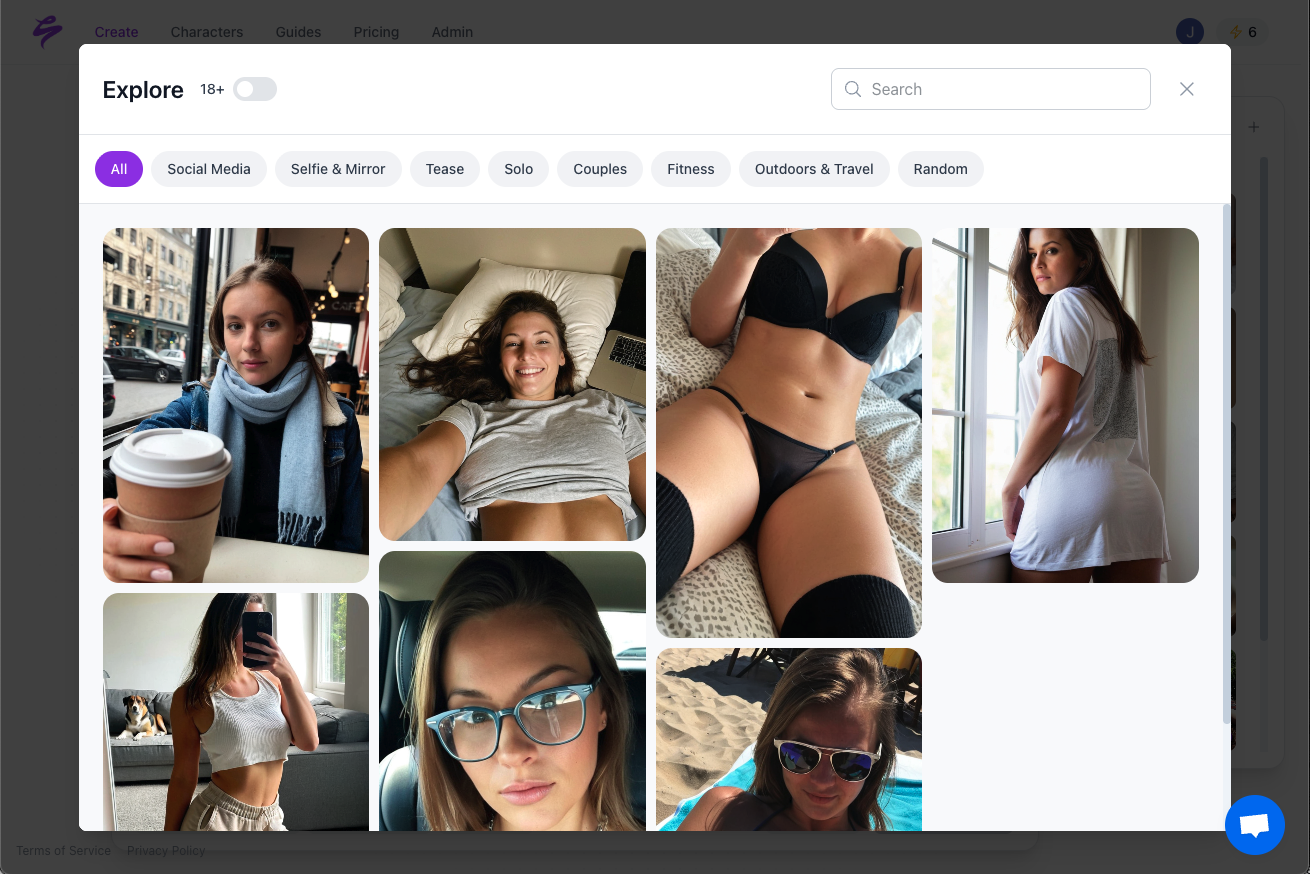
No AI glow, no plastic skin, no smoothing, no beauty filters, no perfect symmetry, no CGI, no 3D render, no artificial lighting, no airbrushing.
Subtle cues in lighting, texture smoothness, and colour saturation help viewers separate AI-generated faces from real photographs. Add two or three texture phrases to every prompt, such as “visible pores,” “natural skin micro-texture,” or “faint blemishes,” to avoid the plastic default.
Troubleshooting: Make AI-Generated Faces Look More Human Generate at 2K or 4K resolution inside Sozee. Micro-detail prompting for pores, fine lines, and natural imperfections produces usable results starting at 1024 px and improves further at native 2K and 4K resolutions. If skin still looks too smooth, add “visible skin pores on T-zone, faint acne scarring on cheeks, barely visible peach fuzz” to the positive prompt and regenerate.
Step 3: Generate Consistent Still Images from Your Saved Character
With the likeness saved and the skin-texture prompt locked, generate still images using Sozee’s character reference system. Select the saved character, apply the prompt blocks from Step 2, and start generating. Sozee’s identity layer keeps facial proportions, feature positions, and skin texture stable across every output, and the same instant-lock system from Step 1 applies to every subsequent generation.

Batching shots by similarity, such as all close-ups facing camera, then all three-quarter shots, then all wide shots, reduces variation compared to alternating between dissimilar shot types. To take advantage of this principle in Sozee, generate all frontal portraits in one batch, then three-quarter angles, then full-body shots, which keeps the model focused on one shot type at a time.
Troubleshooting: Keep the Same Face Across Multiple Images No 2024 report by the Alan Turing Institute states that negative prompts reduce anatomical errors by 60–70% when generating consistent characters. Keep the negative-prompt block active on every generation. If identity drift appears, return to the saved character in Sozee’s library and regenerate instead of editing the output manually.
Step 4: Carry Facial Consistency into Video and Reels
Sozee supports text-to-video, video-to-video, and reel cloning with the same saved character identity. For text-to-video, write a motion prompt such as “walking through a sunlit café, looking directly at camera, natural movement” and attach the saved character. Sozee preserves the face across every frame in the clip.
Reel cloning lets creators upload a high-performing TikTok or Instagram reel and recreate it in their own likeness or their character’s likeness. This approach gives you proven formats without rebuilding from scratch. Storyboarding entirely in images first, placing the character in each intended scene before generating video, allows creators to refine visual direction cheaply while preserving facial consistency. Apply that step inside Sozee before committing to full video renders.
Turn your strongest reels into consistent AI video characters with Sozee.
Step 5: Refine Shots with Photo Control, Reimagine, and Inpainting
Use Sozee’s Photo Control after generation to direct exact shot composition, expression, and lighting frame by frame. For remaining artifacts such as hands, background edges, or lighting inconsistencies, use the Reimagine and inpainting suite to correct specific regions without regenerating the full image.
For Img2Img workflows that maintain identity while changing poses, the industry-standard denoising strength is 0.3–0.5, with 0.15–0.30 for fixing hands and faces achieving 95% pixel retention. Sozee’s inpainting controls follow the same principle. Keep the correction mask tight and the strength low to preserve the surrounding identity.
Step 6: Package SFW and NSFW Sets, Then Schedule Posts
Sozee’s export pipeline produces SFW teaser packs for TikTok, Instagram, and X alongside NSFW gallery sets for OnlyFans, Fansly, and FanVue, all from the same generation session. Build a teaser pack first, then export the full set as a PPV drop.
Schedule both directly inside Sozee using the native scheduling tool. Set posting times and assign platforms so Sozee can publish automatically while you are offline. The same dashboard that handles scheduling also tracks which posts drive follows, subscriptions, and PPV sales, closing the loop from generation to revenue without a third-party tool.
Step 7: Use Analytics, Style Bundles, and Copilot to Scale
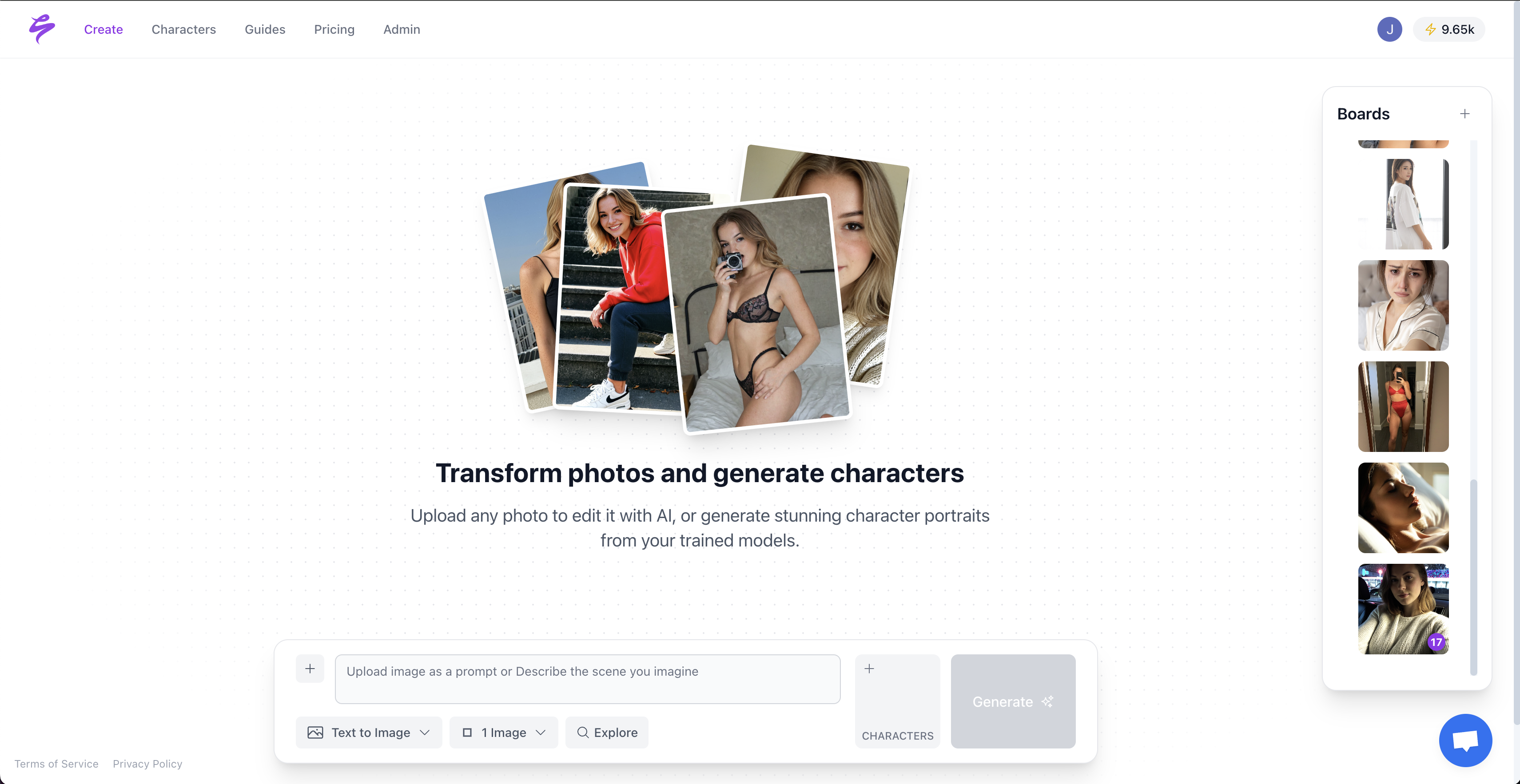
After the first publishing cycle, review Sozee’s analytics dashboard to see what worked. Identify which face angles, lighting setups, and content types drove the highest engagement. Save those winning combinations as reusable style bundles, which are locked prompt sets, wardrobes, and brand looks that reproduce the same output on demand.
For agencies or creators managing multiple characters, Sozee’s Copilot AI Agent can plan, brief, and execute the entire workflow. Copilot proposes content ideas, builds generation briefs, schedules posts, and reads analytics across a full roster. A month of content produced in an afternoon becomes a realistic operational target with this step.
Sozee vs. General Tools for Consistent AI Faces
| Feature | Sozee | Midjourney / Adobe Firefly | Recraft / Krea |
|---|---|---|---|
| Likeness input required | 3 photos or zero (original character) | Requires extensive prompt iteration or LoRA training | General-purpose, no dedicated likeness system |
| Consistency across outputs | Native identity lock, no retraining | Diffusion models generate inconsistent appearances unless variables are explicitly constrained each session | No persistent identity layer |
| Video support | Text-to-video, video-to-video, reel cloning, native | No native video, requires external tools | Limited or no video generation |
| Scheduling and analytics | Native, publish and measure inside one platform | None | None |
Frequently Asked Questions
How long does it take to create a consistent AI face in Sozee?
Likeness creation from three reference photos happens instantly, with no training queue and no setup time. Once the character is saved to Sozee’s library, every subsequent generation session starts from that locked identity. A full batch of still images and a scheduled video reel can be completed in under 30 minutes from a cold start.
Is my likeness or character private on Sozee?
Sozee operates on a private, isolated model per creator. Your likeness is never used to train shared models or made accessible to other users. This protection applies to uploaded reference photos and to original AI-generated characters built inside the platform.
Can Sozee produce NSFW content, and how does the SFW-to-NSFW pipeline work?
Sozee supports a full SFW-to-NSFW export pipeline designed for subscription platforms including OnlyFans, Fansly, and FanVue. Creators generate SFW teaser content and NSFW gallery sets from the same character and session, then export each package to the appropriate platform. Native scheduling handles posting across both content tiers without leaving Sozee.
What platforms does Sozee’s native scheduling support?
Sozee’s scheduling tool publishes to multiple platforms. Analytics track performance across all connected platforms inside the same dashboard, showing which posts drive follows, subscriptions, and pay-per-view sales.
Do I need technical skills or AI experience to use Sozee?
No prior AI or technical experience is required. The three-photo upload, prompt interface, and Copilot AI Agent are designed for working creators and agency operators, not engineers. Copilot can handle the entire workflow, from content ideation through scheduling, for creators who prefer to delegate the operational layer entirely.
Conclusion: Turn One Likeness into an Infinite Content Engine
The seven-step workflow above, covering likeness creation, skin-texture locking, consistent still generation, video extension, inpainting refinement, SFW-to-NSFW packaging, and analytics-driven scaling, covers every stage of a monetizable AI face content operation. Generic tools force creators to stitch together multiple platforms and retrain models constantly. The end-to-end workflow eliminates the five-platform juggling act, with a few photos in, a month of scheduled content out, zero artifacts, and analytics that show exactly what converts.
Creators who need consistent, photorealistic AI generated human faces at daily posting volume have one end-to-end solution. Put the seven-step workflow into action and turn your likeness into an infinite content engine on Sozee.