Stop posting daily. Sozee automates your Streamate promo schedule—batch content, multi-platform posting, and analytics from one login. Sign up free.
The Sozee teamJuly 19, 202610 min read
Key Takeaways for Streamate Creators
Streamate has no built-in scheduling, so many models feel stuck creating and posting teasers every single day.
A simple weekly system with a set calendar, batched assets, and a scheduler replaces daily effort with about 30 minutes of setup.
Sozee keeps your character consistent, reuses environments and outfits, and posts directly to multiple platforms from one place.
Pairing scheduled teasers with live-alert triggers and Sozee Analytics shows what actually drives profile visits and session starts.
Cut the daily posting grind and sign up for Sozee today to automate your Streamate promotion from a single login.
Step 1: Lock In Your Streamate Calendar and Auto-Away Settings
Start by setting a predictable broadcast schedule inside your Streamate Models panel. Open Rates and Shows, then enter your available days and hours for the coming week so members know when to expect you.
Work through these dashboard steps in order:
Select each broadcast day and enter start and end times, so viewers can see exactly when you plan to be online.
Save the schedule so it appears on your public profile, giving potential members a clear view of your availability.
Return to update the table any time your availability changes, because an outdated schedule breaks the trust you are building.
Once saved, your schedule appears in a table on your public profile and signals reliability to anyone browsing. [Screenshot placeholder: Streamate Rates and Shows schedule table]
Common Pitfalls: Skipping updates after a schedule change confuses regulars and wastes traffic from your promotional posts.
Step 2: Batch Locked-Likeness Teasers and Clips in Sozee
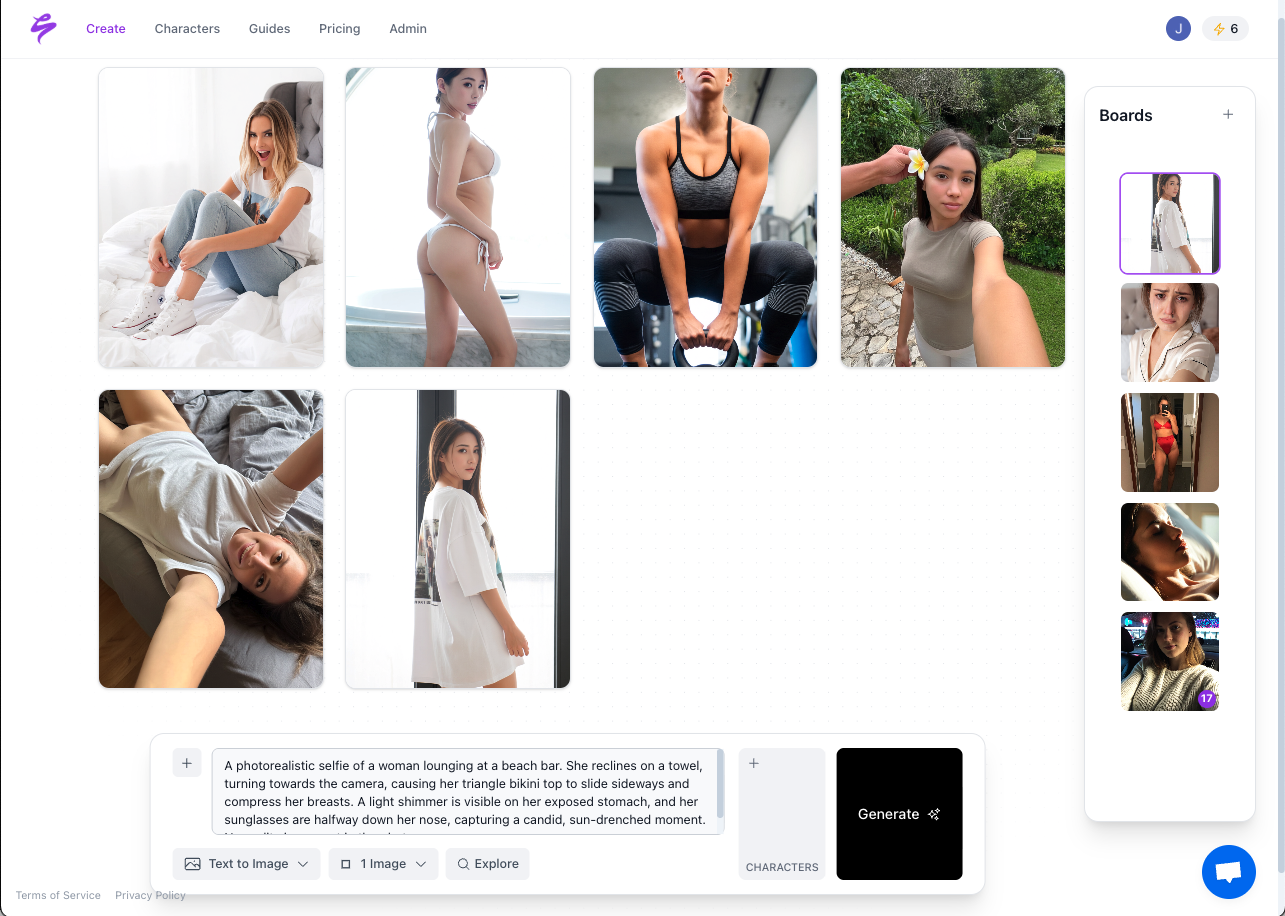
Next, move into Sozee and create a character that looks the same across every image and clip. Upload three reference photos and Sozee reconstructs your likeness instantly with no training delay. You can also use the AI Character Builder to create a brand-new face that stays consistent from the first frame.
Make hyper-realistic images with simple text prompts
Then move to Photo Control and set five dimensions with intention. Each one locks part of the final image so your whole batch feels cohesive:
Setting — build a reusable environment from up to four reference shots, so the room stays identical across future shoots and your brand aesthetic stays stable.
Outfit — select one piece per category from the outfit library and let a full look assemble itself, which removes the need to describe clothing in long text prompts.
Shot style — choose framing that matches the destination platform, such as vertical 4:5 for Instagram or 16:9 landscape for X.
Expression — set the mood for the teaser arc, whether you want playful, sultry, or confident energy across the set.
Object — add up to four props per set using the object library or inline @ references, giving each image a clear focal point beyond your face and body.
Use Photo Shoot to turn one approved image into a coherent set of up to ten related shots. Likeness, outfit, and environment stay fixed while angle, pose, and expression change from frame to frame. One focused session can create a full SFW-to-NSFW arc with pacing and intensity you control, which usually covers a full week of promotional posts.
The result appears as a grid of ten images that share your exact face and room while varying pose and expression. [Screenshot placeholder: Sozee Photo Control panel and Photo Shoot output grid]
GIF of Sozee Platform Generating Images Based On Inputs From Creator on a White Background
Common Pitfalls: Generating images before saving your character often produces slightly different faces across posts, which creates both brand and TOS risk. Always confirm your character is saved, avoid mixing assets between characters, and never use reference photos you do not own.
Pro Tip:Group content by setup to reduce context switching and keep visuals tight. Complete all images for one outfit and environment before changing anything. Batch one SFW arc and one NSFW arc per session, then place them into separate scheduler queues so each platform receives content that matches its rules.
Step 3: Load Your Sozee Assets Into a Social Scheduler
With a week of locked-likeness content in your Vault, focus on getting those assets in front of your audience at the right times. Export your batched images and clips from Sozee and upload them to your preferred scheduler.
Sozee’s native Scheduler connects directly to Instagram, TikTok, X, Facebook, Reddit, and Fanvue on a per-character basis. This connection lets you skip manual exports for those platforms and schedule posts straight from your Sozee library.
Sozee AI Platform
For tools like Buffer, Hootsuite, Metricool, or Later, upload the batch, write captions, and queue 5–7 posts per week. Accounts that post on a regular rhythm usually attract more traffic than accounts that appear sporadically.
Your queue should now show a full week of assets with specific posting times across platforms. [Screenshot placeholder: Scheduler queue with assets loaded and posting times set]
Pro Tip: Write a unique caption for each platform instead of copying one block of text everywhere. X favors short, direct copy, while Reddit and Instagram often reward more descriptive language. Keep teasers SFW on mainstream platforms and include a clear call to action that points to your Streamate profile.
Step 4: Use Calendar and IFTTT Triggers for Real-Time Live Alerts
Your scheduled teasers build anticipation during the week, but they do not tell followers you are live at this moment. Real-time alerts fill that gap. Scheduled teasers drive profile visits, while live alerts push viewers into active sessions.
Connect your Streamate broadcast schedule to Google Calendar, then use IFTTT to fire an automated go-live post when each event starts. Follow these steps:
Create a recurring Google Calendar event for every broadcast day and time that you set in Step 1.
Build an IFTTT applet that triggers on Google Calendar event start and posts a go-live announcement to X, Reddit, or any connected platform.
Write your go-live caption once and reuse it, letting IFTTT pull the event title and time automatically for each alert.
The finished applet connects your calendar to your social accounts and sends a live alert every time a show begins. [Screenshot placeholder: IFTTT applet connecting Google Calendar to X and Reddit]
Common Pitfalls: Posting rules differ across platforms and even across Reddit communities. Many subreddits require specific flair and title formats, and X needs adult content settings enabled before explicit promotion. Test each trigger with a draft post before turning on the live applet.
Step 5: Use Sozee Analytics to Refine Your Weekly Loop
After your automated system has been running for a full week, review the numbers to see what is working. Open Sozee Analytics to view a split between content Sozee scheduled and content you posted manually, so you can see the impact of automation on its own.
Track these metrics weekly to understand which parts of your workflow create the most valuable traffic:
Profile visits driven by teaser posts, which show whether your scheduled content is actually reaching people.
Session starts on broadcast days, which reveal how often profile visits turn into paid shows.
Engagement rate per platform, which helps you decide which channels deserve more attention and which can move lower on your list.
Which asset arc, such as SFW versus NSFW teaser, drives more click-throughs, which guides what you should batch more of next time.
A strong benchmark for this system is 5–7 posts per week with under 30 minutes of weekly setup time. Creators who treat content creation as a scheduled block usually publish more consistently than those who create only when they feel inspired.
The Analytics split view highlights performance differences between automated and manual posts so you can adjust cadence, platforms, and content style with confidence. [Screenshot placeholder: Sozee Analytics split view — Sozee-posted vs. manual content performance]
Advanced Tips: Let the Sozee Agent Build Schedules for Multiple Characters
The five steps above cover a complete automation loop for solo creators. If you manage several characters or run an agency roster, Sozee’s Agent can also handle much of the setup work from Steps 2 and 3.
Describe a content idea in plain language and let the Agent guide you through a short conversation. It clarifies character, setting, wardrobe, shot style, expression, and output count, then writes directly into Photo Control and the Scheduler. When the chat ends, your week of content sits one tap away from Generate.
Agencies can manage every client from one login inside separate workspaces, each with its own characters, Vault, connected accounts, and credits. The Agent can prepare shoots across the entire roster instead of just a single account.
Streamate’s schedule section inside Rates and Shows works as a display tool for members. You manually enter available days and hours, and the platform shows those times on your profile. There is no hard limit on days or hours you can list, but there is also no recurring automation, so you must update the table yourself whenever your availability changes.
What is the safest caption language for promotional posts?
On mainstream platforms such as Instagram, TikTok, and X, keep teaser captions SFW. Reference your broadcast schedule, tease the theme or outfit of an upcoming show, and include a clear call to action that links to your Streamate profile. Avoid explicit descriptions that can trigger moderation and cut your reach. On adult-friendly spaces like promotion-focused Reddit communities, follow each subreddit’s flair and title rules. Write one master caption per asset, then customize wording and intensity for each platform before scheduling.
Can I cross-post the same teaser on multiple platforms?
You can reuse the same image across Instagram, X, Reddit, and Fanvue, as long as you adjust the surrounding details. Change captions, hashtags, and formatting to match each platform’s style. Instagram favors descriptive captions with relevant hashtags, X performs better with short copy and a direct link, and Reddit requires strict compliance with community rules. Sozee’s Scheduler lets you write separate captions per platform for the same asset in one composer, so cross-posting stays efficient without feeling copy-pasted.
How does Sozee keep likeness consistent across every asset?
Sozee locks your character at the model level, not the prompt level, using the same mechanism described in Step 2. Every element you generate, including Photo Control shoots, Photo Shoot sets, video, Live Mode, and Voice Notes, keeps the exact likeness you originally cast. Saved environments, outfits, and objects attach to future shoots so the same room, look, and face repeat across weeks of content.
How do I measure the ROI of automated promotional posts?
Use the Analytics split view described in Step 5 to compare profile visits and session starts on days when automated teasers fired against days without them. Track which asset arc, such as SFW teaser, NSFW preview, or go-live alert, lines up most closely with session starts on Streamate. Over four weeks, a steady 5–7 post cadence with locked-likeness assets should create a visible lift in profile visits. When a specific outfit, setting, or caption style outperforms others, rebuild your next batch around that configuration using the same saved environment and outfit from your Sozee library.
Conclusion: Protect Your Time While Keeping a Steady Cadence
This five-step workflow replaces daily manual posting with one short weekly session. You set your Streamate calendar, batch locked-likeness assets in Sozee, load them into a scheduler, trigger live alerts with IFTTT, and refine everything with Analytics.
Creators who batch content with AI save an average of 8+ hours per week, which often turns into more broadcasts, more revenue, and less burnout. Sozee brings character consistency, asset reuse, and native multi-platform scheduling into a single studio, so you avoid juggling multiple tools and re-rolling prompts to get your own face back.