
Key Takeaways for a 15-Minute CAM4 Workflow
- CAM4 offers no native activity-feed scheduling or public API, so creators batch-upload assets to the Media Vault once per week to stay compliant.
- The five-layer compliant workflow combines Media Vault prep, the native show scheduler, the built-in chat-bot, X auto-post integration, and Zapier/Make for external promotion.
- Sozee’s Cast → Direct → Create → Publish loop generates locked, reusable assets that feed the entire stack without repeated shoots or manual captioning.
- Daily posting time drops from 2–3 hours to roughly 15 minutes once the 7-day content buffer is established and scheduled shows are confirmed.
- Build your first 7-day content buffer in Sozee.
Prerequisites and Time Expectation
Confirm a few basics before you set up the automation stack.
- A verified CAM4 creator account in good standing
- Media Vault enabled on the account
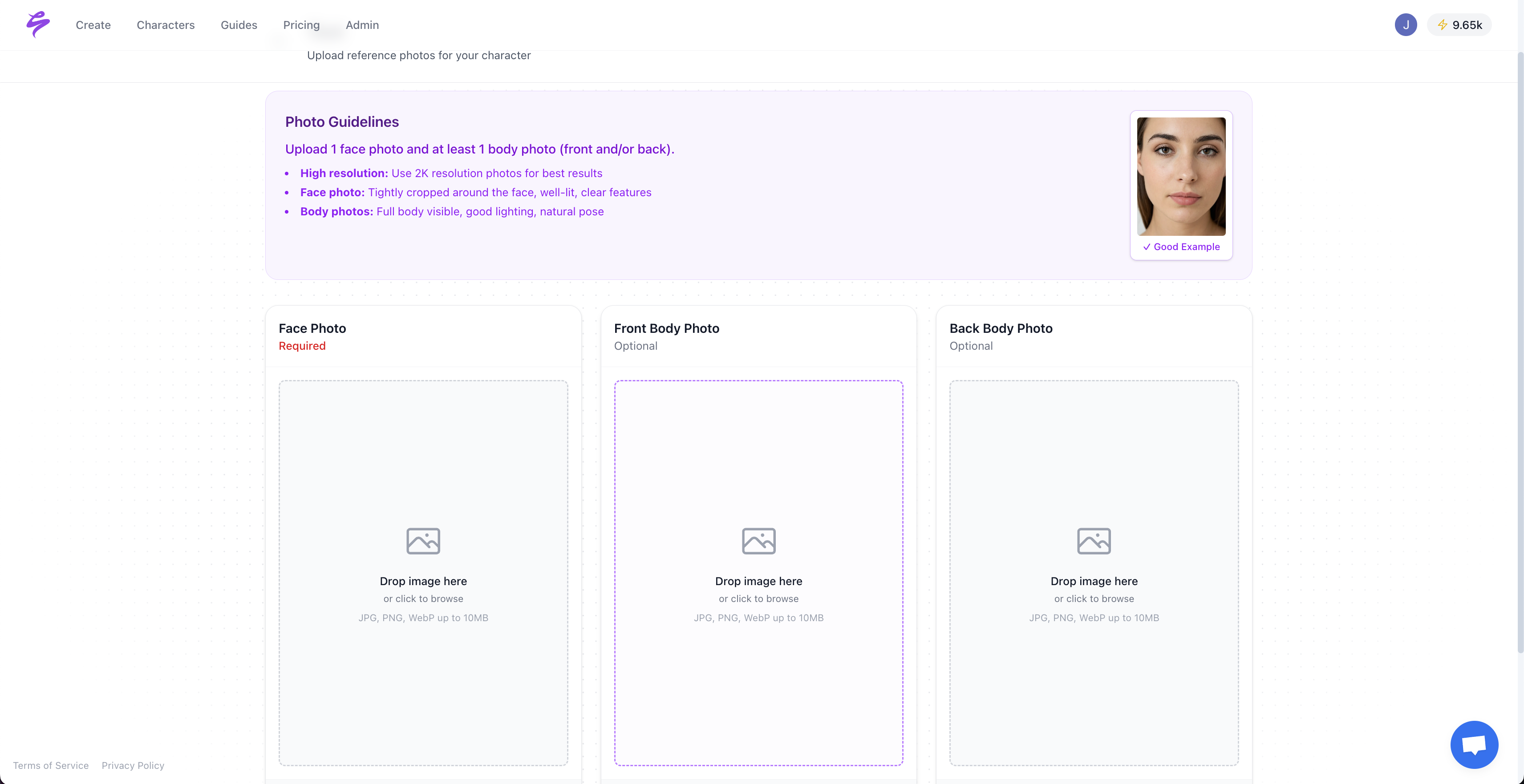
- A Sozee workspace with at least one locked character built from the Cast step
- A Zapier or Make account on a plan that supports multi-step automations
- An X (Twitter) account connected to the CAM4 Model Dashboard
Initial setup takes some time. Once the stack is live, daily maintenance stays minimal, mainly reviewing the Sozee Vault queue and confirming scheduled shows.
Before you build the automation stack, understand CAM4’s technical boundaries, because platform limits define which tools you can safely use.
1. CAM4 Platform Limits That Shape Your Workflow (2026)
CAM4’s missing features and undocumented areas define how you automate without risking a ban. The table below summarizes the three constraints that guide every decision in this walkthrough.
| Feature | CAM4 Native Support | Workaround Risk | Compliant Alternative |
|---|---|---|---|
| Activity-feed scheduling | Not available | High, manual only | Batch-prep in Media Vault, upload in one session |
| Public creator API | Not documented | High, no official endpoint | Native scheduler plus X integration |
| Browser-automation scripts | Not documented | High ban risk, headless browsers expose automation flags within 48 hours under 2026 fingerprinting | Zapier/Make via official connectors only |
Pro Tip: Sozee’s reusable environments, such as rooms, outfits, and objects built once and reused forever, keep the Media Vault stocked without extra shoot time.
2. Media Vault Batch-Prep Workflow for Weekly Assets
The Media Vault functions as CAM4’s native asset library. Your goal is to upload 10–20 images or short clips in a single weekly session instead of returning to the dashboard every day.

- Open Sozee and navigate to the Vault. Select the character and folder that match the current week’s content plan.
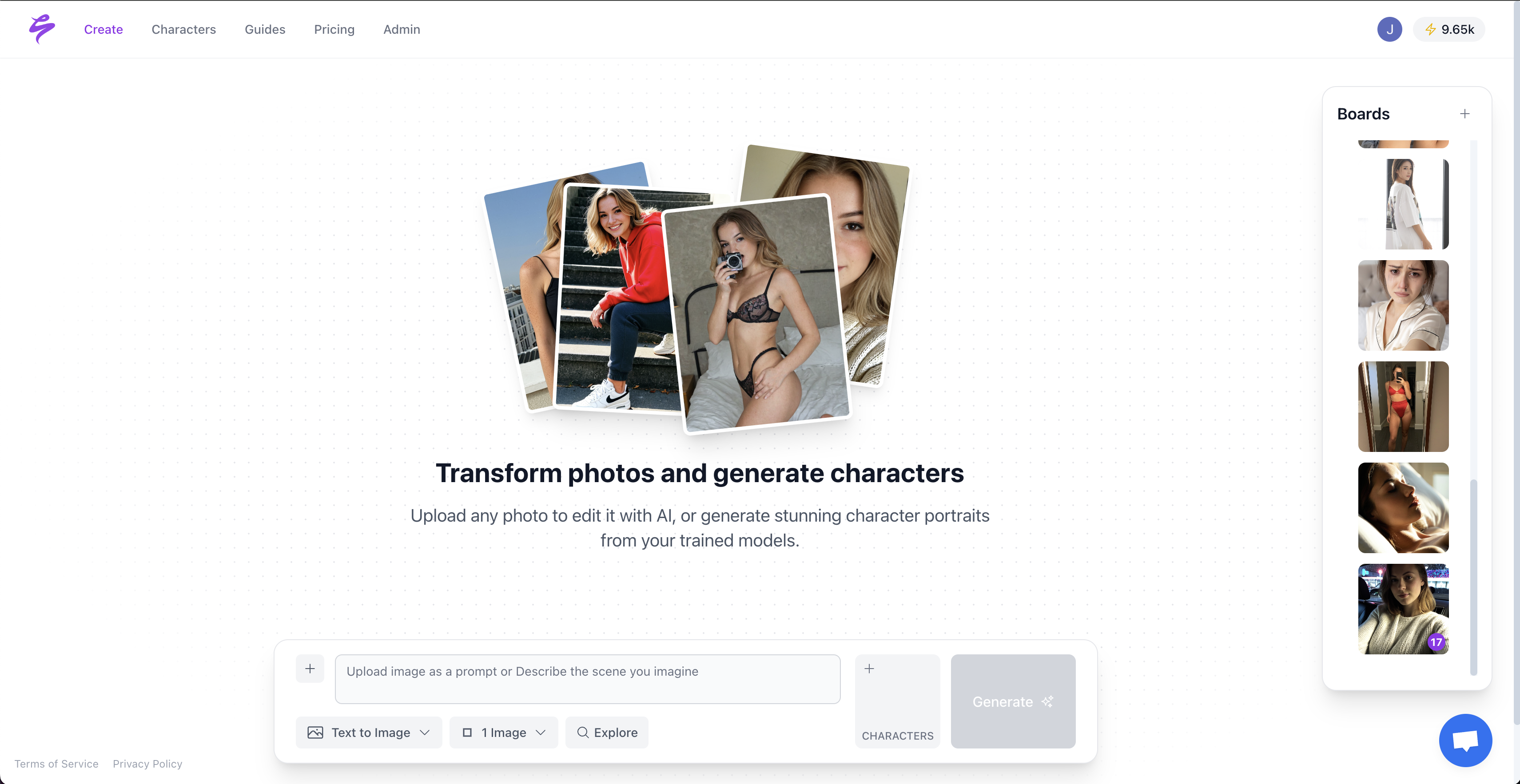
- Export 10–20 finished images or clips. Sozee’s Photo Shoot feature generates a locked, coherent set of up to ten images from a single frame, which makes a full week of assets possible in one Create session.
- Upload the batch to CAM4’s Media Vault in one sitting. As you upload, tag each asset with the relevant niche keywords so it appears in the correct discovery feeds. If you plan content around CAM4’s promotional events, include event-specific hashtags like #HotSpa in the description, because the platform requires these tags for event visibility during themed promotions.
- Sequence the uploads so they align with the show calendar you build in Step 3.
Pro Tip: Use Sozee’s @-reference system to attach a saved environment or outfit inline while writing captions, which keeps the asset description and the visual consistent without retyping context each session.
3. Using CAM4’s Show Scheduler and Notifications
CAM4 creators access the show scheduler from the Calendar option in the Avatar menu after logging in, where the platform displays how many fans will receive reminders for each broadcast. The scheduler supports up to 90 days of advance planning, so you can fill an entire month’s calendar in one focused session.
CAM4 caps each day at five shows, which means your weekly schedule needs to respect that limit. Each entry requires a date, start time, duration, and a description where you can include show type, tip menu goals, and hashtags. After you confirm an entry with the “Schedule New Broadcast” button, CAM4 automatically triggers push notifications and fan reminders, so you avoid manual follow-up.
The Offline Notifications feature extends this automation by letting viewers request private shows and check your availability when you are not live. Use the full 90-day window to batch your scheduling work. Fill a month’s calendar in one sitting at the start of each month, which yields roughly 20 entries for a typical five-shows-per-week cadence.
Pro Tip: Sozee’s Agent copilot can draft show descriptions, tip menu copy, and hashtag sets from a half-typed idea, then write them directly into the prompt bar. Paste the output straight into the CAM4 scheduler form.
4. Chat-Bot Setup for Recurring Room Messages
CAM4’s built-in chat-bot handles recurring welcome messages and tip-menu announcements, so you do not repeat the same lines during every broadcast.
- Navigate to the chat-bot settings in the Model Dashboard.
- Configure a welcome message that fires automatically when a viewer enters the room. Include tip menu tiers and any active show goals.
- Set recurring interval messages to repost the tip menu every 10–15 minutes, which ensures late arrivals see current goals without manual typing.
- Save and test the sequence before the first scheduled show.
Pro Tip: Sozee’s reusable environments apply the same logic to content. You build a character’s voice and persona once in the Cast step, then reuse that context across every caption, chat script, and fan message.
5. X Auto-Post Integration for Live Show Visibility
CAM4 performers link their X account through the Social Networks section of account settings to enable auto-tweets, including one posted five minutes after going live. Use a simple three-phase posting sequence to support each show.
- Pre-show teaser: Post a teaser before the show via the Activity Feed or a scheduled X post. Use a Sozee-generated SFW image as the visual.
- Live auto-post: Let CAM4 trigger the automatic X notification at broadcast start. No manual action is required.
- Post-show follow-up: Schedule a thank-you message after the broadcast using an X-compliant scheduling tool.
Effective hashtags for CAM4 creators on X include #cam4, #liveshow, and #cammodel. Established X accounts can safely post 5–10 quality posts per day when spaced across the day, while new accounts should start at 1–3 posts and ramp gradually. Automate publishing and keep replies and real-time engagement fully human so your account stays authentic.
Pro Tip: Sozee’s Publish step connects directly to X per character, so teaser images from the Create step can be scheduled to X from the Vault without leaving Sozee.
6. External Promotion Automation with Zapier or Make
Once assets sit in the Media Vault and shows appear on the calendar, Zapier or Make can distribute the same content to Instagram, Reddit, and Fanvue automatically.
- Create a trigger in Zapier or Make that fires when a new asset is added to a designated Media Vault folder or a connected cloud storage location, such as Google Drive or Dropbox, that Sozee exports to.
- Add action steps for each destination platform, including Instagram posts, Reddit submissions to the relevant subreddit, and Fanvue feed posts, using each platform’s official Zapier or Make connector.
- Map the asset file, caption, and hashtag fields from the trigger to each action. Captions written in Sozee’s Agent step can be stored as metadata and pulled through automatically.
- Test the zap or scenario with a single asset before you activate it for the full batch.
For a two-week content batch, adult creators typically need 6–8 website feed posts, 2–4 emails, 6–10 Telegram posts, and 4–6 Discord posts, with many posts reusing the same core content reframed per channel. This pattern matches how Zapier and Make reuse a single Vault upload across multiple destinations.
Pro Tip: Sozee’s Cast → Direct → Create → Publish loop supports this multi-channel reality. One character, one shoot session, and one Vault can feed CAM4, Instagram, and Fanvue without a second shoot.
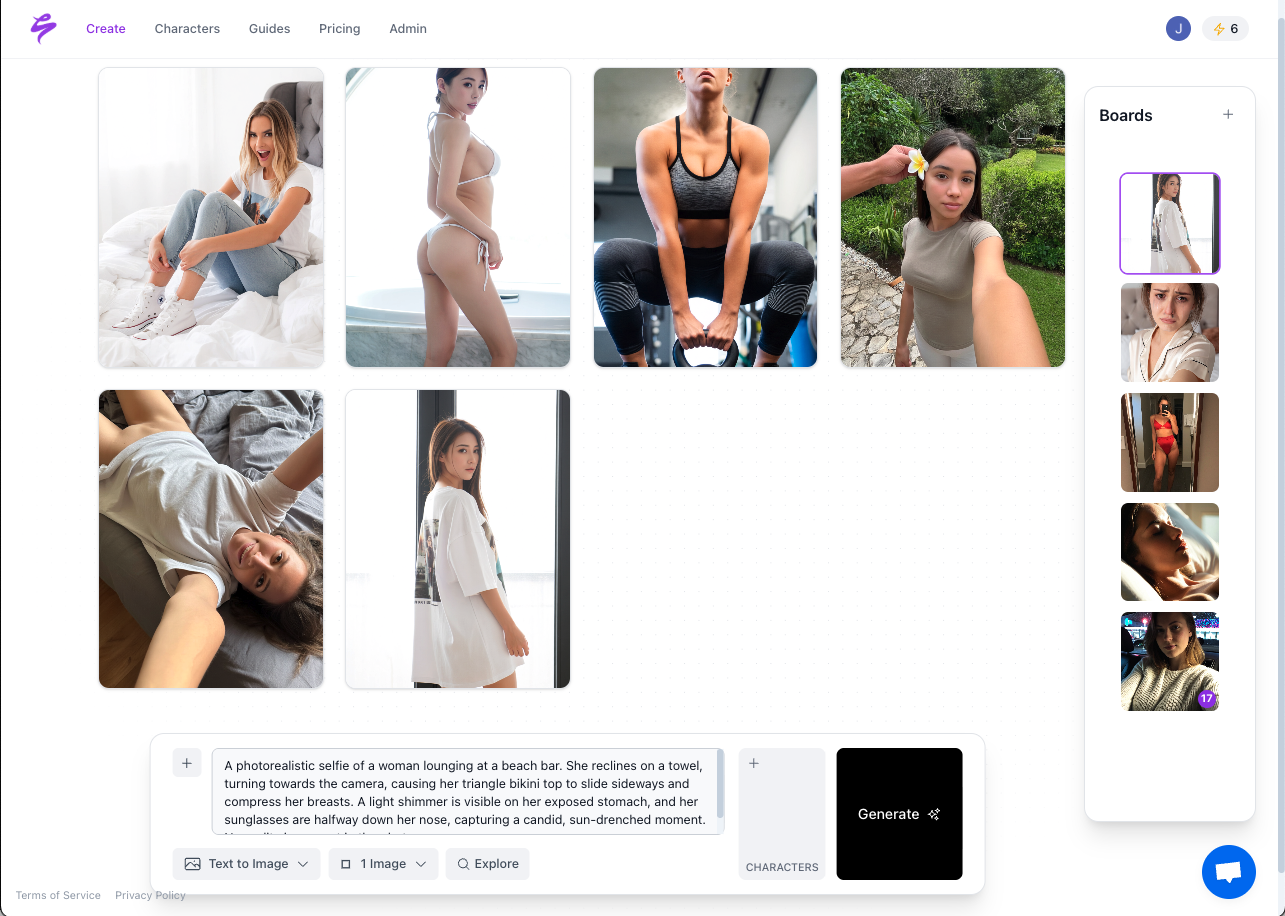
Set up your multi-channel Vault in Sozee.
Risk Matrix: Safe vs. High-Risk Automation
| Automation Method | Risk Level | Why | Recommended Action |
|---|---|---|---|
| Browser extensions or macros | High ban risk | Platforms scan for extension IDs and detect automation flags even when extensions appear idle | Avoid entirely |
| Headless browsers (Puppeteer, Playwright, Selenium) | High ban risk | Exposes the navigator.webdriver flag and uses data-centre IPs pre-classified as high-risk | Avoid entirely |
| Unofficial API scraping | High ban risk | Violating Terms of Service through authenticated access creates a direct breach of contract | Avoid entirely |
| Zapier or Make via official connectors | Low risk | Uses platform-approved OAuth connections with no credential sharing or session spoofing | Recommended for external promotion |
| CAM4 native X auto-post | Low risk | Connects directly from the Model Dashboard under Profile → Social Media using CAM4’s own integration | Recommended for live notifications |
| X API-compliant scheduling tools | Low risk | X permits scheduling through approved tools that use the official API, as long as automation does not deceive users or manipulate engagement | Recommended for teasers and follow-ups |
Success Metrics After 30 Days of Automation
Creators who implement the full stack, including Sozee batch prep, a weekly Media Vault upload session, the native scheduler, the chat-bot, X integration, and Zapier or Make promotion, typically reduce daily posting time from 2–3 hours of manual uploads and scheduling to about 15 minutes of queue review and show confirmation once the 7-day buffer is in place. A 7-day content buffer becomes maintainable in a single weekly Sozee session.
Show attendance usually improves as push notifications and X auto-posts reach fans who previously missed unannounced broadcasts. The measurable output includes more consistent posting, higher show fill rates, and recovered hours that you can redirect to live performance or fan engagement.
Advanced Tips for Agencies and Power Users
Agencies that manage 1–5 performers can run every character from a single Sozee workspace. Each character has a dedicated Vault, connected social accounts, and its own credit allocation, which keeps content isolated so one performer’s material never appears in another feed.
The Teams feature allows a single operator to queue a week of content for the entire roster in one session. This structure keeps the 15-minute daily routine realistic even when you manage several performers.
Sozee’s Agent copilot offers the fastest path for creators who prefer not to manage the full Direct workflow manually. You provide a partial idea, such as a setting, a mood, or an upcoming show theme, and the Agent asks follow-up questions, resolves the character, fills the Photo Control panel, writes the caption, and schedules the post.
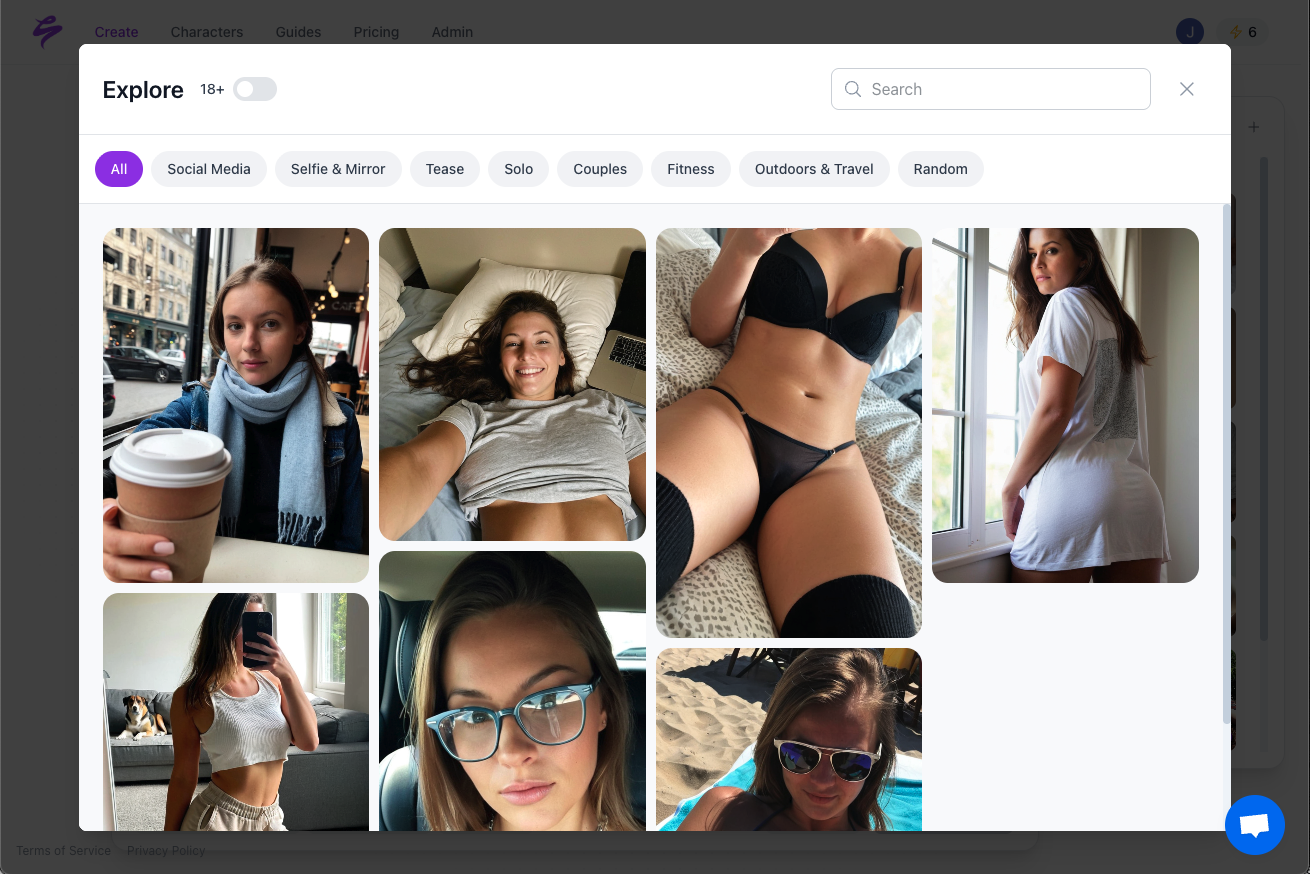
The entire sequence from idea to scheduled asset can complete in under three minutes per piece, which compounds quickly across a weekly batch.
Frequently Asked Questions
Does CAM4 allow third-party schedulers for activity-feed posts?
CAM4 does not provide a public API or native activity-feed scheduling tool, so no third-party scheduler can post to the activity feed through an official integration. The compliant workaround is to batch-upload assets to the Media Vault in a single weekly session instead of scheduling individual posts.
Show scheduling remains available natively through the Calendar feature for up to five shows per day and up to 90 days in advance.
Can I use ChatGPT or another AI to post directly to CAM4?
No AI tool can post directly to CAM4’s activity feed through an official channel because CAM4 does not expose a public API for that purpose. AI tools like ChatGPT or Sozee’s Agent work best for generating captions, descriptions, and hashtag sets that you then paste into the CAM4 dashboard manually or into a Zapier or Make workflow for connected external platforms.
Automating direct CAM4 activity-feed posts through browser scripts or unofficial API calls violates the platform’s terms and risks account suspension.
What happens if I automate the CAM4 activity feed with a browser script?
Browser-based automation, including Chrome extensions, macros, and headless browsers, is detectable by modern platform fingerprinting. Platforms scan for extension signatures and webdriver flags even when the tool appears idle.
A detected violation usually results in account suspension or a permanent ban. The compliant alternative is to use CAM4’s native tools for on-platform actions and Zapier or Make with official connectors for external distribution.
How many posts can the CAM4 Media Vault hold?
CAM4 does not publish a specific cap on Media Vault storage in its public creator documentation. In practice, creators batch-upload 10–20 assets per session and cycle older content out as new material arrives.
Maintaining a rolling 7-day buffer of 10–14 assets supports the workflow described in this guide and keeps the Vault organized without hitting undocumented limits.
Does Sozee content pass CAM4’s realism checks?
Sozee follows a hyper-realism principle, which means content that looks obviously AI-generated is not considered production-ready. Sozee generates images at up to 4K resolution with real-camera lighting and skin rendering.
Creators remain responsible for reviewing all generated assets against CAM4’s content policies before upload, including age verification and content category requirements. Sozee’s compliance and verification steps live inside the Cast setup, which reduces the risk of uploading non-compliant material.
How do I connect Sozee to Zapier for CAM4 promotion?
Sozee’s Vault stores every generated image, video, and voice note in folders you control. To connect to Zapier, export finished assets from the Vault to a cloud storage location, such as Google Drive or Dropbox, that Sozee supports, then use Zapier’s Google Drive or Dropbox trigger to detect new files.
From that trigger, add action steps for each destination, including Instagram, Reddit, Fanvue, or any other platform with an official Zapier connector. Map the file, caption, and hashtag fields in each action step. The Sozee Agent can write platform-specific captions during the Create session and store them as file names or in a connected spreadsheet that Zapier reads as a second data source.
Conclusion: Start Your Compliant CAM4 Automation Stack
The compliant 2026 CAM4 automation stack uses five layers: Media Vault batch prep, native show scheduling, chat-bot recurring messages, X auto-post integration, and Zapier or Make for external promotion. None of these layers rely on browser scripts, unofficial APIs, or tools that risk account suspension.
Sozee sits upstream of all five layers, generating consistent, reusable assets, including locked likenesses, saved environments, and finished captions, which keep the workflow running on a 7-day buffer with minimal daily time.
Creators who adopt this stack stop losing hours to manual uploads and redirect that time to live performance, fan engagement, and revenue. Agencies that run multiple performers gain a single workspace that scales the same workflow across an entire roster without extra shoot time.
Start your compliant CAM4 automation stack today.