
Key Takeaways for Collaborative AI Inpainting Teams
- Single-user AI inpainting tools break likeness, create version conflicts, and provide no audit trail when agencies scale across multiple editors.
- Collaborative AI inpainting depends on role-based permissions, character-level likeness locks, shared asset libraries, and conflict resolution queues to protect brand consistency.
- Agencies require isolated client workspaces, credit allocation controls, and complete audit trails, which single-user tools do not provide.
- Sozee is the only platform that combines real-time multi-editor inpainting, per-character likeness locks, reusable asset libraries, role-based permissions, and direct-to-scheduler publishing in one workspace.
- See how Sozee’s workspace isolation and likeness locks solve these challenges and scale your team’s collaborative inpainting workflow without compromising likeness or brand consistency.
How Collaborative AI Inpainting Works in Practice
Collaborative AI inpainting brings multiple creators into a shared workspace where they can edit, mask, and regenerate regions of an AI-generated image without breaking character likeness or losing history. The workspace enforces permission controls, preserves likeness across editors, and maintains a non-destructive version history.
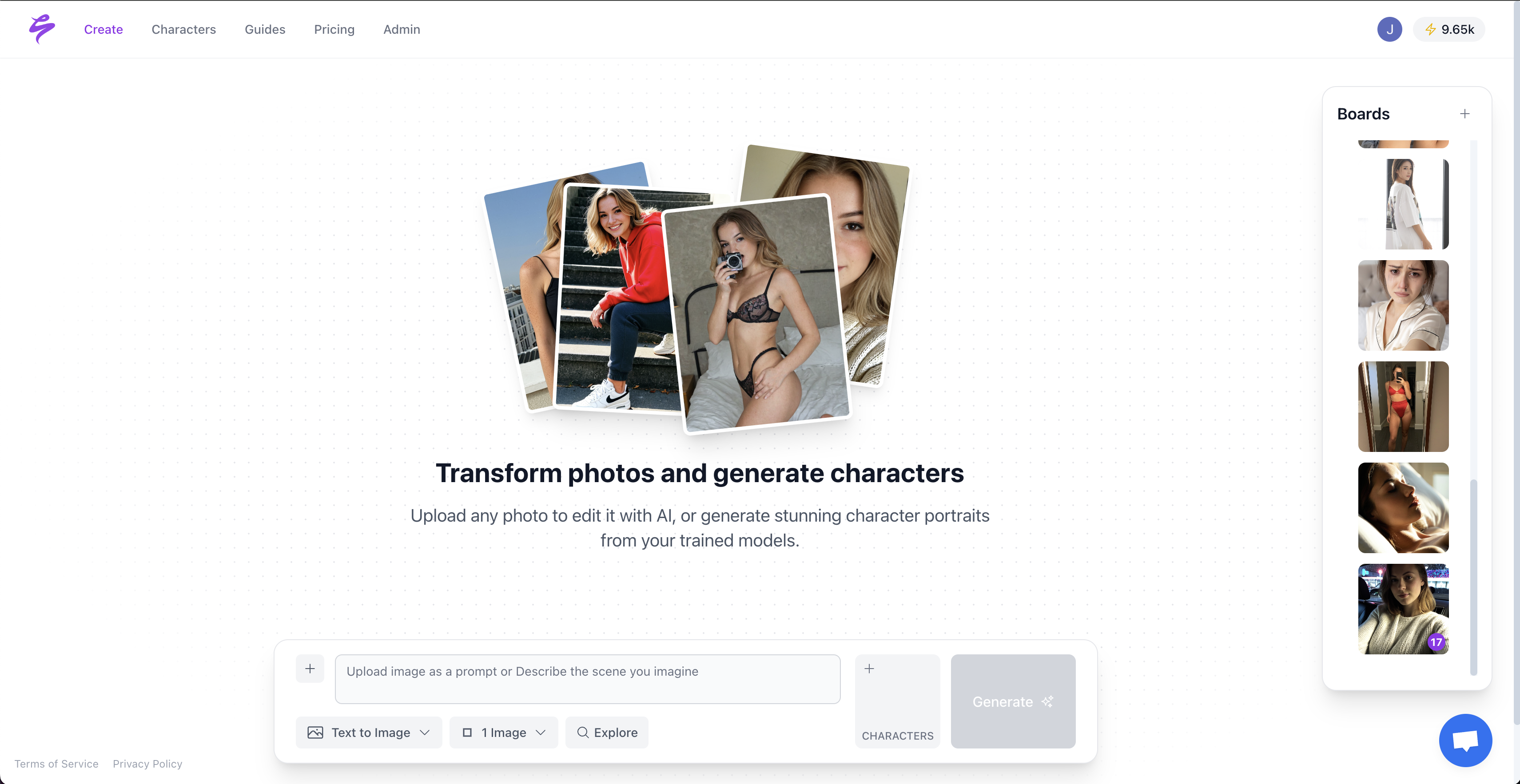
This model extends single-user inpainting, where one person paints over an area and prompts the model to fill it, into a coordinated team environment with role assignments, asset libraries, and conflict resolution protocols. To implement these controls in practice, agencies need a structured workflow that enforces permissions at every stage. The following five-step process translates these requirements into an operational framework for teams managing multiple creator accounts.
- Cast and lock the character. Upload at least three reference photos or build an original AI character to define the baseline appearance. After the character is set, lock the likeness at the workspace level so no editor can alter the base model without administrator approval.
- Assign role-based permissions. Designate project admins, organisation admins, and owners so responsibilities stay clear. Project admins control likeness locks and publishing, while other team members inpaint only within the permissions assigned to their role.
- Build and share the asset library. Save approved settings, outfits, and objects to a shared library that every editor can access. Editors pull from this single source, which removes prompt drift and keeps environments and wardrobe consistent across the set.
- Inpaint within approved zones. Editors mask only the regions assigned to their role, such as background or wardrobe. Non-destructive editing preserves the original render, so any change can be reverted without regenerating the full image.
- Review, version, and publish. All edits move through a review queue before they go live. Approved versions receive an editor ID and timestamp, then flow directly into the scheduler for platform-specific publishing.
Operational Lessons from Reddit on Multi-Creator Inpainting
Forum discussions on collaborative AI inpainting consistently highlight three operational pain points: shared canvas setup, permission granularity, and conflict handling. These issues appear across threads and represent structural failure points when teams stretch single-user tools into multi-editor workflows.
Shared canvas setup often breaks first. Most inpainting tools store generations locally or in a single-user cloud account, so a second editor cannot work directly on the same asset. Teams then export flat files and re-import them, which strips generation metadata and removes the option for non-destructive rollback. A purpose-built collaborative workspace instead stores every render in a shared vault with full metadata intact.
Permission granularity emerges as the next recurring complaint. Without role-based controls, junior editors can overwrite approved assets, alter character expressions, or change background environments that took hours to refine. A dedicated permission layer solves this by restricting inpainting zones by role, rather than sharing one password on a single account.
Conflict handling becomes critical once multiple editors work at speed. In most tools, when two editors inpaint the same region at the same time, the last save wins and the other edit disappears. Proper conflict resolution uses a queue-based system where overlapping edits are flagged, held for review, and resolved by a senior editor before any version is committed.
Comparing AI Inpainting Tools for Agency Teams
The table below compares six tools on four criteria that matter to agency teams: permission granularity, likeness locking across editors, SFW-to-NSFW pipeline support, and native scheduling. Capability assessments rely on publicly documented feature sets.
| Tool | Permission Granularity | Likeness Locking Across Editors | Native Scheduling |
|---|---|---|---|
| OpenArt | Single-user focused | Supports shared likeness locking via persistent characters saved to a library and team-shared models | Not documented |
| Dzine | Single-user; no team workspace | Character consistency via private storage and layers | Not documented |
| Adobe Firefly | Offers role-based permissions via the Admin Console for enterprise organizations, including predefined roles and custom roles that let administrators assign specific access to Firefly and partner models | Supports character-level likeness locking via custom models that preserve character designs | No (requires Creative Cloud integrations) |
| Remade AI | Supports real-time collaboration for up to 50 users via public canvas share links that allow viewing or copying, without documented permission tiers | Consistent characters in collaborative workflows | Not documented |
| Scenario | Offers organization-level and project-level permission granularity with role-based access controls and API key scopes | Shared access to character models and LoRAs for consistency | Not documented |
| Sozee | Role-based, using roles such as project admin, organisation admin, and owner | Supports character consistency via uploaded references and multi-angle packs | Yes, Instagram, TikTok, X, Facebook, Reddit, Fanvue |
Adobe Firefly prohibits adult/NSFW content by design, while Scenario relies on third-party models whose content policies vary and are not controlled by Scenario. OpenArt, Dzine, and Remade AI allow varying degrees of unrestricted generation but lack a structured pipeline that manages pacing or content ceiling. Sozee provides a defined SFW-to-NSFW arc within Photo Shoot, where the creator sets both the ramp and the ceiling, treating the pipeline as a configurable workflow rather than a simple on or off toggle.
Ready to test these features against your current workflow? Start your first collaborative inpainting session on Sozee.
Building Consistent Character Inpainting Teams
Maintaining likeness across editors sits at the center of collaborative AI inpainting. When multiple creators inpaint the same character, each prompt can introduce small shifts in skin tone, facial geometry, hair texture, or expression that accumulate across a content set and erode brand consistency.
Three connected practices work together as a system to prevent likeness drift in team environments.
- Character-level likeness locks. The base character model stays locked at the workspace level. Inpainting prompts can change clothing, background, expression, and props, but cannot modify the underlying likeness parameters. Any edit that touches locked dimensions is flagged before rendering.
- Shared asset libraries with version stamps. Every approved setting, outfit, and object lives in a shared library with a version ID. Editors reference library assets instead of re-describing them in free-text prompts, which removes the prompt drift that causes environment and wardrobe inconsistency across a set.
- Conflict resolution queues. When two editors submit inpainting requests that overlap in region or affect the same character dimension, the system holds both edits in a review queue. A senior editor or administrator compares the versions side by side and commits one, discarding the other without data loss.
Version history best practice for agency teams treats every committed edit as a non-destructive layer. The original render remains intact, and each approved version receives an editor ID, timestamp, and prompt record, creating a full audit trail for creative review and compliance documentation.
Agency Workspace Setup for Multi-Client Inpainting
An agency that manages multiple creator accounts needs workspace isolation, credit allocation controls, and a complete audit trail to operate at scale. Single-user inpainting tools do not provide this structure.
Isolated client environments keep character models, asset libraries, vault contents, and connected social accounts for one client invisible to editors working on another client. Each workspace functions as a contained environment with its own characters, vault, and scheduler connections.
Credit allocation gives administrators control over generation credits per workspace, so one high-volume client cannot consume resources reserved for another. Administrators monitor credit consumption per workspace in real time and reallocate credits without interrupting active sessions.
Audit trails record every inpainting action, including who initiated it, which region was masked, which prompt was used, which asset library items were referenced, and whether the edit was approved or rejected. This log supports internal quality review and external compliance for agencies working in regulated categories.
Sozee’s Teams feature delivers all three capabilities in a single environment. One login manages every client, with each workspace holding its own characters, vault, connected accounts, and credits. The Agent layer reads across the entire roster, proposes shoot setups per character, and writes directly into the prompt bar and Photo Control panel, so a creative director can brief multiple characters in one session without switching accounts.

See how workspace isolation and credit allocation work in practice and set up your agency environment on Sozee to test it with your roster.
Frequently Asked Questions
Can multiple editors inpaint the same image simultaneously without overwriting each other’s work?
Most single-user tools overwrite earlier changes when multiple editors work on the same image, because the last save replaces all previous edits. A purpose-built collaborative platform avoids this by using a conflict resolution queue where overlapping edit requests pause for review. A senior editor or administrator then selects which version to commit, so neither edit disappears until someone approves a final choice. Sozee’s workspace architecture follows this queue model, which prevents silent data loss during concurrent inpainting sessions on the same asset.
How do you prevent a junior editor from accidentally changing a character’s face during inpainting?
A character-level likeness lock enforced at the workspace level prevents accidental facial changes. When the likeness is locked, any inpainting prompt that would alter locked facial or body parameters is blocked before generation runs. Junior editors can still inpaint backgrounds, clothing, props, and expressions within approved ranges, but they cannot submit prompts that touch locked dimensions. This operates as a structural permission rather than a simple content filter and applies regardless of how the prompt is written.
What is the difference between a shared model and a likeness lock in a team inpainting workflow?
A shared model allows multiple editors to access the same base generation model. A likeness lock adds a constraint on top of that shared model and pins specific character parameters such as face geometry, skin tone, and body proportions so outputs remain consistent. Scenario offers shared access to character models and LoRAs for consistency, while Sozee supports character consistency across different prompts and team members through workspace-level controls.
Do I need a separate account for each client, or can one login manage multiple creator workspaces?
Single-user tools typically require a separate account per client, which increases credential management overhead and blocks cross-client analytics. Sozee’s Teams feature runs from a single login with fully isolated workspaces per client. Each workspace has its own characters, vault, connected social accounts, and credit allocation. The creative director views the full roster from one dashboard, while individual editors see only the workspace assigned to them, which reflects the operational difference between managing a roster and managing a collection of separate accounts.
Conclusion: Where Collaborative Inpainting Is Heading
Collaborative AI inpainting is shifting from an experimental workflow to a production requirement for agencies and creator teams that operate at scale. The single-user inpainting tools that dominated 2024 and 2025 were not built for shared canvases, role-based permissions, or cross-editor likeness consistency, and the gap between those tools and agency needs now shows up as a measurable revenue loss.
Agencies that establish repeatable collaborative inpainting workflows in 2026, with locked characters, shared asset libraries, conflict resolution queues, and native scheduling, will compound their output advantage every month. Teams that continue to route edits through single-user tools will keep absorbing the cost of version conflicts, likeness drift, and manual publishing overhead.
The workflow requirements outlined above, including real-time collaboration, locked likeness, shared libraries, granular permissions, and native scheduling, exist together in a single platform only at Sozee, which is purpose-built for agency-scale production. Your roster’s collaborative workflow starts here, so create your Sozee workspace and implement the framework outlined above.