
Key Takeaways: Faster Hand Fixes, Same Scene
- Deformed hands in AI images come from model limits, training gaps, and low pixel allocation, not prompt issues alone.
- Targeted inpainting fixes hands faster than full regeneration: mask the full hand region, use a hand-focused prompt, attach a reference image, and set denoising strength to 0.65–0.75.
- Prevention beats repair. Sozee’s Photo Control panel locks poses, outfits, and objects before generation and reduces hand errors at the source.
- Sozee’s Refine suite keeps likeness locked during inpainting, removing the export and drift problems common with free standalone tools.
- Turn hand fixes into revenue. Start creating now and run your first hand repair in under five minutes.
Why AI Images Produce Deformed Hands So Often
Hand deformities reflect how diffusion models learn, not a temporary bug. Training datasets contain fewer clear, front-facing hands than faces, so models build a weak statistical picture of hand anatomy.
The pixel budget problem compounds this limitation. Hands typically occupy only 2–5% of total image pixels; at 1024×1024 resolution, each hand may cover a region as small as 100×150 pixels, which gives the model too little detail to capture joints, fingernails, and realistic finger spacing at once.
This low pixel allocation forces generative models to treat every region probabilistically instead of anatomically, which produces common failures such as extra digits, fused fingers, unnatural bends, and spaghetti-like shapes. Diffusion models operate on continuous distributions rather than discrete counts and therefore cannot reliably enforce an exact finger count, so prompt tweaks alone rarely solve the issue.
The scale of the problem is measurable. Studies show that leading text-to-image models frequently output anatomically incorrect hands, especially in full-body shots or when a subject holds a product. For agencies running high-volume campaigns, these failures can drain revenue through extra editing time and missed deadlines.
Prevent Hand Errors Upfront with Sozee Photo Control
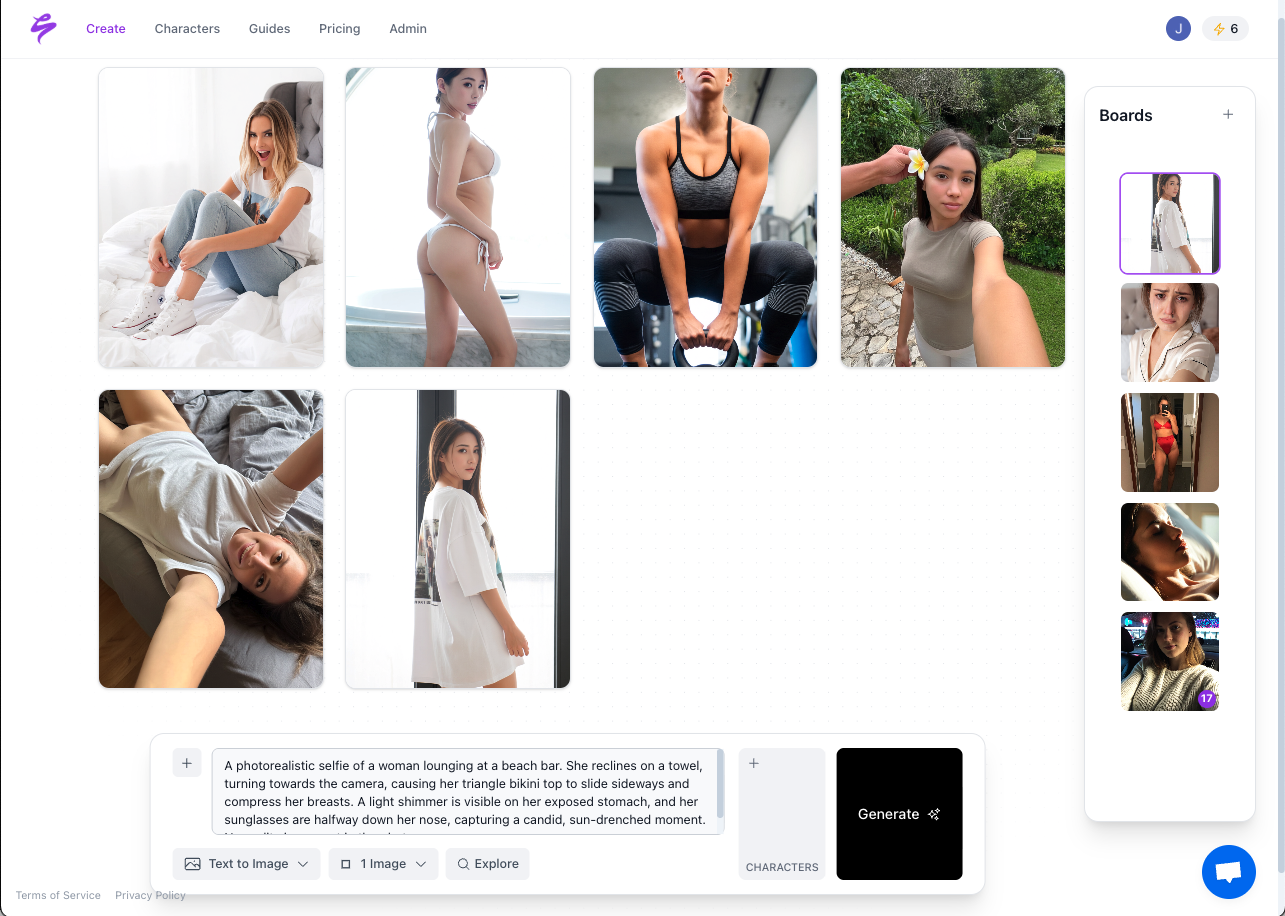
Preventing hand errors before generation saves more time than any repair workflow. Sozee’s Photo Control panel gives creators five precise levers, covering Setting, Outfit, Shot style, Expression, and Object, which replace prompt guesswork with clear direction.

When you define the shot in detail, the model has less freedom to invent strange anatomy. To further tighten that freedom and improve hand accuracy, pair Photo Control with this prevention checklist before generating.
- Specify hand position clearly in the prompt. Phrases like “hands clasped behind the back,” “right hand resting on a table,” or “both hands in pockets” reduce errors compared with vague descriptions.
- Choose reliable poses. Closed fists tend to render more cleanly than fully open hands, and hands holding objects are more stable than empty mid-air gestures.
- Add a targeted negative prompt. Use terms such as “extra fingers, missing fingers, deformed hands, fused fingers, too many fingers, mutated hands, bad anatomy, bad hands.”
- Include quality anchors in the positive prompt. Use phrases like “anatomically correct hands, natural finger count, no extra digits, highly detailed, sharp focus.”
- Use the Object slot in Photo Control to place a prop in the hand. Hands gripping objects are statistically more reliable than empty floating gestures.
- Crop hands out when they do not matter. Prompts like “close-up portrait, head and shoulders only” remove the risk entirely.
Sozee saves every Photo Control configuration as a reusable asset. A prevention setup created once then applies to every future shoot in that environment and compounds time savings across your content calendar.
Match Your Generator to the Fastest Hand Fix
Each generator has its own baseline hand accuracy and ideal repair path. The table below maps major tools to their quickest correction routes, based on 2026 model accuracy ratings and inpainting benchmark results.
| Generator | Hand Accuracy (2026) | Fastest Fix Path | Key Limitation |
|---|---|---|---|
| Midjourney v6 | ★★★★ — occasional errors | Vary (Region) inpainting on a hand mask with a hand-specific prompt | No external ControlNet, limited denoising control |
| Stable Diffusion (SDXL / Forge) | ★★★ — moderate errors on SD 1.5 (★★) | ADetailer with hand_yolov8n at 0.5–0.65 denoise, or manual inpaint at “Only masked” with 32–64 px padding | Requires local setup, model-matching needed for style consistency |
| Flux Dev / Fill Pro | ★★★★★ — almost never wrong | Flux Fill Pro inpainting at 0.65–0.80 strength with 3–5 variants | Requires separate Flux workflow setup outside most consumer UIs |
| Sozee Refine (Inpainting) | Prevention via Photo Control reduces errors before generation | Paint mask, attach hand reference, lock likeness, then generate in one pass | None, integrated workflow with no external tools required |
Standalone tools often fix the hand while breaking the workflow. Likeness drifts, assets scatter across platforms, and scheduling slows. Sozee’s Refine suite keeps the full loop of cast, direct, create, refine, and publish inside one platform.
Step-by-Step Hand Repair with Sozee Refine
Sozee’s Refine inpainting tool corrects surviving hand deformities without touching the rest of the image. Follow these steps for a clean repair.
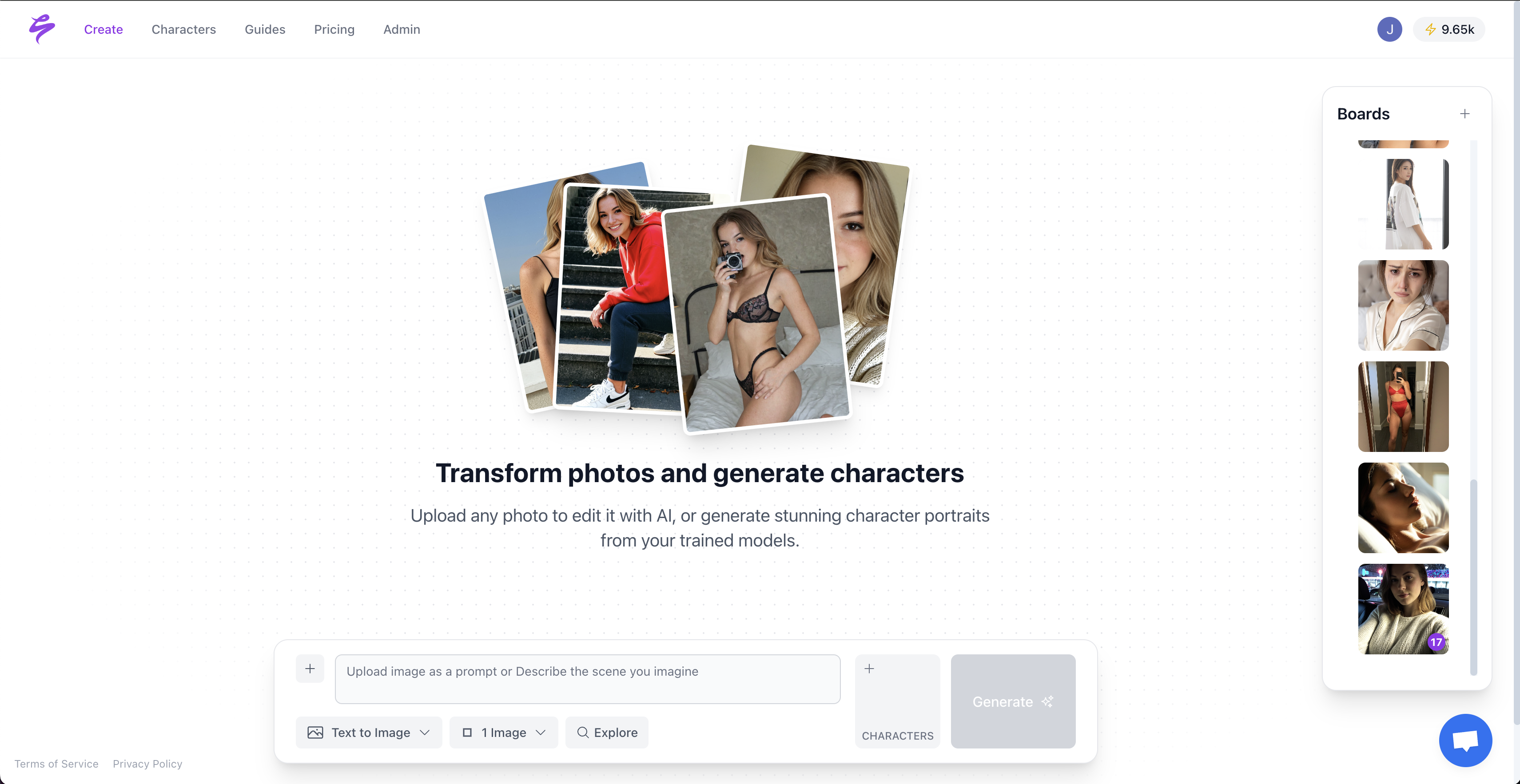
- Open the image in Refine. Go to the generated image in your Vault and select Inpainting from the Refine suite.
- Paint the mask generously. Extend the mask beyond the visible defect to include the wrist, palm, and a margin of surrounding background so the model has enough context for seamless blending.
- Attach a hand reference image. Drop in any image that shows the desired hand position. Sozee reads the reference and uses it to guide the inpainted region, similar to a photographer working from a reference sheet.
- Write a hand-specific prompt. Replace the full scene prompt with a narrow description such as “a relaxed human left hand, natural finger count, natural anatomy, soft studio lighting, matching skin tone, photorealistic.”
- Set denoising strength to 0.65–0.75. A second pass at lower denoise strength can clean up minor issues. For severe deformities, start higher and then step down.
- Generate four variants. Batch generation of four inpainting variations is inexpensive and allows quick selection of the strongest anatomical result while keeping the scene intact.
- Select and save to Vault. Save the corrected image directly to the same folder, ready for scheduling, with no export or platform switching.
Pro tip: choose repair instead of full regeneration. Use inpainting when the face, background, and composition already work. This masked-area processing preserves everything outside the hand and delivers the fix in a fraction of the time full regeneration would require. Reserve full regeneration for poses that fail at the entire body level, not just at the hand.
Start creating now and complete your first hand repair in under five minutes.
Sozee vs Free Hand Fixers: Workflow and Consistency
Free tools such as Fooocus, OpenArt’s inpainting tab, and Stable Diffusion web UIs can repair deformed hands, but they require exporting, re-uploading, manual configuration, and re-importing. The table below compares workflow steps and consistency outcomes, using 2026 inpainting workflow benchmarks and published editing workflow guidance.
| Factor | Free Standalone Tools | Sozee Refine (Integrated) |
|---|---|---|
| Steps to repair one hand | Export, upload, configure, inpaint, re-import across platforms | Open in Refine, mask, prompt, generate inside one platform |
| Likeness preservation | No likeness lock, face and body can drift on re-import | Likeness locked throughout, character model stays consistent |
| Reference image support | Varies by tool, often needs ControlNet setup | Built in, attach any reference image directly in Refine |
| Batch repair across a set | Manual per image with no set-level consistency | Photo Shoot set stays locked, repair one image and keep set coherence |
| Scheduling after repair | Requires a separate scheduling tool | Send directly from Vault to Scheduler with no export |
Inpainting increases the share of usable AI images by fixing only defective regions. Inside Sozee, that gain compounds because the corrected asset flows straight into scheduling and analytics without leaving the platform.
Advanced Scale Strategies for High-Volume Creators
Individual hand repairs protect single posts. Batch-level consistency turns a content treadmill into a repeatable operation.
Sozee’s Photo Shoot feature generates a locked, coherent set of up to ten images from a single frame, with identity, outfit, and environment held constant. When one image in a set has a hand error, the Refine inpainting tool corrects it in place while the other nine frames keep their visual continuity. The full set then ships as a unit.
After repair, every corrected image saves to the Vault in the original folder. From the Vault, the Scheduler publishes directly to Instagram, TikTok, X, Facebook, Reddit, and Fanvue, per character and per platform, with captions and live previews. A hand fix that once stalled a content calendar for hours now takes minutes and moves straight into the publish queue.
Agencies managing multiple creators can use Teams and isolated workspaces to keep each client’s corrected assets separate, with a dedicated Vault, Scheduler, and analytics. One login then runs the entire roster. Go viral today and keep every client’s calendar on schedule while fixing hands at scale.
Frequently Asked Questions
How can I change the hand position without regenerating the whole image?
Inpainting changes only the masked region and leaves the rest of the image intact. In Sozee’s Refine tool, you paint a mask over the hand and wrist, attach a reference image that shows the new position, write a hand-specific prompt that describes the pose, and generate. The surrounding composition, including face, background, and outfit, stays the same. This method is the standard way to change hand position in AI photos without full regeneration.
Why do Midjourney and Stable Diffusion need different hand-fix workflows?
Midjourney’s Vary (Region) tool performs inpainting but does not expose denoising controls or external ControlNet conditioning, so users have less control over how aggressively the hand is redrawn. Stable Diffusion workflows, especially with ADetailer or the Forge UI “Only masked” mode, allow detailed control over denoise strength, mask padding, and model choice, which supports more consistent fixes for complex hand issues. Sozee abstracts these technical settings into a single guided workflow and keeps the repair process consistent across underlying models.
How does Sozee keep the character’s face and body consistent during hand repair?
Sozee’s likeness lock works at the character model level instead of the single image level. When you inpaint a hand in Refine, the character’s face, body proportions, and skin tone come from the underlying model, not from a fresh reconstruction of the image pixels. The inpainted hand automatically matches skin tone and lighting, and the rest of the image never risks drift. Free standalone inpainting tools lack this protection because they treat each image as a separate file with no persistent character reference.
What denoising strength works best for fixing deformed hands?
For most hand repairs, a denoising strength between 0.65 and 0.75 balances correction of the deformity with preservation of lighting and style. Lower values between 0.35 and 0.50 suit subtle fixes, such as a slightly bent finger or minor fusing, where the overall shape is close to correct. Higher values between 0.75 and 0.85 fit severe deformities that need substantial regeneration. Generating four variants at the chosen strength and picking the strongest result usually beats iterating on a single output.
Can Sozee keep a Photo Shoot set consistent while fixing hands?
Sozee’s Photo Shoot feature creates sets of up to ten images with locked identity, outfit, and environment. Each image in the set can be refined individually through the Refine inpainting tool without affecting the others. Because all images share the same character model and asset references, a repaired hand in one frame will visually match hands in nearby frames, with consistent skin tone, lighting, and proportions. After repair, the full set publishes directly from the Vault to any connected platform and keeps the content calendar on track.
Conclusion: Turn Hand Fixes into Revenue
Deformed hands come from structural limits in AI image models, not from prompts alone. The fastest route to believable hands uses a two-stage workflow. First, prevent errors with deliberate Photo Control setup. Second, repair remaining issues with targeted reference-image inpainting inside Sozee’s Refine suite. Both stages keep the full scene intact and protect likeness and brand consistency.
For monetizing creators and agencies, the revenue impact is direct. Every hour spent regenerating full images to fix one hand is an hour not spent publishing, scheduling, or closing the next brand deal. Sozee’s integrated loop of cast, direct, create, refine, and publish removes the export and reimport friction of standalone tools and sends corrected assets straight to the Scheduler.
Get started and run your first hand repair in Sozee today.