
Last updated: September 2, 2026
Key Takeaways
- Leonardo AI can produce photorealistic portraits. Consistent likeness across a full set depends on model choice, reference photos, and clear prompts.
- Character Reference improves facial consistency, yet face drift still appears when you vary poses, outfits, or settings across many images.
- Lucid Origin, Leonardo Kino XL, and Phoenix 1.0 each excel at different looks. Every model involves trade-offs across realism, style, and control.
- Producing dozens of consistent images on Leonardo AI requires writing and monitoring many prompts, which makes the workflow time-intensive at scale.
- For a streamlined, consistent photoshoot experience, a purpose-built AI content studio like Sozee can lock your likeness from just three photos.
What You Need to Get Started
Gather a Leonardo AI account, a strong reference photo, and a clear shoot concept before you generate your first image.
- A Leonardo AI account (free or paid)
- A clear, front-facing reference photo of the subject
- A defined shoot concept with setting, outfit, mood, and camera style
Leonardo AI’s free tier provides 150 Fast Tokens daily, enough for roughly 15 standard generations with simple tools. This covers testing this workflow before you upgrade. Paid plans start at around $12/month (Essential) and scale to $60/month (Ultimate), which unlocks higher-quality models, more daily generations, and unlimited video generation on the top tier.
How to Do an AI Photoshoot with Leonardo AI
This workflow runs in five clear steps.
- Choose a photorealistic model such as Lucid Origin or Leonardo Kino XL.
- Upload a clear, front-facing reference photo and enable Character Reference.
- Write a detailed prompt covering subject, outfit, setting, lighting, and camera angle.
- Set your aspect ratio and generate a batch of 4–8 images.
- Keep the same Character Reference and model, and vary only prompt details for each shot.
Step 1: Pick the Best Leonardo Model for Your Shoot
Model choice matters more than platform. A polished interface cannot rescue a weak model. Leonardo AI’s 2026 model lineup includes several strong options for photoshoot workflows.
- Lucid Origin: Built by Leonardo AI, it delivers vivid Full HD native output with strong prompt adherence. It is also designed to produce video-ready start frames. It supports photoreal to stylized output and works well for brand visuals that follow detailed art direction. This model fits corporate headshots and lifestyle content where realism matters most.
- Leonardo Kino XL: Produces cinematic, dramatic portraits with film-like color grading. This model suits editorial and fashion-style shoots.
- Phoenix 1.0: A more mature and accurate version than Phoenix 0.9, with more natural skin tones and more precise micro-details such as textures, fibers, and reflections. Creators often choose Phoenix when they need a balance of realism, control, and consistency across many prompt styles. This model works as a reliable all-rounder while you experiment.
Use Lucid Origin when you want the most realistic skin texture. Choose Kino XL when you want a cinematic, stylized look. Phoenix 1.0 gives you a safe starting point while you refine your workflow.
Model selection on Leonardo AI always involves trade-offs. Sozee removes this guesswork by locking your likeness and letting you direct the shoot across styles without switching models.
Step 2: Upload and Use Character Reference to Lock the Face
Leonardo AI’s Character Reference feature prioritizes the eyes, nose, mouth, and overall face shape to improve consistency across different styles. It is designed to maintain facial consistency across multiple generated images while backgrounds change.
To give Character Reference the clearest possible read of the face, follow these practices.
- Use a well-centered crop (9:16 aspect ratio) showing head and upper chest only. Extra empty space or wide framing reduces how clearly the model can read the face.
- Avoid group photos, sunglasses, heavy filters, and other obstructions. Anything that covers or distorts the face lowers face-reading accuracy.
- Use clean professional studio lighting, neutral white balance, and true-to-life skin tones. Skip cinematic grading, strong warm tints, or vignettes so the model sees natural color and contrast.
- Use an image at least 1024×1024 pixels and uncompressed. Avoid Instagram-scaled or heavily compressed JPEGs that blur fine detail.
- Choose a neutral expression or a natural smile, since these translate most reliably across poses.
To enable Character Reference, open the Character Reference tab in the image prompt panel, upload your photo, and toggle it on before generating. Set Reference Image Strength between 45–65% for balanced influence. Values below 40% have minimal effect, and values above 90% risk overfitting.
Leonardo AI’s Character Reference improves consistency but does not fully remove face drift across varied prompts and poses. Sozee locks likeness from as few as three photos and holds the same face and body across every frame, set, and week.
Step 3: Write an Effective Prompt (With 10 Copy-Paste Examples)
Once your reference is locked, the next step is writing prompts that turn your vision into consistent images. A strong photoshoot prompt follows this template: [Subject description], [outfit], [setting], [lighting], [camera angle], [style].
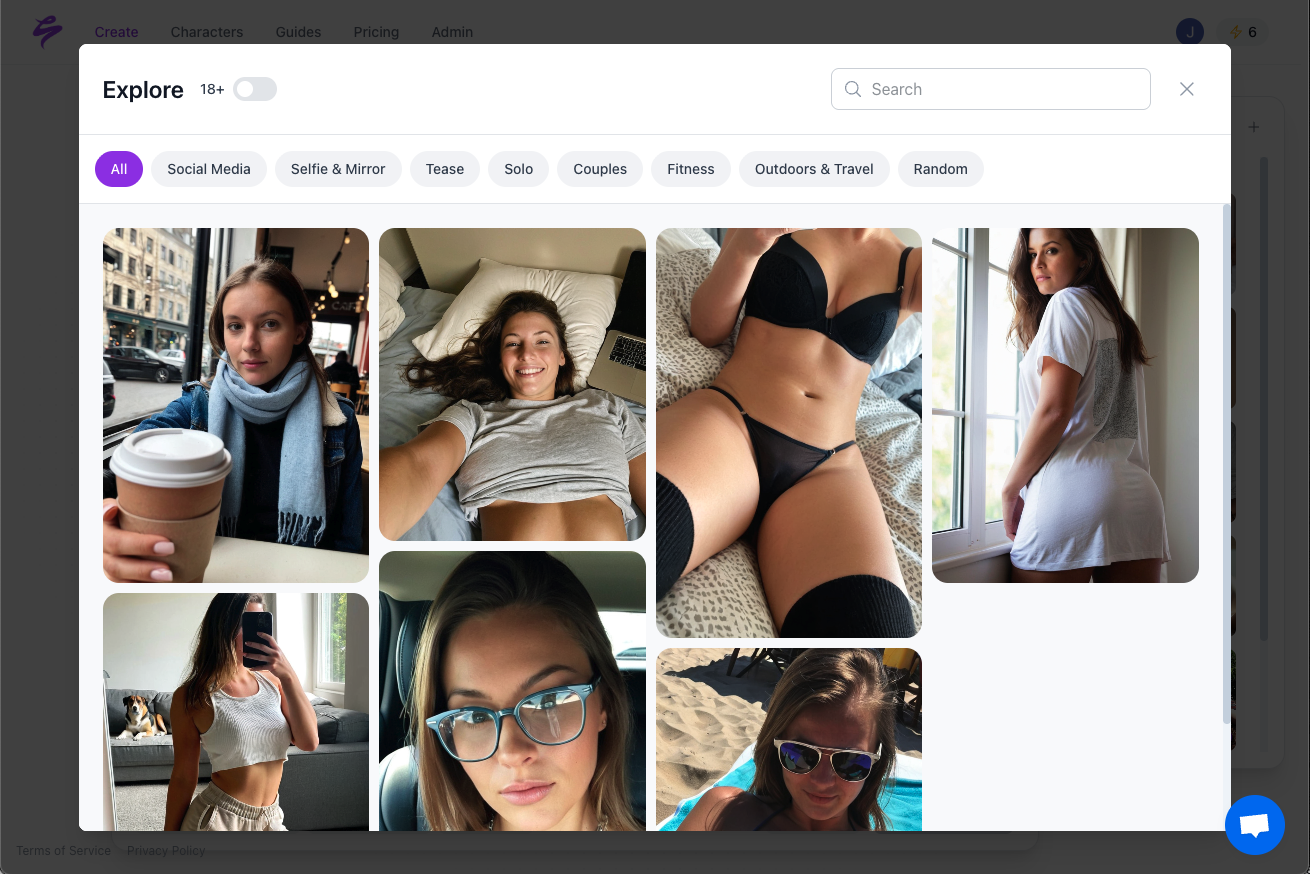
Photographic prompt terms such as “85mm portrait, f/1.8, soft window light” activate the photo patterns the model learned. Art words like “painting” or “illustration” pull the output away from realism, so add those to your negative prompt to reduce painting-like artifacts.
Use these ten prompts as starting points.
- Corporate headshot: “Professional corporate headshot of a woman in a navy blazer, neutral gray studio background, soft diffused lighting, shot on 85mm lens, f/2.8, photorealistic”
- Fashion editorial: “High-fashion editorial portrait of a model in a red silk dress, dramatic rim lighting, urban concrete backdrop, shot on 50mm lens, f/1.8, Vogue style”
- Casual lifestyle: “Casual lifestyle photo of a man in a white t-shirt and denim jacket, golden hour sunlight, coffee shop terrace, candid pose, shot on 35mm lens, photorealistic”
- Outdoor adventure: “Outdoor adventure portrait of a woman in hiking gear, mountain landscape at sunrise, warm natural light, shot on 24mm lens, f/4, National Geographic style”
- Studio beauty: “Beauty portrait of a woman with natural makeup, softbox lighting, clean white background, macro detail on skin texture, shot on 100mm lens, f/2.8”
- Street style: “Street style fashion photo of a man in a leather jacket, neon-lit city street at night, cinematic lighting, shot on 35mm lens, f/1.4, urban vibe”
- Fitness shoot: “Athletic portrait of a woman in activewear, gym setting with dramatic side lighting, sweat detail, shot on 85mm lens, f/2.0, fitness campaign style”
- Editorial black and white: “Black and white editorial portrait of a man with strong jawline, high contrast lighting, dark background, shot on 85mm lens, f/2.8, fine art photography”
- Product lifestyle: “Lifestyle photo of a woman holding a branded coffee cup, bright morning kitchen setting, natural window light, shot on 50mm lens, f/2.2, commercial photography”
- Seasonal holiday: “Holiday portrait of a woman in a cozy knit sweater, Christmas tree lights bokeh background, warm festive lighting, shot on 50mm lens, f/1.8, candid smile”
Use negative prompts strategically. Terms like “malformed, blurry, extra limbs, bad anatomy, deformed, disfigured, low quality” reduce the most common distortions.
Step 4: Generate Your First Image
Set your model, enable Character Reference, paste your prompt, and choose your aspect ratio. Use 9:16 for Instagram Stories, 4:5 for portrait posts, and 1:1 for feed images. Generate a batch of 4–8 images and pick the strongest result.
Iterate at SD or HD quality and reserve 4K generation for final selects to manage credit costs. Start with Quality mode while you test prompts. Upgrade to Ultra only for images you plan to publish.
Step 5: Build a Consistent Set of Photos
Maintain consistency across multiple shots by keeping the same Character Reference and model for every generation. Vary only the setting, outfit, or pose in your prompt. Character Reference is designed so that backgrounds change while the face and outfit stay locked.
Generate a base image you like, then use Remix or Edit to change the background or outfit while you keep the face consistent. Maintain a prompt log so you can reuse successful settings in future shoots.
This step exposes Leonardo AI’s limits for volume work. Generating ten consistent images means writing ten careful prompts, watching for face drift, and re-rolling failures. Sozee’s Photo Shoot feature builds a coherent set of up to ten images from a single frame, with identity, outfit, and environment locked while angle, pose, and expression vary automatically.
Start your first Sozee shoot and build a consistent photoshoot set in minutes.

Troubleshooting: Fixing Unrealistic AI Photos
Most problems fall into a few patterns, and each has a clear fix.
- Face inconsistency: Face drift usually comes from a weak reference or an overloaded prompt. Ensure your reference photo is clear, front-facing, and well-lit. Use a face- or photorealism-optimized model and apply negative prompts such as “bad anatomy, distorted face, ugly, blurry.” Keep prompts concise, since too many details confuse the model.
- Waxy or plastic skin: Switch to Lucid Origin for better skin texture and add “detailed skin texture, pores visible” to your prompt. Avoid terms like “airbrushed” or “perfect skin” so the model keeps natural pores, micro texture, and tonal variation.
- Distorted hands or extra fingers: Add negative prompts such as “extra limbs, bad anatomy, deformed, disfigured, malformed limbs, fused fingers, wrong number of fingers, extra fingers.”
- Prompt overloading: Start with a simple baseline prompt and add details gradually. This approach helps you see whether the issue comes from the platform, the prompt, or a specific phrase.
- Blurry output: Use higher resolutions, add “high resolution, sharp focus, detailed” to the positive prompt, and apply Leonardo’s Universal Upscaler in post.
Use Leonardo AI’s Canvas inpainting to fix localized errors such as a distorted hand without regenerating the whole image. Mask only the problem area, use a short prompt like “hand with five fingers, natural pose,” and generate. Start Inpaint Strength at 0.4–0.6, since lower values preserve more of the original structure for minor fixes.
Leonardo AI vs. Sozee: Choosing a Photoshoot Workflow
Leonardo AI excels at generating individual images, while Sozee focuses on running full photoshoot workflows. The comparison below highlights how each tool handles the core parts of a shoot.
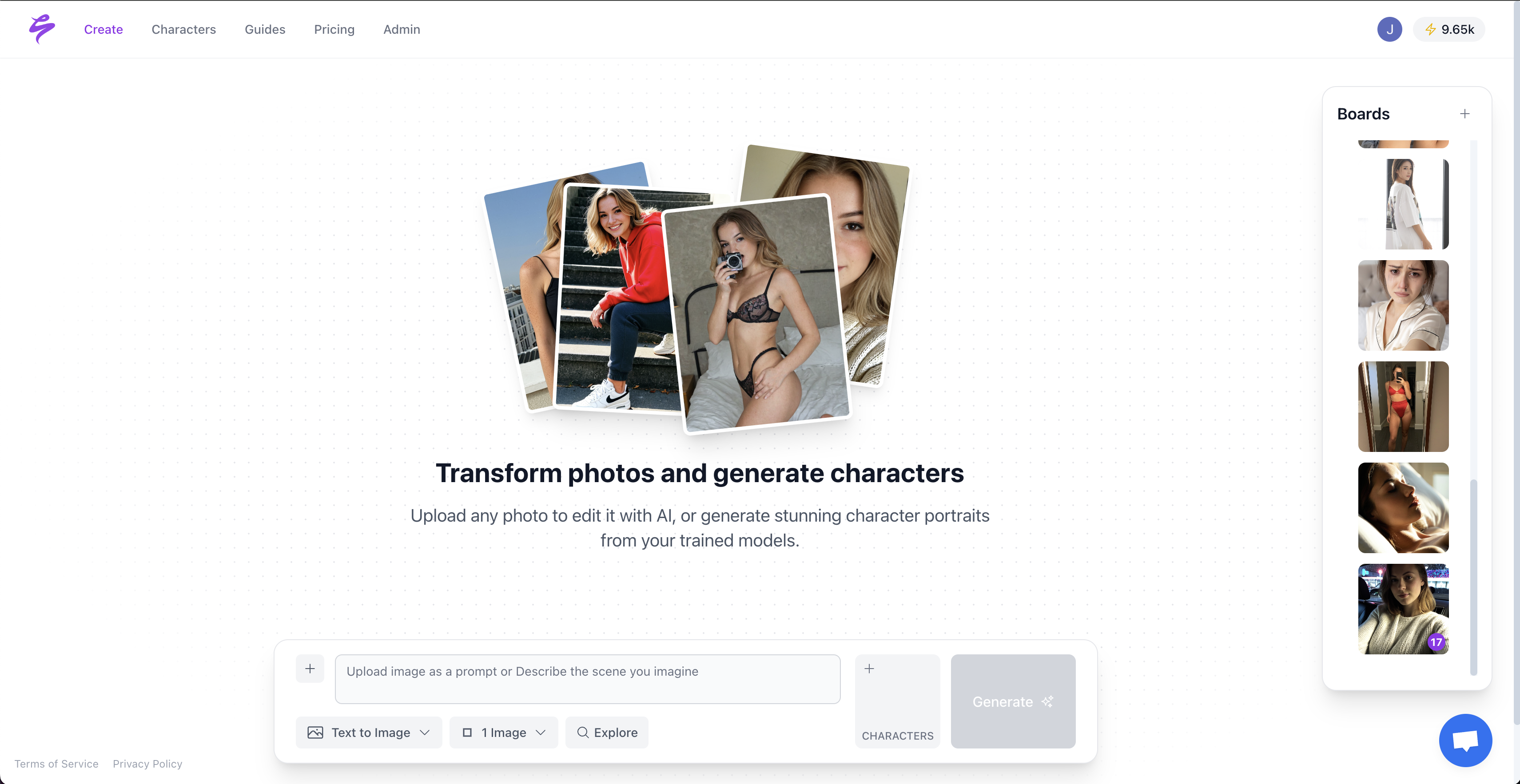
Likeness consistency: Leonardo AI’s Character Reference reduces face drift but does not fully remove it. Leonardo AI’s Consistent Character Engine works at inference time using reference images and descriptors to preserve identity across poses, lighting, and scenes without model retraining. Sozee locks likeness from as few as three photos and holds the same face and body across every frame.
Setup time: Leonardo AI requires prompt work for every shot, including detailed prompts, setting tweaks, and troubleshooting. Sozee’s Photo Control lets you direct shoots across five dimensions (Setting, Outfit, Shot style, Expression, Object) without writing prompts.
Reusable assets: Leonardo AI does not store environments, outfits, or objects as reusable assets, so you re-describe them in each prompt. Sozee saves every element as an asset you own and can reattach at will, so your creative world compounds over time.
Scale: Generating fifty consistent images on Leonardo AI means writing and monitoring fifty prompts. Sozee’s Photo Shoot builds a coherent set of up to ten images from a single frame, and the Agent can set up entire shoots from a half-formed idea.
Workflow: Leonardo AI acts as one tool in a larger pipeline, so you export to other apps for editing, scheduling, and analytics. Sozee functions as a full studio where you cast, direct, create, refine, publish, and measure in one platform.
Leonardo AI works well when you need a single striking image or a small set. Sozee fits creators who need a consistent, scalable photoshoot workflow with the same face and world, week after week. Start your free Sozee trial and create your first consistent set in minutes.
Frequently Asked Questions
Can I use Leonardo AI for free to do an AI photoshoot?
Yes. The free tier’s daily token allowance (150 Fast Tokens) covers roughly 15 standard generations with simple tools. That capacity is enough to test the workflow in this guide. Sustained photoshoot work, such as multiple sets, higher-quality models, or video, will require a paid plan. The Essential plan starts at around $12/month and suits creators producing regular content. For unlimited consistent shoots without token anxiety, Sozee offers a more streamlined path with locked likeness from the first upload.
How do I keep the same face in Leonardo AI?
Use the Character Reference feature and keep your setup consistent. Upload a clear, front-facing photo with even lighting and no obstructions such as sunglasses, heavy filters, or group compositions. Enable Character Reference in the prompt panel before generating, then keep the same reference image and model across all generations in your set. Vary only the setting, outfit, or pose in the prompt. Set Reference Image Strength between 45–65% for a balance of likeness and creative flexibility. Some face drift can still appear across varied poses and prompts, which limits Leonardo AI for high-volume photoshoot workflows.
What is the best Leonardo AI model for realistic photos in 2026?
For 2026, Lucid Origin delivers vivid, Full HD native output with strong prompt adherence and works as a general-purpose pick for brand visuals. Leonardo Kino XL produces cinematic, film-like portraits with dramatic color grading, which fits editorial and fashion shoots. Leonardo Phoenix 1.0 offers strong prompt adherence and photorealistic results, making it reliable for structured portrait scenarios, though some competitors outperform it on specific metrics. Choose Lucid Origin for maximum realism, Kino XL for cinematic drama, and Phoenix 1.0 when you need precise adherence to detailed instructions.
Why do my Leonardo AI photos look fake or plastic?
Waxy, over-smoothed skin usually comes from heavy post-processing and weak reference quality. Switch to Lucid Origin for better skin texture and add “detailed skin texture, pores visible” to your prompt. Avoid terms like “airbrushed,” “perfect skin,” or “smooth,” since these remove the natural texture that makes skin look real. Ensure your reference photo is sharp, uncompressed, and at least 1024×1024 pixels. A blurry or compressed reference gives the model less detail and produces softer, less realistic output. If the issue continues, check that Reference Image Strength stays below 80%, because very high values can cause over-smoothing when combined with a low CFG Scale.
How is Sozee different from Leonardo AI for AI photoshoots?
Leonardo AI is a capable image generator that needs prompt work for every shot and does not guarantee facial consistency across a full set. Sozee functions as a purpose-built AI content studio for creators who produce content at scale. The key differences are clear. Sozee locks likeness from as few as three photos and holds it across every frame without re-rolling prompts. Photo Control replaces the prompt bar with five directable dimensions (Setting, Outfit, Shot style, Expression, Object). Every environment, outfit, and object you build becomes a reusable asset. The Photo Shoot feature builds a coherent set of up to ten images from a single frame automatically. Sozee also includes native scheduling, analytics, video generation, and an Agent that sets up entire shoots from a half-formed idea, all in one platform.
Conclusion: Plan Your Next AI Photoshoot
The complete Leonardo AI photoshoot workflow rests on five decisions. Choose the right model, prepare a strong reference photo, enable Character Reference, write detailed prompts, and keep the same model and reference across your set. Follow those steps and Leonardo AI can produce striking, photorealistic results.
Scale introduces the main limitation. Producing a month of consistent content on Leonardo AI means writing and monitoring many prompts, troubleshooting face drift, and re-rolling failures, which compounds effort instead of assets. Sozee removes that friction with locked likeness, reusable environments and outfits, a Photo Shoot feature that builds a coherent set from one frame, and an Agent that sets up the shoot for you.
Start creating with Sozee, upload three photos, and direct your first AI photoshoot today.