
Last updated: July 10, 2026
Key Takeaways
- IP-Adapter FaceID extracts face embeddings from a single reference photo to deliver consistent character faces in Stable Diffusion without any LoRA or Dreambooth training.
- Both Automatic1111 and ComfyUI require InsightFace, the buffalo_l model, and the correct FaceID .bin file placed in specific folders before generation can begin.
- Optimal results often start at a Control Weight of 0.7. Higher weights strengthen likeness, while lower weights allow more prompt influence.
- IP-Adapter FaceID is limited to still images and demands ongoing local setup, troubleshooting, and manual export for any monetization workflow.
- Sozee provides face consistency without local setup, plus video generation, scheduling, and monetization tools in one platform. Explore Sozee’s creator tools.
7-Step Quick Start for IP-Adapter FaceID Setup
- Confirm prerequisites. You need Python, CUDA, and either Automatic1111 or ComfyUI installed, configured, and running on your machine.
- Install InsightFace. Run
pip install insightface onnxruntime-gpuin your venv. InsightFace handles face detection and embedding extraction for every FaceID model. - Download the buffalo_l model. Place the unpacked folder at
models/insightface/models/buffalo_l/relative to your Automatic1111 or ComfyUI root directory. - Download the FaceID model file. For SD1.5 use
ip-adapter-faceid_sd15.bin. For SDXL useip-adapter-faceid-plusv2_sdxl.bin. Both are available on the Hugging Face IP-Adapter-FaceID repository. - Place model files. In Automatic1111, drop
.binfiles intoextensions/sd-webui-controlnet/models/. In ComfyUI, place them inmodels/ipadapter/so both UIs can load them correctly. - Load a reference image. Use a clear, front-facing photo with good lighting. Obscured, extremely small, severely angled, or low-light faces cause face detection to fail entirely.
- Run a test generation. Set weight to 0.7, use a simple prompt, and confirm the output face matches your reference before building a full workflow.
Automatic1111 Workflow: Running IP-Adapter FaceID
Start by installing the ControlNet extension if it is not already present. Navigate to Extensions → Install from URL, paste the sd-webui-controlnet repo URL, install, and then restart the UI.
[Screenshot placeholder: Extensions tab with ControlNet installed]
- Open txt2img and expand the ControlNet accordion.
- Enable the unit and set Control Type to IP-Adapter.
- Select
ip-adapter-faceid_sd15.bin(SD1.5) orip-adapter-faceid-plusv2_sdxl.bin(SDXL) from the model dropdown. - Upload your reference face image to the ControlNet image slot.
- Set Control Weight to 0.7 as a starting point, then adjust after testing.
- Set Starting Control Step to 0.0 and Ending Control Step to 1.0 for full-generation conditioning.
- Write your prompt normally. FaceID conditioning operates independently of text tokens.
- Click Generate and review the likeness before iterating.
[Screenshot placeholder: ControlNet panel with FaceID model selected and weight at 0.7]
# Automatic1111 quick-launch with API (optional) python launch.py --xformers --api ComfyUI Workflow: Building a FaceID Graph
ComfyUI_IPAdapter_plus by cubiq provides the IPAdapter Unified Loader and IPAdapter Advanced nodes required for FaceID workflows. The pack supports consistent character generation using ip-adapter-faceid-portrait_sdxl.bin combined with face embeddings extracted via InsightFace from a single reference image.
- Install ComfyUI_IPAdapter_plus via ComfyUI Manager or by cloning the repo into
custom_nodes/. - Place
ip-adapter-faceid-plusv2_sdxl.bininComfyUI/models/ipadapter/so the loader node can find it. - Add an IPAdapter Unified Loader node and set the preset to FACEID.
- Connect a Load Image node carrying your reference photo to the image input of an IPAdapter Advanced node.
- Wire the loader’s model output into the Advanced node, then connect the Advanced node’s model output to your KSampler.
- Set
weightto 0.7 andweight_faceidv2to 1.0 as defaults, then fine-tune after test renders.
[Screenshot placeholder: ComfyUI graph with Unified Loader, IPAdapter Advanced, and KSampler connected]
// Minimal workflow JSON snippet { "IPAdapterUnifiedLoader": { "preset": "FACEID", "model": "ip-adapter-faceid-plusv2_sdxl.bin" }, "IPAdapterAdvanced": { "weight": 0.7, "weight_faceidv2": 1.0, "weight_type": "linear" } } Recommended Weights and SDXL Settings for FaceID
Weight tuning is the single biggest variable in FaceID output quality. The allowable range for weight is −1 to 3. Values outside this range trigger a Weight out of range error.
| Use Case | weight | weight_faceidv2 | Notes |
|---|---|---|---|
| Loose likeness / stylized | 0.6 | 0.8 | More prompt influence |
| Balanced (recommended start) | 0.7 | 1.0 | Good identity + prompt blend |
| Strong likeness | 0.8 | 1.2 | Face dominates composition |
| SDXL portrait sets | 0.75 | 1.0 | Pair with DPM++ 2M Karras, 30 steps |
Example SDXL prompt: professional headshot, studio lighting, sharp focus, 8k, photorealistic. Keep prompts focused on environment and style. FaceID handles identity independently.
From Setup to Production: Scaling Your FaceID Workflow
Once you have reliable FaceID generations, the next step is turning consistent characters into a repeatable content pipeline. Consistent faces are the prerequisite for every monetizable content format.
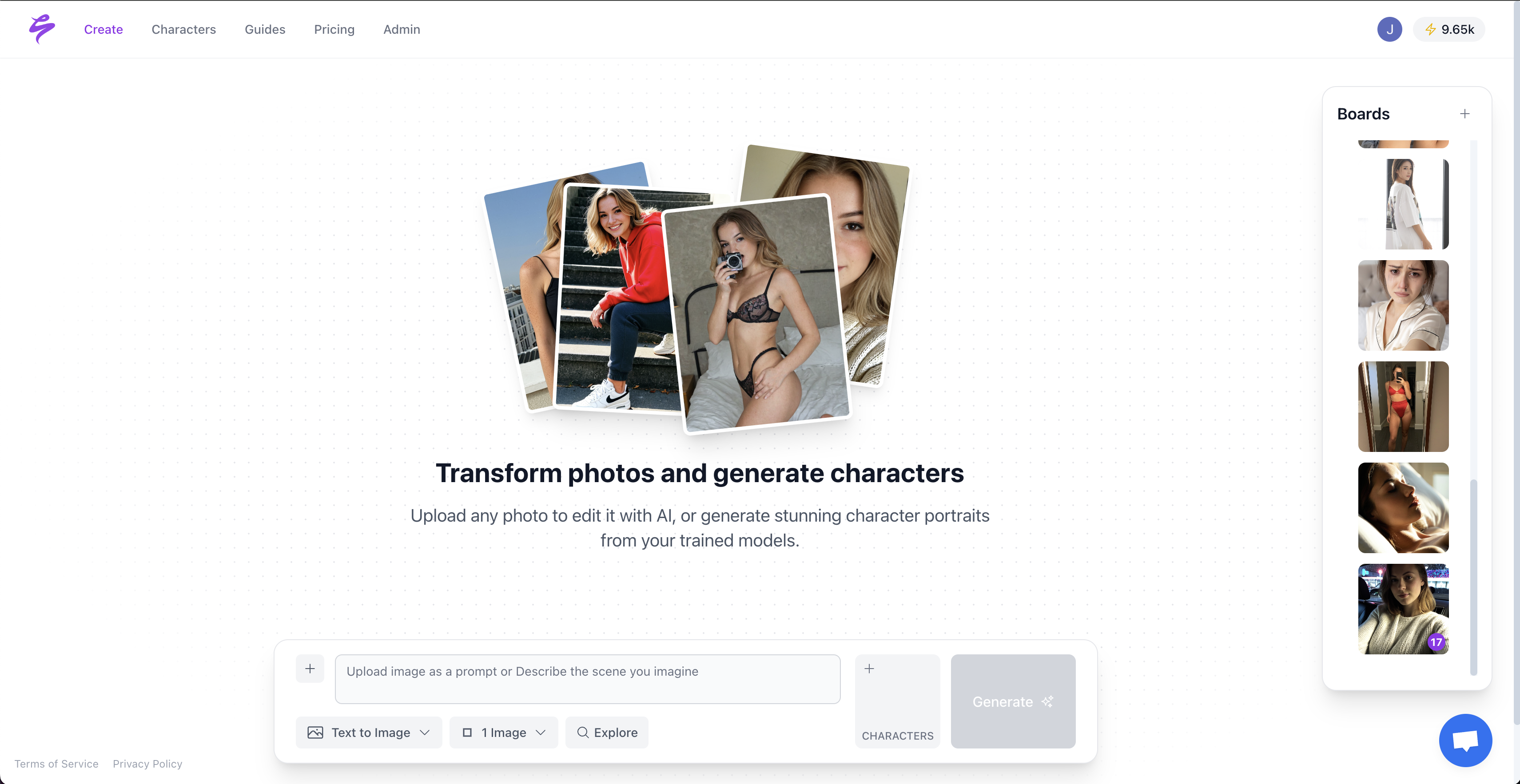
A character that looks identical across 30 posts builds audience recognition faster and supports higher subscription retention. That same consistency also unlocks brand sponsorship conversations that one-off generations cannot support.
The practical pipeline follows a clear sequence. Generate a face-locked character set, batch-produce themed content drops, schedule them across platforms, and measure which formats convert to follows, PPV purchases, or affiliate clicks. This systematic approach creates compounding returns because a recognizable face in a proven reel format, posted on a consistent schedule, outperforms random high-quality content every time.

The bottleneck for most creators is not creativity, because ideas usually outnumber finished posts. The real constraint is the hours spent managing model files, debugging nodes, and manually scheduling posts instead of producing content. That operational overhead is the gap Sozee closes.
Build your character and schedule your first content drop — explore Sozee’s workflow automation.
Sozee vs IP-Adapter FaceID: Zero Setup, Production Ready
IP-Adapter FaceID is a powerful open-source tool that rewards technical users. It also requires InsightFace installation, correct folder paths, compatible model versions, GPU memory management, and ongoing troubleshooting every time a dependency updates. For creators whose revenue depends on output volume, that overhead is a direct cost.
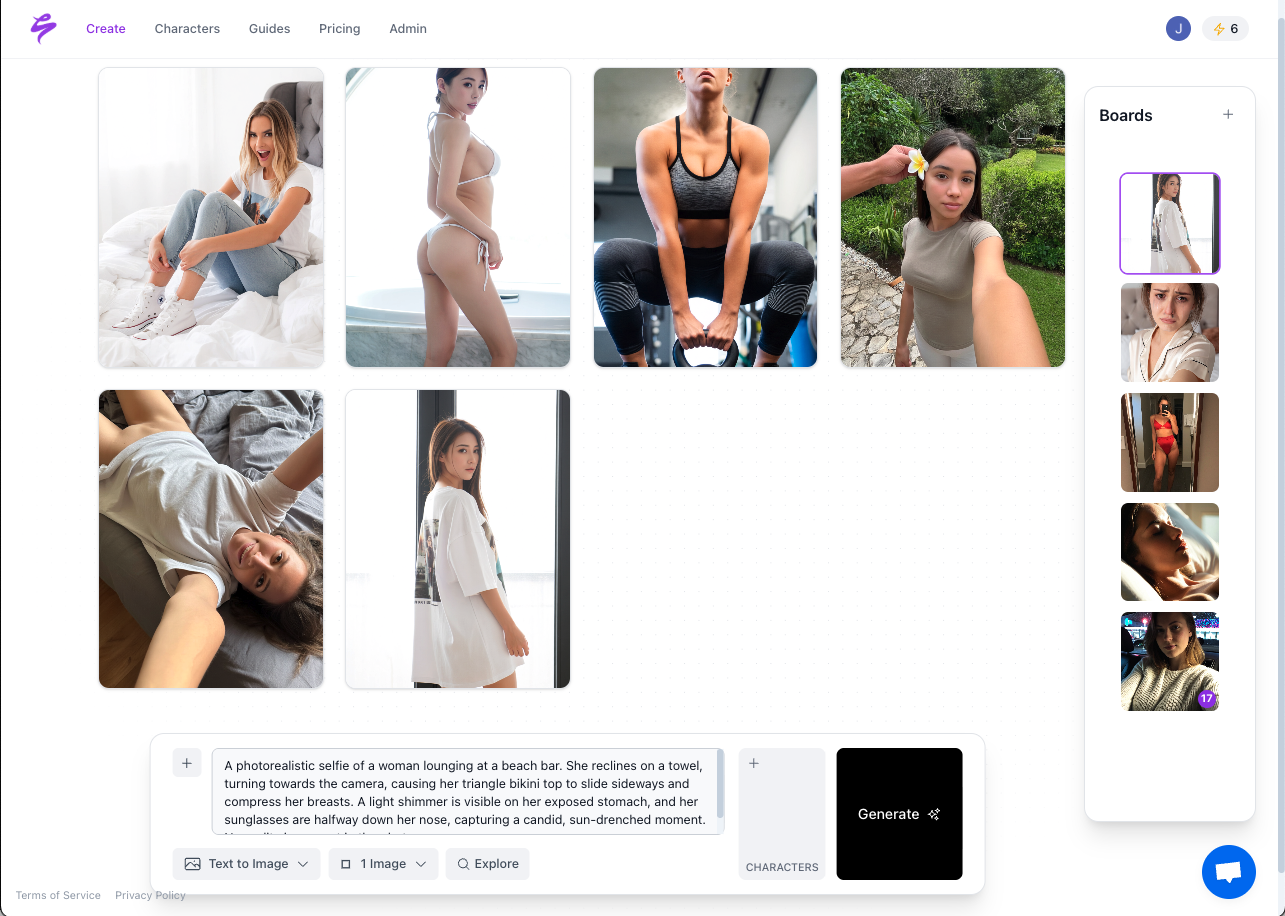
The table below compares the end-to-end capabilities required to run a production content pipeline, highlighting where local setup ends and where a managed platform begins.
| Capability | IP-Adapter FaceID (DIY) | Sozee |
|---|---|---|
| Face consistency | Yes, after setup | Yes, from first upload |
| Setup required | InsightFace, model files, node config | None |
| Training required | No | No |
| Video generation | No (image only) | Text-to-video, video-to-video, reel cloning |
| Scheduling & analytics | No | Native, built-in |
| Monetization pipeline | Manual export to other tools | SFW-to-NSFW, OF/Fansly/TikTok/IG/X export |
| AI Copilot | No | Full workflow automation |
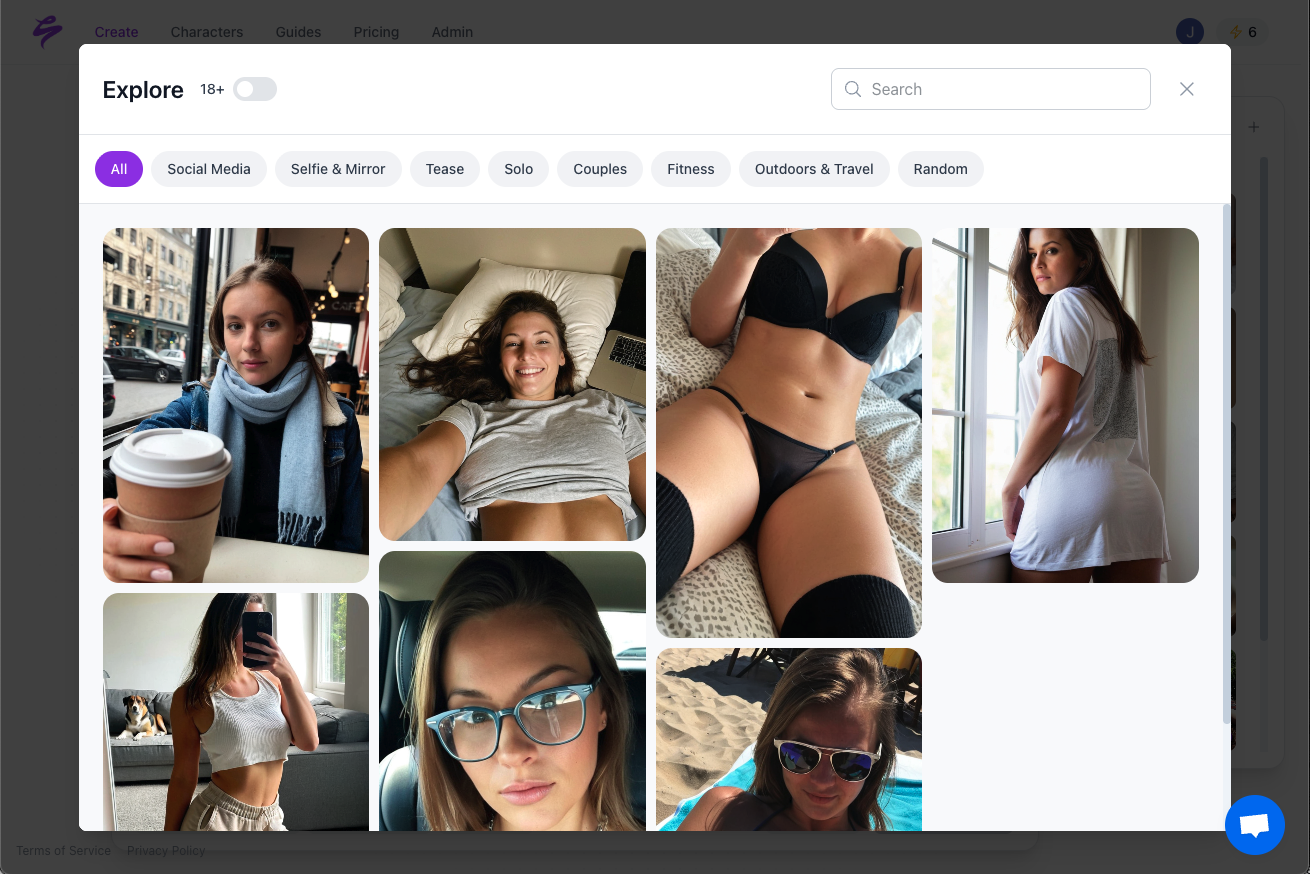
Sozee extends face-consistent image generation into a complete creator business operating system. The platform combines generation, editing, scheduling, analytics, and monetization export in one place, with no local install.
Troubleshooting IP-Adapter FaceID Errors
- “Invalid model input” in ComfyUI. This error fires when the model connected to the IPAdapterFaceIDV2 node is incompatible with the IPAdapter framework. Verify you are using a
.binFaceID file, not a standard IP-Adapter or ControlNet model. - “Weight out of range.” The
weightparameter must stay between −1 and 3. Reset to the default value of 0.7 and adjust in small increments. - “Missing required image input.” The node requires a valid image connected to its image parameter before execution. Confirm your Load Image node is wired correctly and the file path is valid.
- Face detection fails entirely. Highly obscured faces, extreme angles, partial out-of-frame crops, and low-light reference images cause detection to fail. Use a well-lit, front-facing photo at 512px minimum resolution.
- Blending artifacts at face boundaries. Significant differences in skin tone or lighting between the reference face and the generated scene produce boundary artifacts. Match the lighting temperature in your prompt to the reference photo, or use inpainting to blend the transition zone.
Frequently Asked Questions
Does IP-Adapter FaceID require training a new model for each character?
No. IP-Adapter FaceID extracts face embeddings from a single reference photo at inference time. There is no LoRA training, Dreambooth fine-tuning, or waiting period. The trade-off is that identity fidelity depends entirely on reference image quality and weight settings rather than a dedicated trained model.
What is the difference between ip-adapter-faceid_sd15.bin and ip-adapter-faceid-plusv2_sdxl.bin?
The SD1.5 variant is designed for base Stable Diffusion 1.5 models and operates at approximately 512×512 native resolution. The SDXL plusv2 variant targets SDXL base models, supports higher resolutions, and generally produces more detailed, photorealistic outputs. Use the SDXL file when your base checkpoint is an SDXL model. Use the SD1.5 file otherwise. Mixing them causes an “Invalid model input” error.
Can IP-Adapter FaceID maintain consistency across video frames?
IP-Adapter FaceID is an image-conditioning tool and does not natively handle temporal consistency across video frames. Achieving consistent faces in video requires additional tools such as AnimateDiff with per-frame conditioning, which adds significant workflow complexity. Platforms like Sozee handle video face consistency natively through text-to-video and video-to-video pipelines without any additional configuration.
How many reference photos does IP-Adapter FaceID need?
A single reference image is sufficient for basic face embedding extraction. Using the portrait variant with multiple reference images can improve consistency across varied poses and lighting conditions. The reference image must be clear, front-facing, well-lit, and unobscured for reliable face detection.
Is Sozee a replacement for Stable Diffusion entirely?
Sozee is a purpose-built creator monetization platform, not a general-purpose Stable Diffusion wrapper. It handles face consistency, video generation, editing, scheduling, and analytics in one place without any local installation. Creators who need maximum technical control over every generation parameter may still prefer a local Stable Diffusion setup. Creators who need consistent, monetizable content at scale with minimal friction are the audience Sozee is built for.
Conclusion: Scale Consistent Faces Without the Friction
This guide has walked through the complete IP-Adapter FaceID setup process in both Automatic1111 and ComfyUI. For creators who want deep control over models, nodes, and parameters, that local workflow delivers flexibility and precision.
As shown in the comparison above, Sozee extends face consistency into a complete production platform. The service adds video generation, reel cloning, a full editing suite, native scheduling, and monetization exports, all without local setup.