
Key Takeaways for Your Fanvue AI Pipeline
- One-off prompting cannot sustainably close the 100-to-1 content gap Fanvue creators face. An event-driven pipeline solves that gap.
- A Model Bible in Airtable plus saved Sozee Photo Control presets lock visual identity and prevent likeness drift across daily posts.
- Five content pillars with weekly weighting and performance feedback loops keep the pipeline focused on revenue, not just output volume.
- Compliance gates with versioned age-verification metadata protect against platform removal and audit exposure on every automated post.
- A complete pipeline build requires four to six focused hours for the first character, with later characters reusing saved environments to cut setup time. Build this in Sozee using Sozee’s Photo Control and Scheduler.
Prerequisites and Four-to-Six Hour Build Timeline
Confirm these pieces before you start the build.
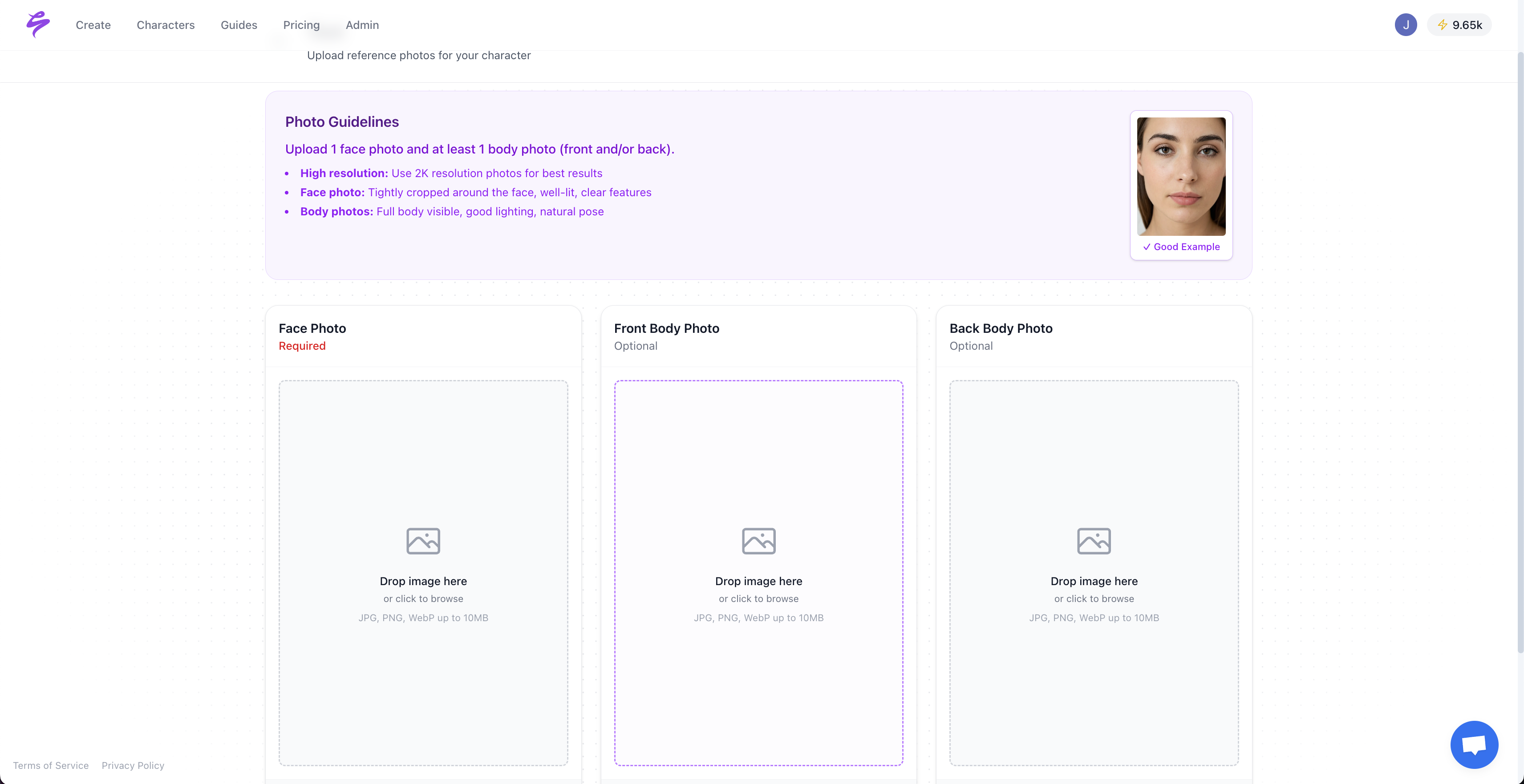
- A Sozee account with at least one character created or uploaded
- An active Fanvue creator profile with API access enabled
- An n8n self-hosted instance or a Make.com workspace
- Airtable or Google Sheets for the Model Bible and pillar tracking
- Basic automation literacy, including webhooks and HTTP request nodes
The initial build for one character takes four to six hours. Later characters in the same workspace reuse saved environments, outfits, and pillar tables, which shortens setup time.
Create your Sozee account now to begin the four-to-six hour setup.
Step 1: Build a Model Bible That Prevents Visual Drift
The Model Bible acts as the single source of truth for every creative decision downstream. It prevents the most common failure mode in automated pipelines: visual drift caused by the absence of a compact, reusable reference document.
Create an Airtable base with one record per character. These fields fall into three categories that together prevent visual drift: identity anchors, visual constraints, and automation references. Each field serves a specific role.
- Character ID — Sozee character name and internal slug that the workflow uses to pull the correct preset
- Mood direction — two to three adjectives that define the character’s tone so caption generation stays on-brand
- Approved color palette — hex values for primary, secondary, and accent that lock visual identity across all generated images
- Lighting standard — direction, temperature in Kelvin, and contrast ratio that Photo Control applies to maintain consistent atmosphere
- Forbidden elements — props, settings, or expressions that break brand, giving the compliance gate a clear rejection checklist
- Sozee Photo Control defaults — saved preset IDs for Setting, Outfit, Shot style, Expression, and Object that the workflow reads before each generation
- Compliance status — verification date, method, and policy version that the gate checks before posting
Output: a completed Model Bible record that every downstream automation node reads before generating a single image.
Step 2: Define Content Pillars and Weekly Allocation
Algorithms in 2026 reward retention and relevance over volume, so a tightly structured pillar system is essential for Fanvue growth. Define five pillars and assign a weekly posting weight to each one.
- Teaser (SFW) — 30% of posts, drives free-to-paid conversion
- Exclusive (subscriber-only) — 25%, retains existing subscribers
- Pay-per-view (PPV) — 20%, direct revenue events
- Story / behind-the-scenes — 15%, builds parasocial connection
- Live preview — 10%, promotes scheduled live sessions
Save this allocation table as a linked record in the same Airtable base as the Model Bible. This placement lets the automation workflow in Step 5 read pillar weights and select the correct content type for each scheduled slot without a separate lookup. Because short-term data rarely reflects durable trends, give each pillar at least one quarter before making major adjustments. The weekly feedback loop in Step 8 surfaces performance patterns, while structural changes to pillar weights should wait until those patterns stabilize.
Step 3: Lock Likeness and Creative Direction with Sozee Photo Control
Likeness drift, the gradual divergence of a character’s face, body, and environment across posts, is the primary revenue killer in automated Fanvue pipelines. A JSON context profile capturing lighting direction, camera language, material palette, subject framing, and color temperature provides a transferable method for locking visual grammar across sessions.
Sozee’s Photo Control panel turns that method into a practical tool. Set and save a named preset for each monetization context.

- Setting — upload up to four reference photos to build a reusable environment so the room stays consistent across every shoot
- Outfit — select one piece per category, such as tops, bottoms, shoes, and accessories, to assemble a locked look
- Shot style — define framing, angle, and camera distance
- Expression — specify the emotional register for each pillar type
- Object — attach up to four props per set using @-references inline
Output: named Photo Control presets saved in Sozee and referenced by preset ID in the Model Bible. These presets not only lock visual consistency but also act as the technical implementation of likeness authorization. The Digital Likeness Directive Version 1.0, launched July 23, 2026, provides the compliance framework that these presets operationalize. It establishes an open standard for permissions across formats, commercial use, and source material that agencies can reference when managing multiple characters.
Step 4: Create Reusable Photo Shoot Sets for SFW-to-NSFW Arcs
Sozee’s Photo Shoot feature takes a single approved image and builds a coherent set of up to ten around it. Identity, outfit, and environment remain locked while angle, pose, and expression vary. This structure produces a full content arc from SFW teaser to NSFW exclusive from one generation event, with the ramp and ceiling controlled by the creator.
Create a named Photo Shoot set for each pillar.
- Select the approved master image from the Vault
- Set the arc ceiling, using SFW-only for teaser sets and a full arc for PPV sets
- Generate the ten-image set and save it to a labeled Vault folder
- Log the Vault folder ID in the Model Bible record
Output: locked ten-image sets per pillar, stored in the Vault and ready for the automation workflow to pull from without additional prompting.
Step 5: Set Up Event-Driven Automation in n8n or Make
Event-driven AI pipelines decompose complex workflows into discrete, observable steps, each emitting metadata on processing time, model used, and success or failure status. This structure enables independent retry of individual steps without reprocessing the entire workflow.
The core n8n workflow for a Fanvue pipeline follows this node sequence.
- Schedule Trigger — fires at the configured daily posting time
- Airtable Read — pulls today’s pillar assignment and Photo Control preset ID from the Model Bible
- HTTP Request (Sozee Webhook) — sends preset ID and pillar type to the Sozee Agent endpoint and receives an image URL plus a caption draft
- OpenAI Node — rewrites the caption draft with platform-native tone and appends Fanvue-specific calls to action
- Compliance Gate — runs the checklist defined in Step 6 and halts the workflow if any check fails
- Fanvue API Node — posts the image and caption to the scheduled queue through the Fanvue content endpoint
- Airtable Write — logs post ID, pillar, preset used, and timestamp for the performance loop in Step 8
Event-driven workflows that trigger on new content, generate captions, log metadata, and publish via platform APIs are the established pattern for reliable daily automated posting. Apply the same architecture here with Sozee and the Fanvue API replacing the Google Drive and Instagram Graph API nodes.
Output: a deployed workflow JSON that runs daily without manual intervention.
Set up your Sozee webhook endpoint and begin building the n8n workflow.
Step 6: Add Compliance Gates and Age-Verification Metadata
A robust age-verification gate must bind outcomes directly to content-policy rules and versioned policy documents, logging the exact policy version, threshold, method, and reason code that produced each authorization decision. For Fanvue pipelines, this gate sits between the Sozee generation step and the Fanvue API post step.
Create a compliance checklist record for every post.
- Age-verification status, including method used such as document check, biometric, or credential token, and verification date
- Content rating, such as SFW, soft NSFW, or explicit, matched to the pillar assignment
- Policy version, meaning the versioned Fanvue content policy the post was evaluated against
- Jurisdiction flags, covering any region-specific restrictions applied
- Likeness authorization, referencing the Digital Likeness Directive record or equivalent consent record for the character
- Approval status, set to Approve, Revise, or Reject, following the four-level review system recommended for AI content pipelines
Document-upload verification sees 30–70% abandonment while AI facial age estimation shows around 49% abandonment in experimental studies. Use these benchmarks when designing the subscriber-facing verification experience that feeds into the pipeline’s compliance record.
Output: a compliance checklist record written to Airtable for every post before it reaches the Fanvue API node.
Step 7: Connect Fanvue Scheduling and Write Platform-Native Captions
Sozee’s Scheduler connects directly to Fanvue per character, not per account, so agencies can manage multiple characters from a single workspace without identity crossover. The Scheduler handles photos, carousels, and stories with a caption per platform and a live preview of the published result.
Follow these steps to build the 14-day queue.
- Pull the pillar allocation table from Airtable to determine post type for each slot
- Match each slot to the corresponding Vault folder from Step 4
- Use the Sozee Agent to write platform-native captions for each post, referencing the character’s mood direction from the Model Bible
- Submit each post to the Fanvue API scheduling endpoint with the compliance record ID, created in Step 6, attached as metadata
- Confirm the 14-day queue in the Sozee Scheduler dashboard
Output: a 14-day scheduled queue with zero manual prompting required after initial setup.
Step 8: Implement Weekly Performance Feedback Loops
AI content systems should track search ranking improvements, click-through rate, average session duration, conversion rate by content piece, and cost per acquisition across content categories over time rather than judging isolated posts. For Fanvue, the equivalent metrics are subscriber conversion rate by pillar, PPV open rate, renewal rate, and tip frequency.
Run a simple weekly review process.
- Pull Fanvue analytics and Sozee Analytics into the Airtable performance table
- Sort posts by pillar and rank them by conversion rate
- Identify the lowest-performing pillar over the past seven days
- Rewrite that pillar’s Photo Control preset or caption template in the Model Bible
- Update the pillar weight in the allocation table and promote consistently outperforming pillars to a larger share while shifting underperformers into a supporting role
- Log the change with a version note so drift can be traced
Output: updated pillar weights and preset IDs that the automation workflow reads on the next cycle, creating a self-improving system.
Common Pitfalls That Break Fanvue Revenue
Only about 30% of companies with brand guidelines enforce them consistently, and the same failure appears in creator pipelines. Three pitfalls account for most revenue loss.
- Likeness drift from prompt-only workflows — without saved Photo Control presets and a Model Bible, each generation diverges slightly until the character is unrecognizable across a month of posts
- Missing compliance metadata — posts without a versioned compliance record attached create audit exposure and risk platform removal
- No performance weighting — running a static pillar allocation without weekly feedback loops means the pipeline focuses on volume rather than revenue
Pro Tips for Scaling Without Burnout
- Use Sozee’s @-references to drop sponsor products directly into the Object slot for brand deal deliverables, so a full campaign set generates in one session without rebuilding the character’s world
- Schedule the Sozee Agent to review pillar performance weekly and propose preset updates so creative direction evolves without manual intervention
- Conduct quarterly reviews of the visual style specification to detect and correct style drift before it compounds
- Use Sozee’s Reel Cloning feature to A/B test proven video formats across characters without rebuilding motion from scratch
Success Metrics: Signs Your Pipeline Is Live
A functioning pipeline produces clear outcomes within the first two weeks.
- Fourteen days of content scheduled with zero manual prompting after initial setup
- Output rate at least three times the previous manual production volume
- Measurable Fanvue conversion lift on the teaser pillar within the first billing cycle
- Compliance record attached to every post in the queue
- Pillar performance data available in Airtable for the first weekly review
Advanced Next Steps for Agencies and Multi-Character Workspaces
Sozee’s team workspace architecture isolates each character’s vault, connected accounts, and credits under a single agency login. Once the single-character pipeline is stable, agencies can extend it in three directions.
- Multi-character deployment — duplicate the Model Bible schema and automation workflow for each character, and rely on Sozee’s per-character Scheduler to prevent identity crossover at the platform level
- Fan-segmentation campaigns — use Fanvue’s subscriber tier data to route different pillar content to free versus paid tiers, increasing PPV conversion from the existing subscriber base
- A/B testing reel clones — generate two versions of the same reel concept using Sozee’s Reel Cloning feature, post both, and let the weekly feedback loop promote the winner into the standard pillar rotation
Scale to multi-character deployment using Sozee’s team workspace architecture.
Frequently Asked Questions
What are Fanvue API rate limits for automated posting?
Fanvue’s API enforces rate limits at the account level, and the specific thresholds are documented in the Fanvue developer portal for approved API partners. Automated pipelines should space post submissions at least 15 to 30 minutes apart and implement exponential backoff in the n8n or Make workflow when the API returns a 429 rate-limit response. The compliance gate in Step 6 naturally introduces a processing delay between generation and submission, which helps maintain safe posting cadences. Always check the current Fanvue API documentation for the latest limits before deploying the workflow at scale.
How many Sozee credits does a daily pipeline typically consume?
Credit consumption depends on the content mix. A standard daily pipeline that generates one Photo Shoot set of ten images per pillar, plus caption generation via the Sozee Agent, typically consumes between 20 and 40 credits per day depending on resolution settings and whether video generation is included. SFW-to-NSFW arc sets and 4K upscaling consume more credits per session than standard social-resolution outputs. Sozee’s Analytics dashboard splits credit usage by generation type, which makes it straightforward to identify which pipeline stages consume the most and adjust the setup accordingly.
When should age-verification checks occur in the compliance gate?
Age-verification checks should occur at two points. Run the first check during character setup when the creator’s identity and consent are established. Run the second check at the compliance gate in Step 6 before each post reaches the Fanvue API. The gate-level check confirms that the subscriber-facing verification status is current and that the content rating of the post matches the verified access tier. For NSFW and PPV content, the compliance record should log the verification method, the policy version evaluated, and the timestamp of the check. Treat verification as an ongoing control rather than a one-time onboarding step, and update the policy version field in Airtable whenever Fanvue or applicable regulations change.
How do I roll back a post if performance data shows under-delivery?
The Airtable log created in Step 5 records the post ID, pillar, Photo Control preset ID, and caption template used for every automated post. If the weekly feedback loop in Step 8 identifies a post or pillar as significantly underperforming, roll back in three actions. Archive the underperforming preset in Sozee. Revert the pillar weight in the allocation table to the previous version. Flag the Airtable record with a version note explaining the change. For posts already published on Fanvue, use the Fanvue dashboard to unpublish or restrict access. The version history in Airtable ensures the pipeline can return to any prior configuration without rebuilding from scratch.
Can the same pipeline run multiple characters without identity crossover?
Yes. Sozee’s workspace architecture isolates each character’s vault, Photo Control presets, saved environments, and Scheduler connections at the account level. In the n8n or Make workflow, each character runs as a separate workflow instance that reads from its own Model Bible record in Airtable, identified by a unique Character ID field. The Fanvue API connection is also per-character within the Sozee Scheduler, so posts for Character A and Character B are submitted to separate Fanvue profiles with no shared assets or metadata. Agencies managing multiple characters should use Sozee’s team workspace feature to keep each character’s credits, vault, and analytics fully isolated under a single login.
Conclusion: Turn One Character Into a Scalable Revenue System
The eight-step pipeline above converts a single Sozee character into a daily, monetizable content operation. Likeness stays locked through saved Photo Control presets and a Model Bible. Content stays compliant through versioned gate records attached to every post. Revenue grows through weekly feedback loops that continuously reweight pillars toward what converts. The entire system runs without daily manual prompting once the initial four-to-six hour build is complete.
One-off generation behaves like a slot machine. This pipeline behaves like a business. Turn your character into a revenue system and implement the eight-step Sozee pipeline.