Fanvue Banner & Intro Video: The AI Creator’s Guide
Build a converting Fanvue banner and 25-sec intro video with AI. Sozee shows you exact specs, likeness tips, and variant testing.
The Sozee teamDecember 27, 202514 min read
Last updated: September 13, 2026
Key Takeaways
Fanvue profile banners use a 1192×335 pixel layout and intro videos work best at 20–25 seconds for discoverability and conversion.
Lock your character likeness in Sozee before creating any banner, profile picture, or intro video frames so every asset shows the same person.
Design the banner with a left-third portrait, a center mood scene, and a right-third CTA, then use Sozee’s locked-identity workflow to create compliant SFW public media.
Turn Discoverability ON in Fanvue Creator Settings so your intro video receives guaranteed placement in Discover and appears in search results.
Before you design anything, you need the exact specs Fanvue enforces. These numbers control how your banner and intro video display and whether they pass review. Fanvue’s “Setting up Your Profile for Success” Help Article specifies the following:
Banner Dimensions: 1192×335 pixels.
Profile Image Dimensions: 1080×1080 pixels.
Intro Video Length: Under 30 seconds, with 20–25 seconds as the production target.
Video Upload Limit: 1.5 GiB maximum file size.
Image Upload Limit: 20 MiB maximum file size, maximum resolution 4096px.
Discoverability Toggle Path: Settings → Creator Settings → Profile & Intro Video → Discoverability ON.
Mobile Framing: Keep the primary subject center-frame because most traffic arrives from phones.
SFW Requirement: All public media, including banner, profile picture, intro video, and bio, must be safe for a general audience.
AI Disclosure: AI-generated imagery in public media must include clear disclosure that the content is AI-generated, per Fanvue’s Community Guidelines.
Fanvue’s “How Discoverability Works” Article confirms that intro videos always receive a placement in Discover, which makes the intro video the only profile asset with a dedicated, guaranteed discovery surface on the platform. Open Fanvue Creator Settings now and confirm your banner uses the required dimensions before you adjust any creative.
How to Build an AI-Optimized Fanvue Banner and Intro Video
Step 1: Lock the Likeness Before You Design the Profile
The most common production failure on Fanvue happens when creators design the banner before they lock the character. Baltic Assets’ Fanvue Setup Guide states that facial consistency across avatar, banner, and posts is non-negotiable. When the character drifts from image to image, trust and conversion drop.
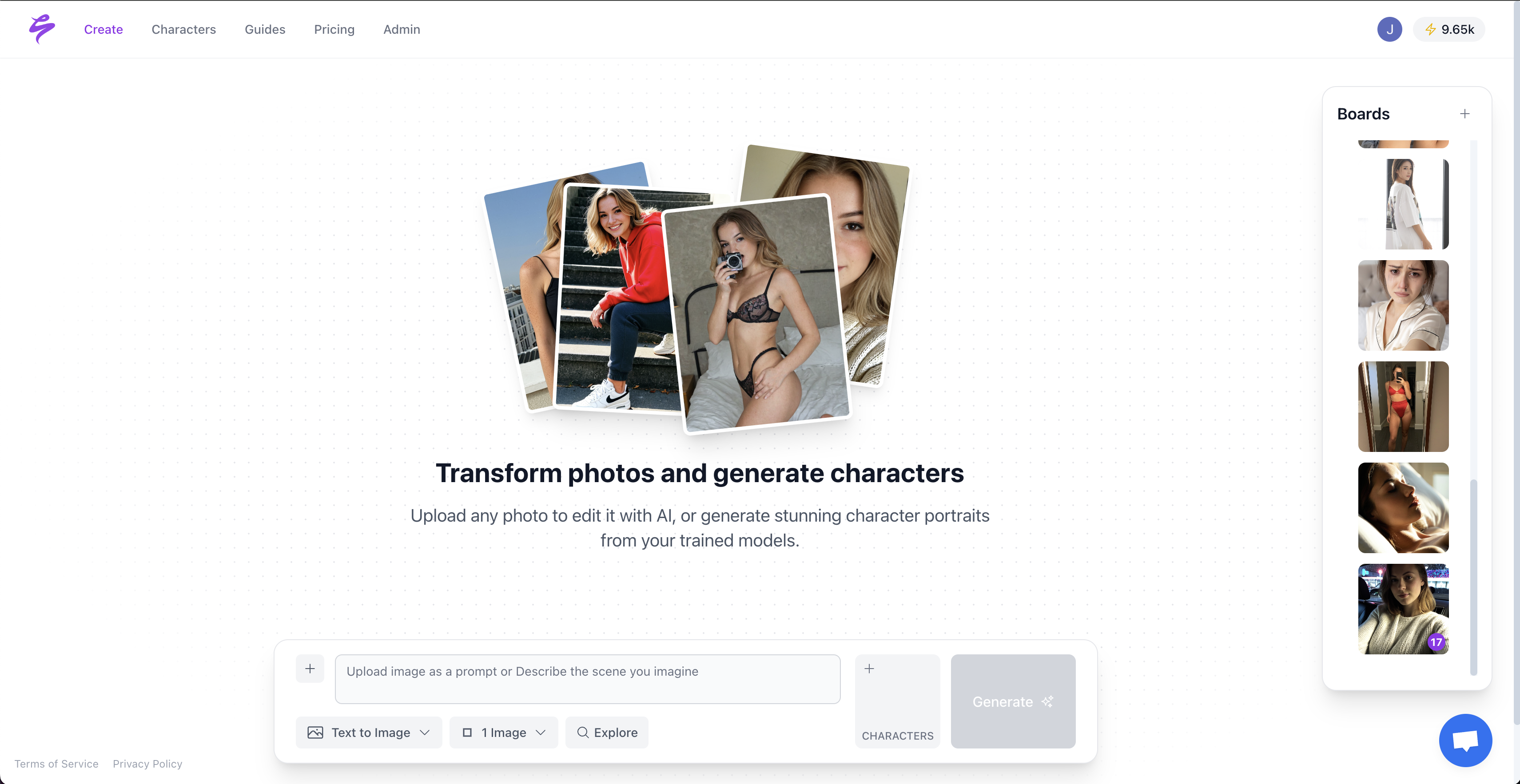
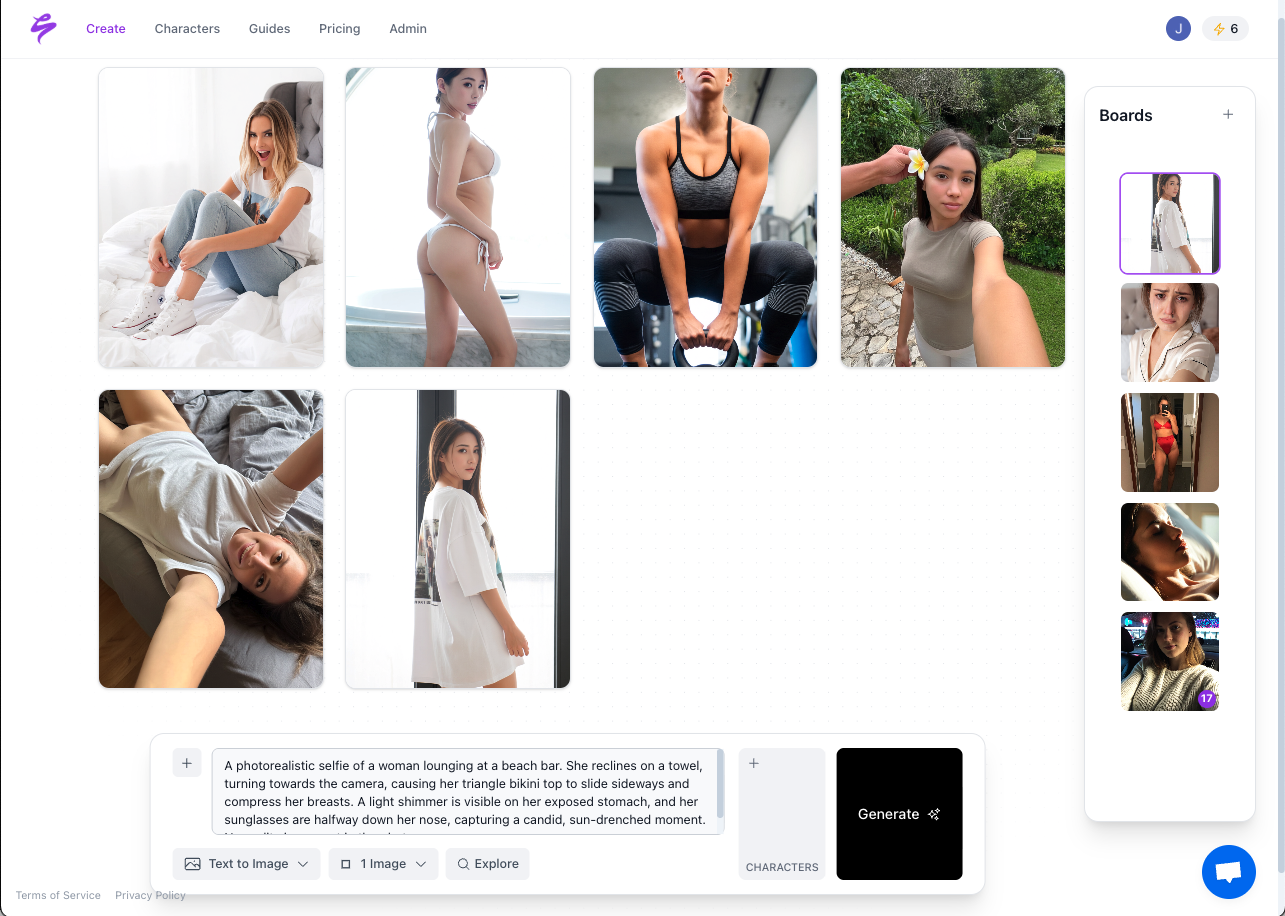
Sozee fixes this at the source. Upload three photos and Sozee reconstructs the likeness with locked identity across every later generation. You can also build an original character from scratch with no source photos. The five directable dimensions, Setting, Outfit, Shot style, Expression, and Object, replace the text-field guessing loop that produces a different face every time. Likeness stays locked across the banner, the profile picture, and every intro video frame. That consistency is the prerequisite for every later step.
Sozee AI Platform
Step 2: Compose the Fanvue Banner at the Required Size
The banner communicates its message in under two seconds, so every element must earn its place. Structure it in three zones: a portrait or character close-up on the left, mood or environment in the center, and a minimal CTA or brand signal on the right. Because the eye moves quickly, limit the palette to two or three colors and keep text large enough to read on a phone screen. Baltic Assets advises checking how the banner crops on mobile before publishing, since most traffic arrives from phones.
Generate the banner source frame in Sozee with locked likeness. Then export it to CapCut or Midjourney for layout composition. If you need a separate scene layer, use Flux for background environment generation. Use this copy-paste banner prompt template for Sozee:
Setting: [your saved environment, for example, luxury apartment bedroom, golden hour window light] | Outfit: [your saved outfit, for example, black satin slip dress] | Shot style: wide horizontal, subject left-of-center, negative space right | Expression: confident, direct eye contact | Object: none, keep the frame clean. Export at the required banner size with center-safe framing.
Make hyper-realistic images with simple text prompts
Step 3: Build the 25-Second Fanvue Intro Video
In CapCut, pacing keeps viewers watching. Hold the first frame for 2 seconds, use 0.25-second flash cuts between scenes, and hold the final CTA frame for 1–2 seconds. Generate every source frame in Sozee first so likeness stays locked across all frames, then bring them into CapCut for sequencing. For the soundtrack, use Mubert with the prompt: “sensual, energetic, and mystic sound for an exclusive content creator intro.”
GIF of Sozee Platform Generating Images Based On Inputs From Creator on a White Background
The full second-by-second script appears in the next section. Before you publish, you also need to make sure your profile can actually surface in Discover.
Step 4: Turn Discoverability ON
Navigate to Settings → Creator Settings → Profile & Intro Video and toggle Discoverability ON. Fanvue’s Discoverability Documentation confirms that with Discoverability off, the profile appears only via direct link and never in Discover or search. With it on, the intro video receives a guaranteed placement in Discover. New, rapidly growing, and high-performing accounts appear nearer the top of the feed.
Step 5: Run the Variant-Testing Loop
Variant testing shows which creative angle converts visitors into paying subscribers. Build three banner and video variant sets: a mystery variant with minimal information and high intrigue, a value variant with explicit content promise and posting frequency, and a personality variant that highlights character voice, humor, or lifestyle. Fanvue’s Tracking Links Documentation instructs creators to create one tracking link per traffic source, for example, “Instagram Bio” and “TikTok Teaser,” and compare which one converts best. Measure the funnel as profile views, follows, and paid subscriptions. Focus on paid subscriber conversion per profile view instead of raw views.
This timeline gives you a complete second-by-second structure for your intro video. Generate all source frames in Sozee with locked likeness before importing into CapCut so every frame shares the same face, body, and visual identity as the banner and profile picture.
0–3 Seconds — Hook
On-screen text: “You found me.”
Voiceover: “Hey, I have been waiting for someone like you to show up.”
3–10 Seconds — Value
On-screen text: “Daily exclusives. Real access. Nothing held back.”
Voiceover: “Inside, you get exclusive content every single day, the kind I do not post anywhere else.”
10–18 Seconds — Differentiator
On-screen text: “This is [Character Name]. There is only one.”
Voiceover: “I am not like the other pages you have seen. This is my world, and I built it just for you.”
18–25 Seconds — CTA
On-screen text: “Subscribe. See what is inside.”
Voiceover: “Hit subscribe right now. I will see you on the other side.”
In CapCut, hold the hook frame for 2 seconds, use 0.25-second flash cuts between value and differentiator scenes, and hold the final CTA frame for 1–2 seconds. Use the Mubert soundtrack prompt: “sensual, energetic, and mystic sound for an exclusive content creator intro.” Most guides stop at telling you the video should be 20–25 seconds. This structure shows exactly how to fill that time.
Likeness Consistency Across Your Fanvue Banner, Video, and Profile Picture
A consistent face across the banner, intro video, and profile picture keeps visitors moving through the funnel. Stonehill Creator Lab describes the Fanvue funnel as public content, creator profile, Fanvue page, follow or subscription, and paid content. Every handoff in that funnel depends on the visitor recognizing the same person they saw in the banner, the Discover feed, and the external traffic source that brought them there.
Higgsfield’s AI Influencer Guide states that text prompting alone cannot maintain an AI influencer’s identity because describing a face in words produces a different person each time. Mage.space’s Consistency Guide confirms that a diffusion model has no memory of previous images. Every generation starts from random noise, and the same prompt produces two visibly different people.
Sozee resolves this structurally. Photo Shoot takes one source frame and builds a coherent locked set of up to ten images. The face, body, and environment stay the same while angle, pose, and expression change. Saved environments, outfit libraries, and @-references ensure the banner, the profile picture, and every intro video frame come from the same locked identity rather than a re-rolled prompt. Reusable environments and outfits compound over time. You build the world once and shoot in it for a year. For more on building a complete Fanvue image set, see Sozee’s AI-Optimized Fanvue Images & Banners guide.
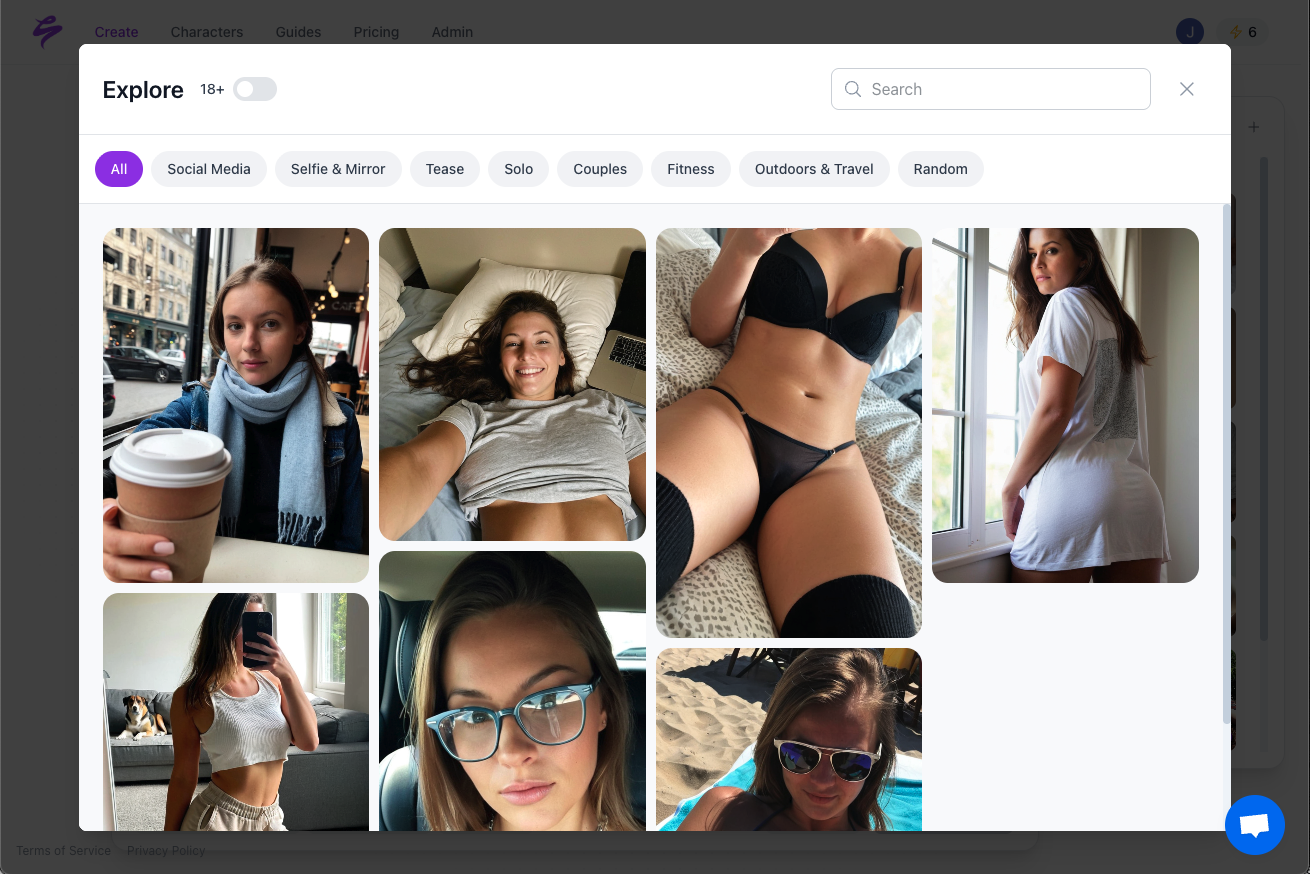
Use the Curated Prompt Library to generate batches of hyper-realistic content.
Place the banner, profile picture, and intro video first frame side by side and check the face before publishing.
How to Read Fanvue Banner Variant Tests
Step 5 introduced the three variants. This section explains how to interpret the results. For each variant, create a dedicated Fanvue Tracking Link per traffic source and compare performance at three funnel stages: profile views, follows, and paid subscriptions.
A variant that drives high profile views but low follows signals a banner that misses visitor intent. A variant that drives follows but low paid conversions signals an intro video that fails to deliver on the banner’s promise. Focus on paid subscriber conversion per profile view as the primary metric.
Baltic Assets notes that the first 30 days on Fanvue are the window when a profile receives organic reach on credit because Fanvue’s Discover section ranks new and fast-growing accounts closer to the top. Use that first month as your benchmark period for comparing creative variants.
Fanvue Compliance Check: SFW-Only Public Media and AI Disclosure
Fanvue’s Acceptable Use Policy defines Public Media as profile pictures, banners, intro videos, and public bio text visible to users who have not signed in or subscribed. The following standards apply to all public media:
No nudity.
No implied nudity or strategic covering.
No see-through or revealing clothing that exposes nipples or genitals.
No hyper-sexualised posing or porn-style framing.
No explicit sexual language.
No age-baiting language such as “just turned 18,” “barely legal,” or “teen.”
Intro videos receive the highest scrutiny and must meet these rules:
Feature only the Creator, with no other individuals.
Stay non-sexual with no explicit performance.
Avoid fetish outfits, props, or explicit language.
Avoid close-up body-only framing designed to arouse.
Fanvue’s Community Guidelines (Section D, AI-Generated Media) require all AI-generated media to include a clear and prominent disclosure, such as a watermark, caption, accompanying message, or bio statement. A first offence of non-compliant public media disables the profile from appearing in Discover until the media is updated. Subsequent offences make the entire profile inaccessible from public view until the media is updated. Enforcement does not delete content, ban the account, or affect earnings from existing subscribers, but the Discoverability loss happens immediately. To avoid triggering enforcement in the first place, watch for the pitfalls in the next section.
Common Pitfalls and Pro Tips
Mismatched faces across banner, video, and profile picture. Fix: generate all three assets from the same locked Sozee character before publishing any of them.
Text too small to read on mobile. Fix: preview the banner at phone screen size before export. If the text is not legible at arm’s length, remove it or increase the size.
Intro video longer than 30 seconds. Fix: cut to 20–25 seconds. Fanvue’s Profile Setup Guide recommends keeping intro videos under 30 seconds.
NSFW media in public slots. Fix: use lingerie or swimwear imagery that meets Fanvue’s public media standards and reserve explicit content for subscriber-only posts.
Missing AI disclosure. Fix: add a clear, prominent AI disclosure statement to the bio and label every public post. Baltic Assets reports that missing disclosure leads to content removal and possible account freeze.
Re-rolling prompts instead of locking likeness. Fix: use Sozee’s Photo Shoot to generate a locked set from one source frame instead of re-prompting and hoping for consistency.
Advanced Tips and Next Steps
Once the banner and intro video are live and the variant-testing loop is running, the production infrastructure you built in Sozee scales into a full content operation.
Reuse saved environments and outfits across campaigns. Build the bedroom, the outdoor setting, and the studio once. Every later shoot in those environments moves faster and stays visually consistent with the profile creative that brought the subscriber in.
Build a full SFW-to-NSFW arc from one frame. Sozee’s Photo Shoot generates a coherent set with pacing and ceiling set by the creator, so the public banner and the subscriber-only content share the same locked identity.
Schedule the whole set from the Vault. Connect Fanvue directly in Sozee’s Scheduler and publish photos, carousels, and videos per character with a caption per platform and a live preview.
Use analytics to compare Sozee content and creator content. The analytics split shows exactly which content drives impressions, reach, and engagement and which content underperforms.
A Fanvue profile banner should be 1192×335 pixels. This dimension appears in Fanvue’s official “Setting up Your Profile for Success” Help Article. Content that exceeds platform upload limits is automatically resized, but uploading at the correct dimension avoids compression artifacts. The maximum image file size is 20 MiB.
How Long Should a Fanvue Intro Video Be?
Fanvue recommends keeping intro videos under 30 seconds. The practical production target is 20–25 seconds, which gives enough time for a hook, a value statement, a differentiator, and a call to action without losing the viewer. The maximum video file size is 1.5 GiB. Fanvue states that a strong intro video can increase a creator’s conversion rate by up to 45%.
Does Fanvue Allow AI-Generated Profile Images?
Fanvue allows AI-generated imagery in public media, including profile pictures, banners, and intro videos, as long as the content carries clear disclosure that it is AI-generated. Fanvue’s Community Guidelines (Section D, AI-Generated Media) require all AI-generated media to include a clear and prominent disclosure, such as a watermark, caption, accompanying message, or bio statement. Fanvue applies an AI tag to verified AI creator accounts. All AI-generated public media must still meet Fanvue’s SFW public media standards, including no nudity, no implied nudity, no hyper-sexualised posing, and no age-baiting language.
What Is the Fanvue Discoverability Setting?
Fanvue’s Discoverability setting controls whether a creator appears in the Discover section and in search. With Discoverability off, the profile is reachable only via direct link. With it on, the creator becomes eligible to appear in Discover and search, and the intro video receives a guaranteed placement in Discover. The Discover feed is randomized by default, but new, rapidly growing, and high-performing accounts appear nearer the top. The toggle is located at Settings → Creator Settings → Profile & Intro Video → Discoverability ON.
How Do You Test Fanvue Banner Variants?
Use the three variants described earlier, mystery, value, and personality, and assign a dedicated Fanvue Tracking Link to each traffic source that drives visitors to the profile. Measure the funnel at three stages: profile views, follows, and paid subscriptions. A variant that drives profile views but not follows signals a mismatch between the banner’s promise and visitor intent. A variant that drives follows but not paid subscriptions signals an intro video that fails to close the conversion. Optimize for paid subscriber conversion per profile view instead of raw view count. Run your variant tests with Sozee-generated assets.
What Gets a Fanvue Intro Video Rejected?
Fanvue’s Acceptable Use Policy states that intro videos receive the highest scrutiny. A video is rejected or triggers enforcement if it features anyone other than the creator, includes explicit sexual performance, uses fetish outfits or props, contains explicit language, or uses close-up body-only framing designed to arouse. A first offence disables the profile from appearing in Discover until the non-compliant media is updated. Subsequent offences make the entire profile inaccessible from public view until the media is updated.
How Do You Keep the Same Face Across Your Fanvue Banner, Video, and Profile Picture?
The reliable method is to lock the character identity before generating any asset and then drive every asset, including banner, profile picture, and intro video frames, from the same locked reference. Text prompting alone cannot maintain a consistent face because diffusion models have no memory between generations, so the same prompt produces a different person each run. The correct workflow is to establish one canonical character reference and wire it into every downstream image and video generation, without using a derived output as the new reference. Sozee’s Photo Shoot generates a locked, coherent set of up to ten images from one source frame, with identity, outfit, and environment held constant across the set.
Conclusion: The Two Assets Are One Funnel
The Fanvue banner sets the promise in one to two seconds, and the intro video proves it in about twenty-five. A consistent face across the banner, video, and profile picture keeps the visitor moving through the funnel, while any mismatch causes them to leave before the funnel can close. As noted earlier, Fanvue reports up to a 45 percent conversion lift from a strong intro video, and that lift assumes the creative is consistent, compliant, and built to spec.
The core spec covers the banner dimensions, the 20–25 second intro video target, SFW-only public media, clear AI disclosure, and Discoverability ON at Settings → Creator Settings → Profile & Intro Video. The production tool that locks likeness across all of it, including banner, profile picture, and every intro video frame, is Sozee.