Learn how to generate realistic AI faces with Sozee’s step-by-step workflow. Get photography-grade, consistent faces in under 30 minutes. Try it free!
The Sozee teamFebruary 22, 202610 min read
Last updated: July 8, 2026
Key Takeaways
Sozee removes the biggest bottleneck in AI content creation by delivering photography-grade, consistent faces from just three reference photos or none in under 30 minutes.
The six-step workflow covers reference capture, base likeness generation, photography-grade prompting, inpainting, video extension, and native scheduling with analytics.
Sozee eliminates LoRA training and external tools by locking character identity at the start and carrying it through every photo, video, and reel clone without retraining.
Photography-grade prompts combined with targeted inpainting and Photo Control produce photorealistic results that avoid plastic skin, asymmetrical features, and other common AI artifacts.
Unlock consistent, revenue-ready content in minutes. Sign up for Sozee today and run your first full session.
Step 1 – Capture or Select Reference Photos That Lock Identity
Three photos give Sozee the minimum input it needs to reconstruct a likeness. When you build an original virtual character, zero photos are required because Sozee can generate a fully consistent persona from scratch.
Pro Tip: Shoot or select reference photos in natural window light. Harsh directional flash flattens skin texture and forces the engine to guess at detail it cannot see.
Common Pitfall: Relying only on front-facing selfies. Without angle variation, the engine has less facial geometry to anchor, which increases drift across later generations.
Expression matters less than clarity. A neutral or relaxed expression gives the engine a clean albedo map to work from. Avoid wide smiles or squinting, which compress facial landmarks and reduce reconstruction accuracy.
Step 2 – Generate the Base Likeness in Sozee’s Likeness Panel
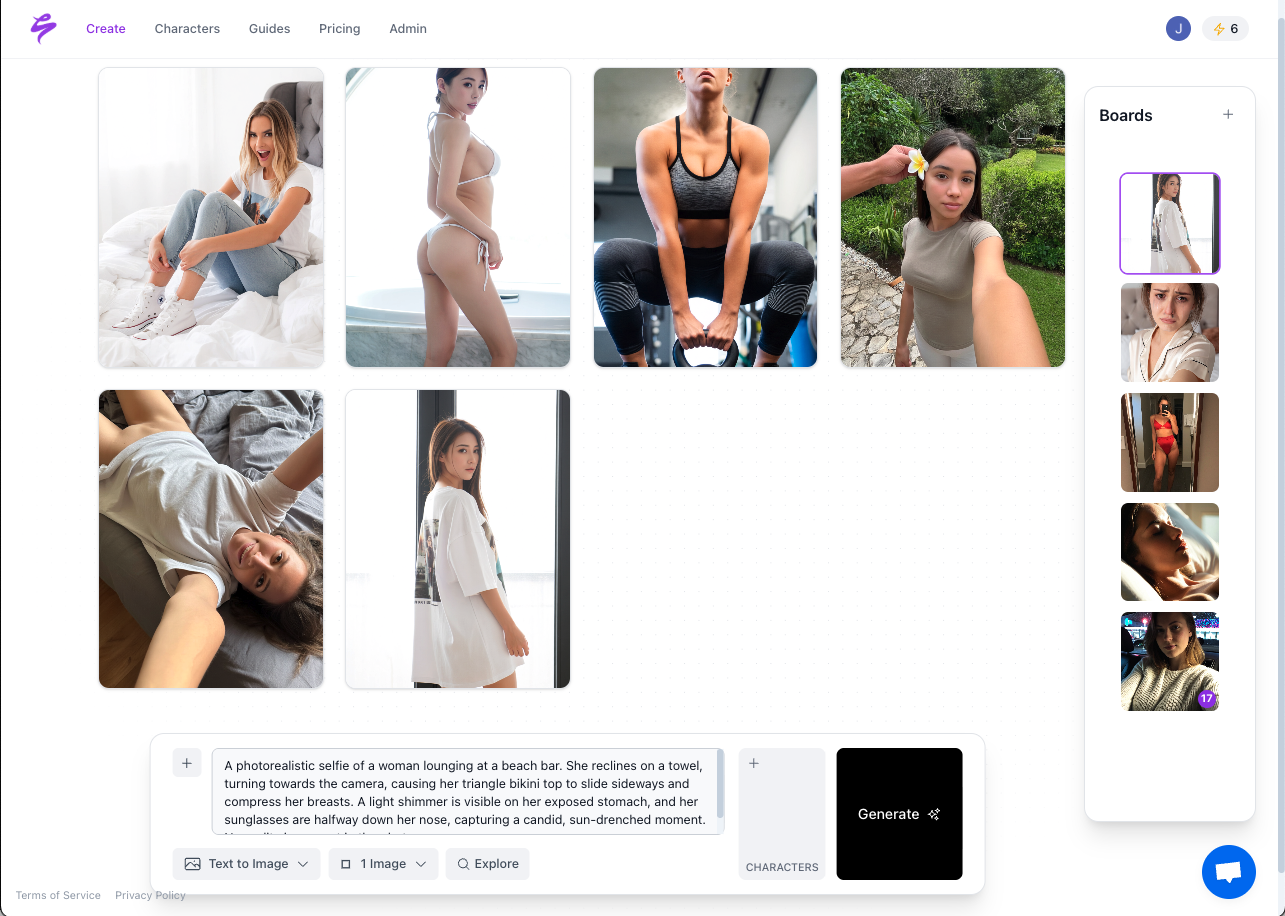
Upload your three reference photos inside Sozee’s likeness panel. The engine reconstructs your face instantly with no training queue, no LoRA setup, and no waiting. The result is a locked identity anchor that travels through every generation in the session.
GIF of Sozee Platform Generating Images Based On Inputs From Creator on a White Background
This stage is where Sozee separates from generic generators. Tools like Flux and Juggernaut produce high-quality images, but they require separate LoRA training on 15–30 images, a process that dominates character-consistency workflows in 2026, before they can hold a face across multiple outputs. Sozee skips that entire process. The locked character travels through photo generation, video generation, and reel cloning without retraining between sessions.
Pro Tip: After generating the base likeness, run three to five quick test generations at different focal lengths before committing to a full content set. This confirms identity stability before you invest prompt time.
Common Pitfall: Accepting the first output without checking eye symmetry and hairline accuracy. Catching drift at the base stage costs seconds. Catching it after 30 generated images costs hours.
Make hyper-realistic images with simple text prompts
Use this positive prompt template for photorealistic portraits:
Editorial portrait, 85mm f/1.4 lens, Sony A7III, natural window light from camera left, warm 5500K color temperature, subtle film grain ISO 800, skin micro-texture with natural pores, slight chromatic aberration at high-contrast edges, gentle vignetting, subject mid-expression turning toward camera, environmental context visible in background, Kodak Portra 400 color science
Step 4 – Fix Artifacts with Photo Control and Inpainting
Strong prompts still leave occasional artifacts such as slight eye asymmetry, drifting hairlines, or stiff hand geometry. Sozee’s Photo Control and inpainting suite correct these issues without a reshoot.
Use Photo Control to direct the exact shot angle, expression, and lighting for the next generation pass. Use inpainting to mask and regenerate only the problem region, such as eyes, hands, or skin texture, while leaving the rest of the frame untouched.
Pro Tip:Apply the Temporary vs. Permanent rule. Remove temporary distractions like stray hairs or redness, but keep permanent character markers like moles, freckles, and laugh lines. These details make a face feel real.
Common Pitfall: Inpainting the entire face to fix one eye. Full-face inpainting risks identity drift, so mask only the specific artifact region.
Step 5 – Turn Your Likeness into Video and Reel Clones
Static images drive engagement, and video drives revenue. Once your base likeness is locked and refined, Sozee extends it directly into motion without switching platforms.
Text-to-video generates new footage from a written prompt using your locked character. Video-to-video transforms an existing clip into on-brand footage in your character’s likeness. Reel cloning takes a proven high-performing TikTok or Instagram reel and recreates it in your character’s face and style, which gives you the fastest path to replicating what already converts.
Pro Tip: Generate reel clones in pairs and A/B test them. Small variations in opening expression or camera movement create measurable differences in watch time and follow rate.
Once you have your full content set, you can turn it into a week of posts in a few clicks. A single Sozee session should produce a minimum of 30 images and 5 videos, which covers a full week of posting at a 5–7 posts per week cadence.
From inside the platform, export content in two formats:
SFW teaser packs for TikTok, Instagram, and X
NSFW gallery sets optimized for OnlyFans, Fansly, and FanVue
Native scheduling lets you queue every post without leaving Sozee, so you avoid juggling multiple platform dashboards. Once you set publish times and assign captions, the platform posts automatically while you rest, travel, or run the next session. This automation creates space for the analytics layer to show exactly which posts drove follows, subscriptions, and pay-per-view sales, so your next session’s content brief is built on performance data rather than guesswork.
Save successful prompt combinations, style bundles, and wardrobe configurations as reusable presets. Each saved preset shortens the next session’s setup time and keeps brand consistency tight across weeks of output.
Multi-character scenes are supported natively. You can lock two separate characters and reference both in a single generation prompt to produce consistent two-person content without identity bleed between subjects.
Sozee’s Copilot AI agent can plan, brief, and execute the entire workflow on your behalf. Brief Copilot with a content theme and posting cadence, and it proposes the ideas, builds the prompt set, and executes the generation plan, which turns a 30-minute manual session into a review-and-approve task.
For agencies managing multiple creator accounts, layer approval flows over the scheduling queue to enforce brand standards before any post goes live. Reel clone A/B testing across accounts reveals which formats convert across different audience segments and builds a reusable playbook for the entire roster.
Frequently Asked Questions
How do I generate a realistic AI face without any reference photos?
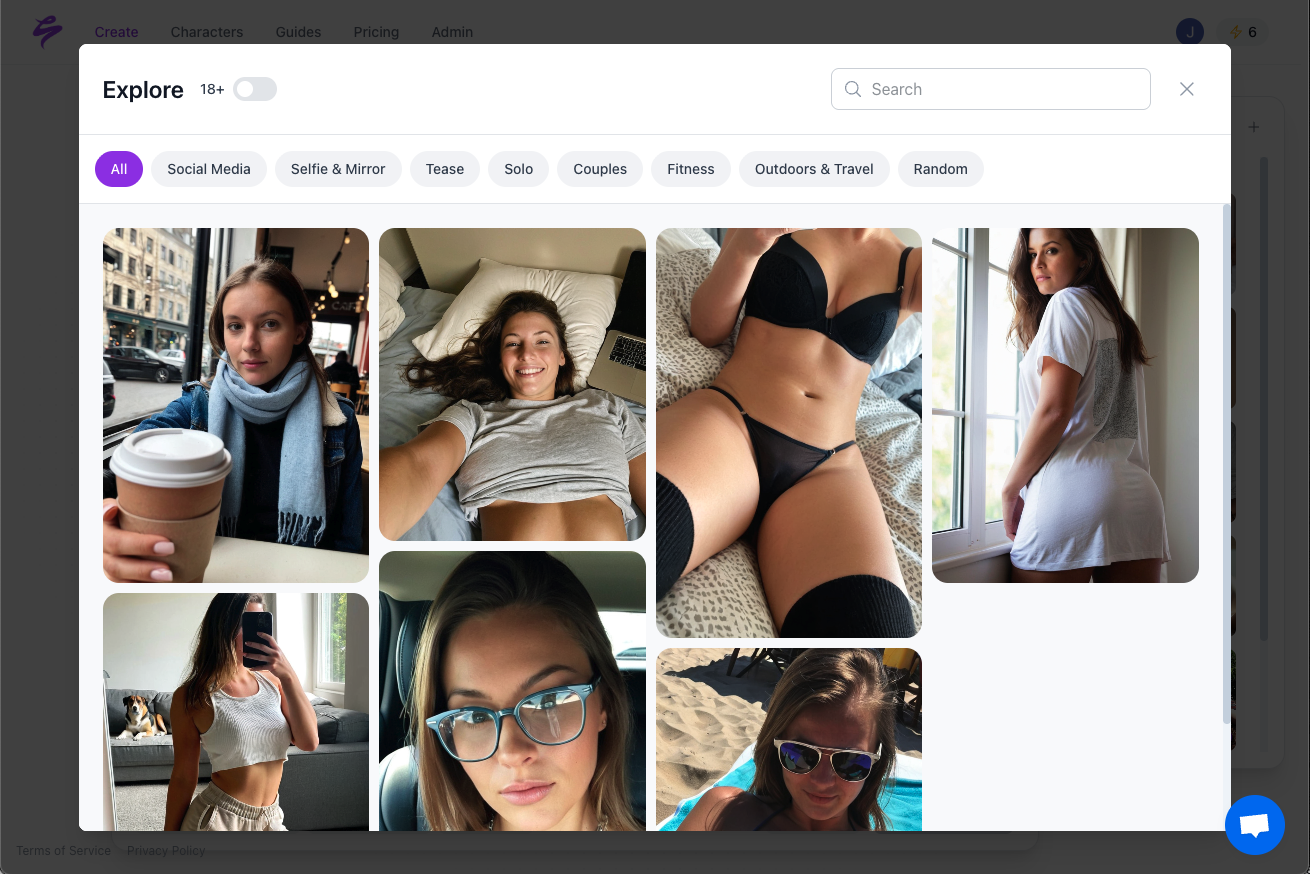
Sozee includes an original character generation mode that builds a fully consistent, photorealistic persona from scratch with no source images required. You define the character through text prompts such as age, ethnicity, hair, expression, and style, and Sozee generates a locked identity that remains consistent across every photo and video in the session. This mode serves virtual influencer builders, anonymous creators, and anyone who wants a brand-new face that has never existed.
Why do AI-generated faces look plastic or fake, and how does Sozee fix it?
The plastic or uncanny valley appearance comes from AI generators defaulting to idealized, poreless skin, perfectly balanced lighting, and technically flawless outputs that no real camera produces. Sozee addresses this through photography-grade prompt engineering that specifies lens type, focal length, film grain, ISO values, and directional lighting. Inpainting tools then preserve natural skin texture and permanent character details like moles and laugh lines rather than smoothing them away, so the final image reads as a real photograph instead of a render.
How do I keep the same face consistent across multiple images and videos?
Sozee locks your character’s identity at the point of upload or generation and carries that anchor through every photo, video, and reel clone in the session without retraining between outputs. Sozee’s instant likeness engine anchors identity from minimal input and maintains it across weeks of content without additional setup.
What is the best negative prompt to remove the AI look from generated faces?
The most effective negative prompt for photorealistic portraits targets plastic skin, asymmetrical features, and anatomy errors at the same time. A reliable starting point is: low quality, worst quality, blurry, distorted face, asymmetrical face, deformed eyes, uncanny valley, plastic skin, waxy skin, airbrushed, poreless skin, extra fingers, deformed hands, bad anatomy, cartoon, anime, 3D render, CGI, flat lighting, overprocessed. Weight your highest-priority terms between 1.3 and 1.4 rather than applying uniform high weights, which can introduce new artifacts. Save this as a reusable preset inside Sozee so it applies automatically to every generation in a session.
Can Sozee produce content for both SFW and NSFW platforms from the same session?
Yes. Sozee supports a full SFW-to-NSFW pipeline from a single session. SFW teaser packs are formatted for TikTok, Instagram, and X, while NSFW gallery sets are optimized for OnlyFans, Fansly, and FanVue. Both export types use the same locked character, so the face, style, and brand identity remain consistent across every platform in the funnel. Native scheduling handles publish timing for each platform independently from inside Sozee.